Sign PDF on Phone Free: iPhone and Android, Step by Step
How to sign a PDF on your phone for free: Markup on iPhone, a free app on Android, what to check before installing one, and why online signers are the risky option.
You can sign a PDF on your phone for free without printing anything. On an iPhone, the Files app has a built-in Markup tool with a Signature option, so you need no app at all. Android has no built-in PDF signer: the Google Drive viewer offers basic drawing on some devices, and otherwise you install a free signing app and do it on the phone itself. Avoid "free online PDF signer" websites for anything private, because they upload your document to a server. Below: the exact taps for both phones, what to check in a free app, and how to make the signature look like it belongs on the page.
Sign pdf on phone free on iPhone
Everything you need is already installed. Markup works on any PDF you can open in Files, Mail or Safari.
- Save the PDF to the Files app (from Mail, tap the attachment, then the share icon, then Save to Files). If it is already in iCloud Drive or On My iPhone, skip this.
- Open the PDF in Files and tap the Markup icon (the pen tip in a circle, top right).
- Tap the plus button in the toolbar and choose Signature.
- The first time, tap Add or Remove Signature, sign with your finger on the white strip, then tap Done. The signature is saved for every future document.
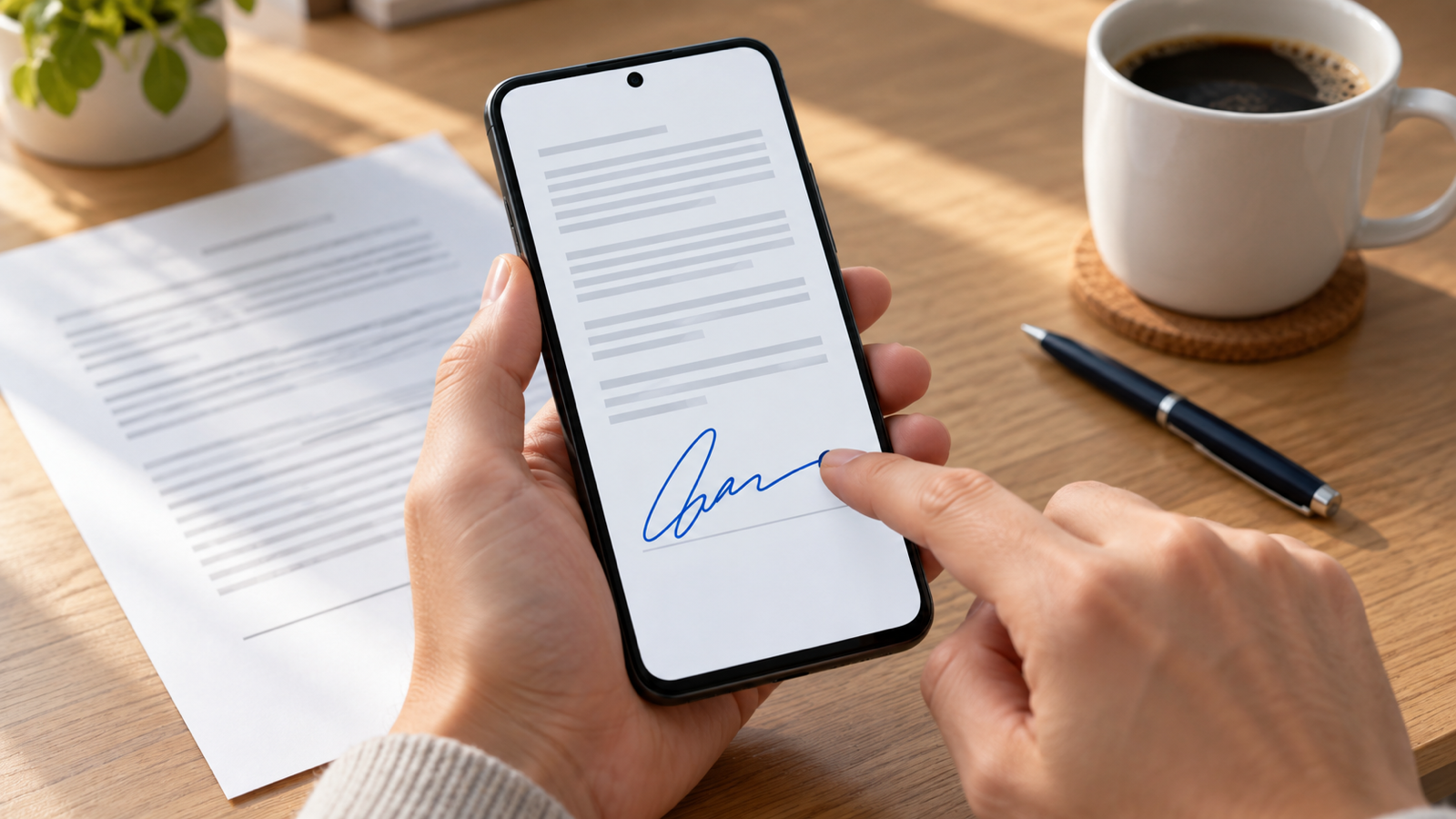
- Your signature appears on the page. Drag it onto the line, pinch to resize, then tap Done.
Markup saves straight into the same file, so share the PDF from Files when you are finished. If you want to keep an unsigned copy, duplicate the file first (long-press it, then Duplicate). The same plus button adds a date and text boxes.
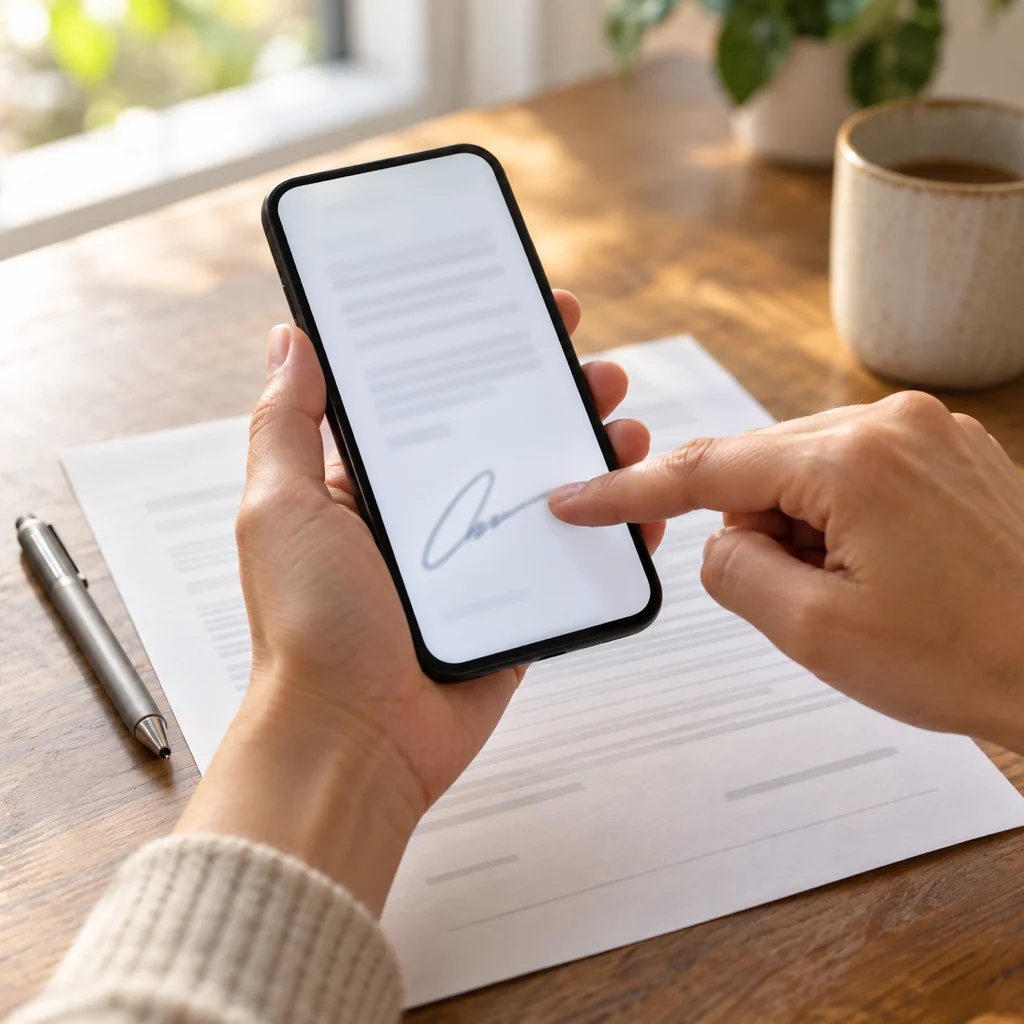
Sign pdf on android phone free
Android ships without a PDF signer. On some phones the Google Drive PDF viewer shows a pen icon that lets you draw freehand on the page, which works for a one-off signature but cannot save your signature, resize it cleanly or add a date. For anything you will do more than once, a free signing app is faster. The steps are the same in nearly all of them:
- Install a free PDF signing app from Google Play (see the checklist in the next section) and open it.
- Tap Open or the plus button and pick the PDF from Downloads, Drive or your email attachments.
- Create your signature once: draw it with your finger, type it in a handwriting font, or photograph your signature on paper. Save it.
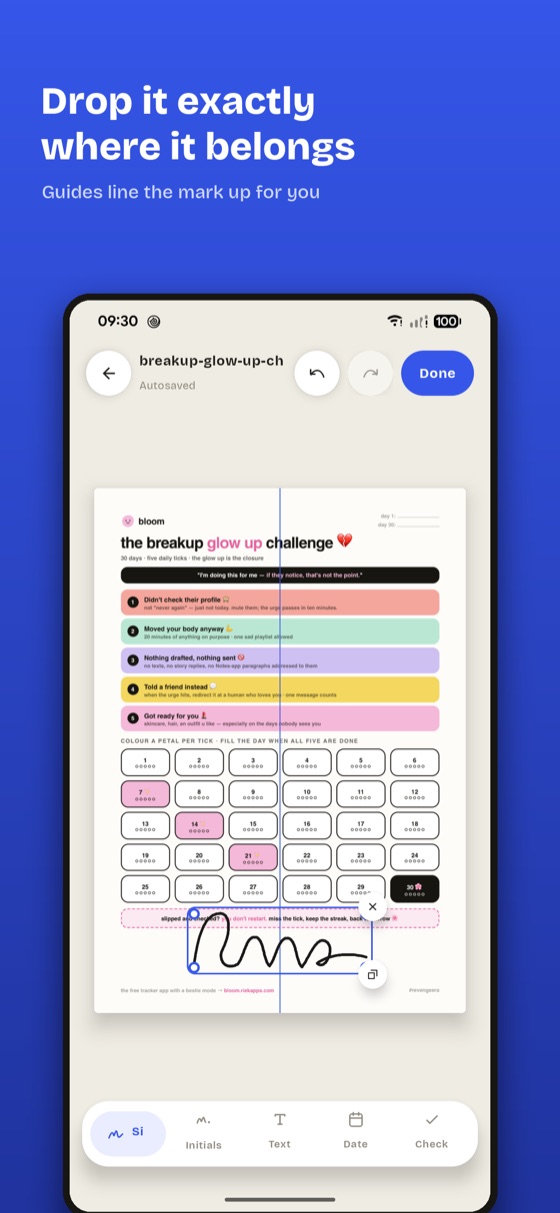
- Tap the signature to drop it on the page, drag it onto the line, pinch to size it. Add a date or a tick where the form asks for one.
- Tap Export or Save. You get a new signed PDF; the original stays untouched.
- Share it from the app or from your Files app by email, WhatsApp or Drive.
One option is Quicksign, our own Android signer. It opens, stamps and exports the PDF entirely on the phone, with no account and no upload, and the free plan includes every tool with no watermark: the limit is five signed documents a month, one saved signature and one set of initials. Quicksign Pro removes those limits for a single payment rather than a subscription. It is Android only; iPhone users should stick with Markup.
If you want a comparison of Drive, Adobe and dedicated apps, read how to sign a PDF on Android. For Word files, scans and DocuSign links on Android, see how to sign documents on Android.
Free app to sign pdf on phone: what to check
"Free" on an app store covers everything from genuinely free to a seven-day trial that bills you on day eight. Before you sign anything, check five things:
- No watermark on the export. Several free tiers stamp "Signed with X" across the page. Export a test document before the real one.
- Works offline. Switch on flight mode and try to open and export a PDF. If it fails, the app is sending your file to a server.
- Saves your signature. Drawing it fresh each time is slow and inconsistent. One saved signature is enough for most people.
- No account to sign a document. An email sign-up to sign a lease is a data grab, not a feature.
- Clear free limits. A fixed number of documents a month, written in plain words, is honest. "Free trial" with a subscription attached is not the same thing.
Also check export quality: some apps flatten the PDF into a low-resolution image and small print turns fuzzy. A good signer keeps the document's own resolution.
Sign pdf online free vs in an app
Online signers (search results full of "sign PDF online free") run in the browser and are convenient when you are on someone else's computer. On a phone they are the worse choice for three reasons:
- Your document leaves the phone. The PDF is uploaded, processed on their server, and downloaded again. For a contract with your address, salary or passport details, that is a copy you do not control, held under a retention policy you probably have not read.
- The free version is usually a hook. Download limits, watermarks and "upgrade to remove" prompts are common.
- Phone browsers handle it badly. Placing a signature precisely inside a web page on a small screen is fiddly.
Markup on iPhone and an offline app on Android both keep the file on the device. If a website is your only option, prefer one that states it deletes files within an hour, and never upload identity documents.
How to make the signature look real
- Sign big, then shrink. Draw your signature across the whole capture area with slow, deliberate strokes. A small drawing enlarged looks shaky; a large one reduced looks smooth.
- Or photograph the real thing. If the finger version looks nothing like your pen signature, photograph it on white paper in good light and let the app cut away the background.
- Size it to the line. A signature should sit on the signature line and be roughly the height of two lines of the document's text. Oversized signatures scream "pasted".
- Place it on the line, not floating above it. Let the bottom of the letters touch or slightly cross the line, as ink would.
- Keep the colour dark. Black or dark blue, and the date in the same colour.
How to send the signed pdf
Once exported, the signed PDF is an ordinary file, so send it however the other side asked:
- Email: on iPhone, share from Files to Mail; on Android, share from the signing app or from the Files or Downloads app to Gmail. Reply to the original thread so it stays with the request.
- WhatsApp or Telegram: use the share sheet and pick the chat; PDFs go as documents, uncompressed.
- Upload portals: open the portal in the browser, tap the upload button and choose the file from Files (iPhone) or the file picker (Android).
If a portal rejects the file for size, our guide to compressing a PDF on mobile shows how to get under the limit without blurring the text. Keep a copy of the signed version; you will be asked for it again.
Common questions
Can I sign a PDF on my phone without an app?
On iPhone, yes: Files, Markup, Signature. On Android, only if your Google Drive viewer shows a drawing tool, and that does not save your signature for next time.
Is signing a PDF on a phone free?
Yes. Markup is free on every iPhone, and free Android signing apps exist with no watermark. You only pay if you want unlimited documents or team features.
Does a finger-drawn signature count as a real signature?
For most everyday agreements an image of your signature is accepted, but it carries no identity verification or audit trail. Where the law or the other party requires a certified e-signature, they will send you a DocuSign-style link instead.
Why does my signature look pixelated?
You drew it small and the app enlarged it, or the app exported a low-resolution image. Redraw it larger in an app that keeps the original resolution.
Can I sign a password-protected PDF on my phone?
Markup needs you to unlock the file first. Some Android apps, including Quicksign, ask for the password, sign a working copy and leave your original untouched.
The short version
iPhone: open the PDF in Files, tap Markup, tap plus, choose Signature, drag it onto the line, Done. Android: install a free offline signer, draw your signature once, place it, export, share. Check that the free app leaves no watermark, works in flight mode and saves your signature. Skip online signers for anything private, sign large and shrink to fit, and send the exported file from your email app or the share sheet.
From the studio
Previous Article
Is AirDrop Discontinued? No, and Here Is Where the Rumour Came From
Next Article
Is Android File Transfer Discontinued? Yes: What Happened and What to Use Now