How to Sign a PDF on Android Without Printing (Free)
Three ways to sign a PDF on an Android phone — no printer, no scanner, no account. What works, what watermarks your document, and how to keep it private.
A lease, a school form, a contract from a client — sooner or later a PDF lands in your inbox with a polite request to "sign and return". The old answer was print, sign, scan, email. If you're reading this on your phone, you can skip all four steps: everything you need to sign a PDF is already in your hand.
Here are three ways to do it on Android, from quickest to most thorough, plus the pitfalls that catch people out — watermarks, uploads to servers you've never heard of, and signatures pasted at the wrong size.
Option 1: Google Drive's built-in markup
If the PDF is already in Google Drive, open it, tap the pen icon, and you can scribble on the document directly. For a quick initial in the corner of a delivery note, this is fine.
The limitations show up fast, though. Drive's annotation is freehand drawing on top of the page — there's no way to save a signature and reuse it, no way to type into form fields, and precisely placing a small signature on a printed line with a fingertip is an exercise in patience. The export also re-processes the document, which can soften text on scanned pages.
Option 2: Adobe and the big PDF suites
Adobe Acrobat Reader, Xodo and similar apps all support "Fill & Sign". They're capable tools, but for the sign-one-document-a-month person there are two recurring complaints:
- Accounts and upsells. Most of the big suites push you to create an account before you can export, and gate basic features behind a subscription designed for office workflows you'll never use.
- Cloud processing. Some features quietly upload your document for server-side processing. For a meme, who cares — for a contract with your salary or your passport number on it, it matters.
Option 3: a dedicated on-device signing app
This is the gap we built Quicksign to fill: an Android app that does one job — get a real signature onto a PDF or a photographed document — and does it entirely on your phone.
The flow takes under a minute:
- Open the document. A PDF from any app, or a photo of a paper form. Password-protected PDFs open too, and the password is never stored.
- Create your signature once. Draw it with your finger, type it, or photograph the signature you already use on paper. It's saved for every future document.
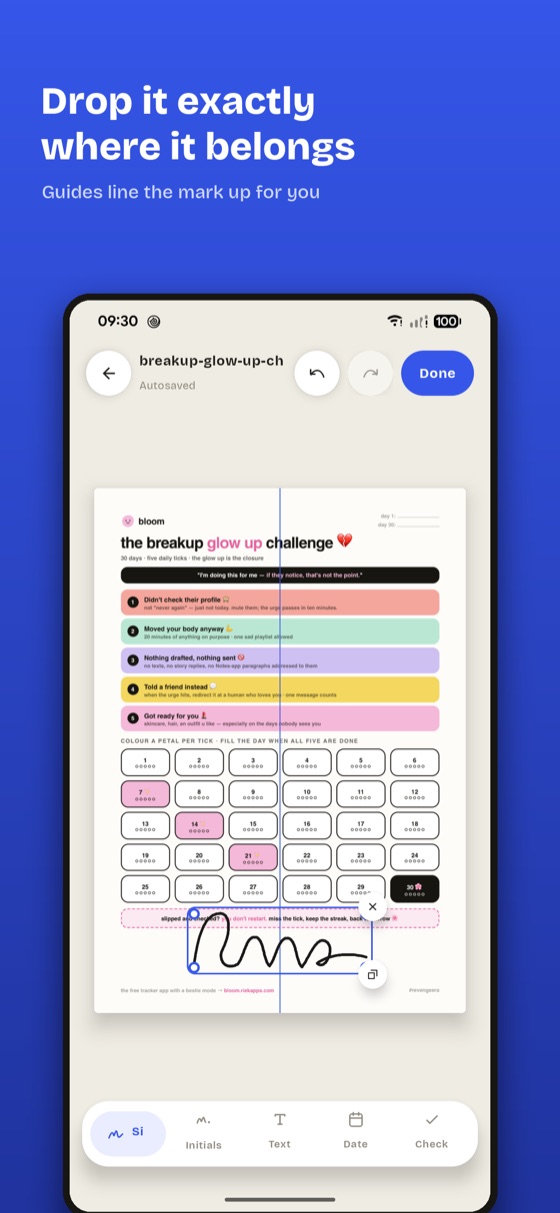
- Place it exactly. Drag, pinch and rotate the signature onto the line, with alignment guides so it sits straight. Add a date, a tick mark, or text into any form field.
- Export. The signed file exports at the document's own resolution — no quality loss, no watermark, no account — and goes back out through whatever app you like.
Because everything happens on-device, the document never leaves your phone. That's not a premium feature; it's the whole design.
Is a drawn signature actually valid?
In most jurisdictions, yes for everyday documents. Electronic signature laws such as the US ESIGN Act and the EU's eIDAS regulation recognise simple electronic signatures — an image of your signature placed with intent to sign — for the great majority of agreements: leases, invoices, permission slips, freelance contracts. Certain documents (wills, some property deeds, notarised paperwork) still require wet ink or a qualified digital signature, so check the requirements when the stakes are high.
Three mistakes to avoid
- Sending a screenshot instead of a PDF. A screenshot flattens the document at your screen's resolution, so fine print turns to mush. Export a proper PDF at the original resolution.
- Using a free tool that watermarks. Nothing says "please take my contract seriously" like SIGNED WITH TRIALWARE stamped across it. Check the export before you hit send.
- Uploading sensitive documents to random web converters. "Free online PDF signer" sites process your file on their servers, and their retention policies are somewhere between vague and absent. Keep identity documents and contracts on your device.
The short version
For a one-off scribble, Google Drive markup will do. For regular signing without accounts, subscriptions or uploads, a small on-device tool is the right shape — that's Quicksign on Google Play. Draw your signature once, and the next "please sign and return" email costs you sixty seconds.
From the studio
Previous Article
How Accurate Is a GPS Speedometer? (And Why Your Car Reads High)
Next Article
How to Free Up Disk Space on a Mac (What's Actually Safe to Delete)