How to Scan Documents on Android (Free, as a PDF)
How to scan documents on Android for free and save them as a PDF: a scanner app, Google Drive, the Samsung camera, plus tips for sharp pages and small files.
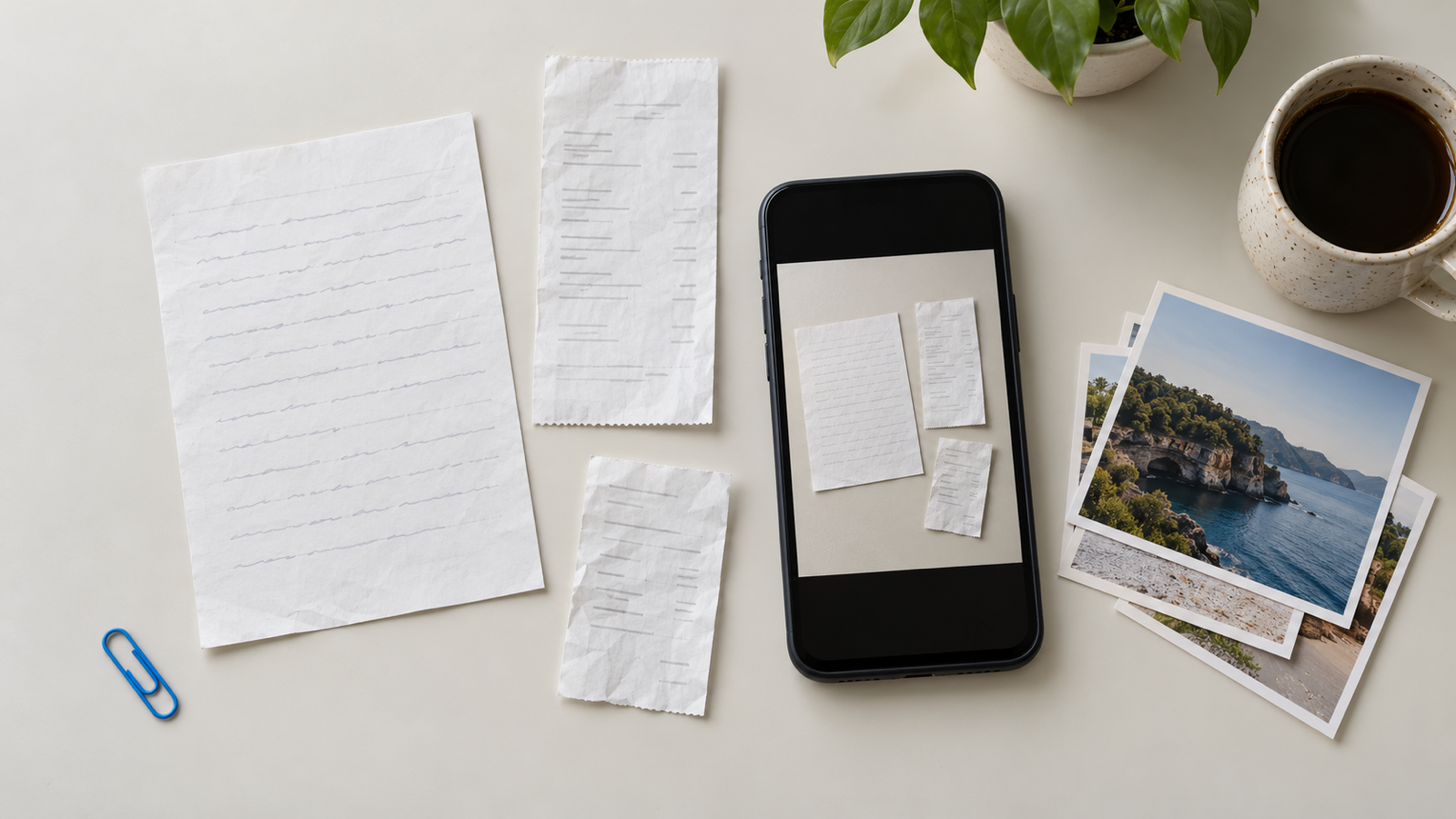
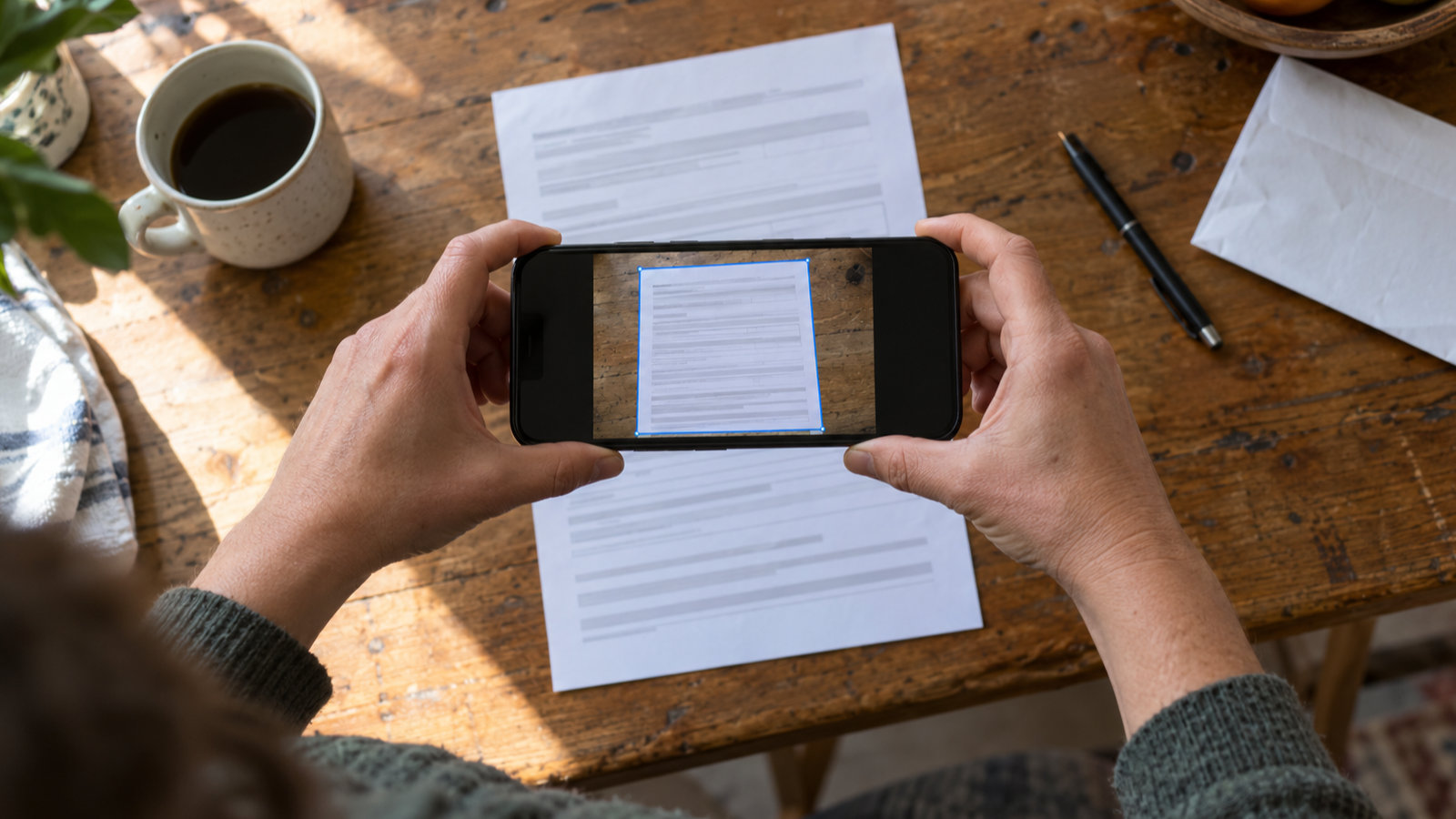
To scan documents on Android, open a scanner app such as PDF Maker or Google Drive, point the camera at the page, let it find the edges and straighten the page, then save every page as one PDF. On a Samsung Galaxy the built-in Camera can scan too. You don't need a printer or a paid app: Android phones from the last several years do edge detection and perspective correction on the device, for free. Below are three free ways, how to get a page that looks scanned rather than photographed, and how to send it by email at the right size.
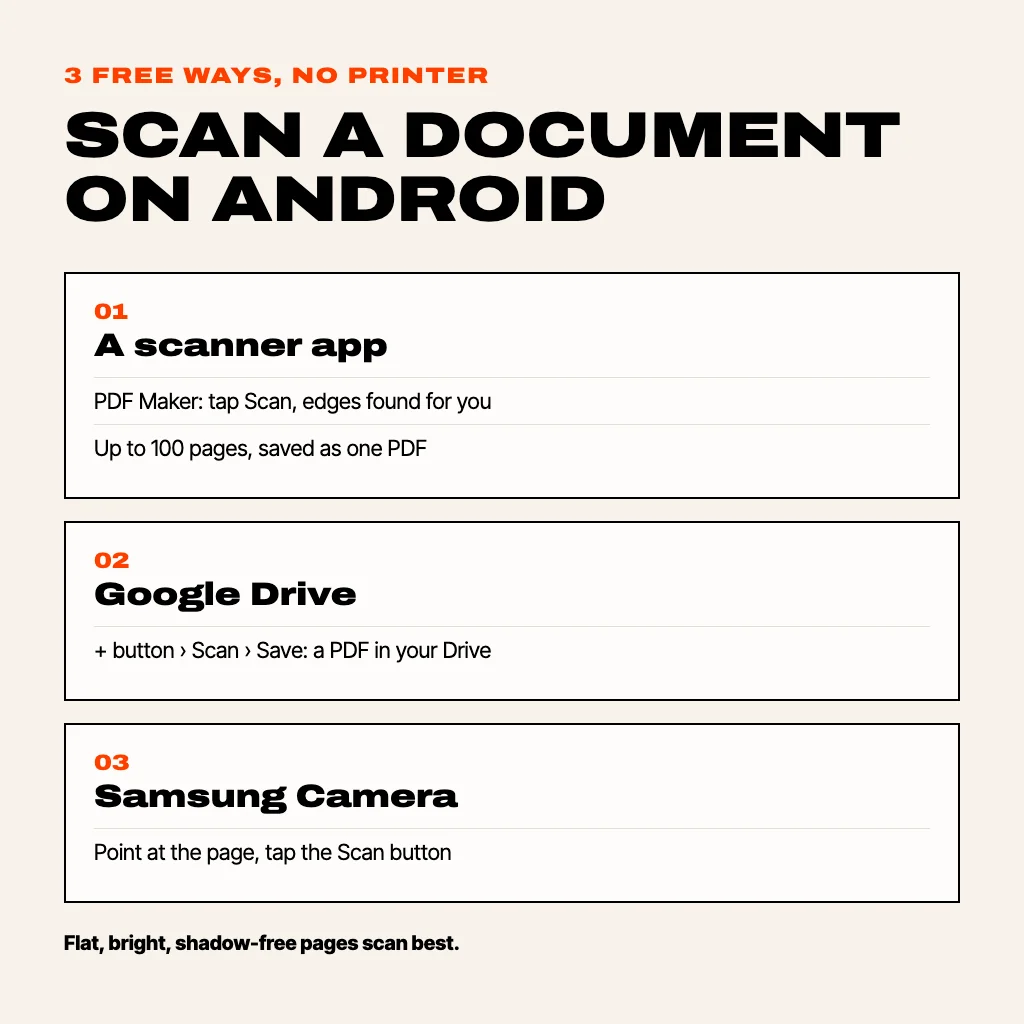
1. Scan documents with a free scanner app (any Android phone)
This works on any Android phone with Google Play services. We'll use PDF Maker because it's ours, scanning in it is free and unlimited, and there's no watermark or account. The scanner is Google's ML Kit document scanner, so the edge detection, cropping and cleanup all happen on your phone.
- Install PDF Maker from Google Play and tap Scan on the home screen.
- Hold the phone above the page. The scanner outlines the paper and captures it on its own once the outline is steady, or you can tap the shutter yourself.
- Fix the corners if the outline missed one, rotate the page if needed, then pick a filter: colour, greyscale or a crisper black-and-white look for text.
- Tap + to scan the next page. One scan can hold up to 100 pages.
- Tap Done. The pages land in the editor, where you can reorder, rotate or crop them, then create the PDF and choose a size: best quality, balanced, or a preset limit such as under 200 KB or under 1 MB.
- Save it to Downloads or share it straight to Gmail, WhatsApp or Drive.
Already took photos of the pages? Use Image to PDF instead of Scan; it takes up to 100 photos from the gallery. There's a full walkthrough in how to make a PDF of photos in mobile.
2. Scan with Google Drive
Google Drive comes installed on most Android phones and has a scanner built in:
- Open Drive and tap the + (New) button.
- Tap Scan and allow camera access.
- Capture the page, adjust the crop, and add more pages if you need them.
- Tap Save, name the file and pick a folder. Drive saves a PDF in your Drive.
The catch is that the scan goes to the cloud, not to your phone. To email it you share a Drive link or download a copy first, and you have no control over the file size. That's fine for personal records, less so for an upload form with a 500 KB limit.
3. Scan with the Samsung camera (Galaxy phones)
On Galaxy phones the Camera app recognises documents by itself:
- Open Camera in Photo mode and point it at the page.
- When a frame appears around the document, tap the Scan button that pops up.
- Adjust the corners and tap Save.
If no Scan button appears, open the camera's Settings and turn on Scene optimiser and document scanning (the exact wording varies by One UI version). Samsung saves each scan as an image in Gallery, one page per file, so for a multi-page PDF you still need to combine them. Samsung Notes can also scan: create a note, tap the attach or insert icon and choose Scan, then export the note as a PDF.
Which way should you use?
- Several pages into one PDF you send today: a scanner app, because the PDF is on your phone and you set its size.
- Records you want backed up: Google Drive.
- A quick single page on a Galaxy: the Samsung Camera.
How to scan documents on Android and save as PDF
Drive and scanner apps save a PDF directly. If you scanned with the camera and ended up with JPGs, open them in PDF Maker with Image to PDF, put them in order and create one file. If you already have several PDFs, for example the front and back of an ID scanned separately, combine them with the steps in how to merge PDF files on Android.
How to scan a document and send it by email
Email attachments usually top out at 20 to 25 MB, and many job portals, visa forms and college applications cap uploads at 100 KB to 2 MB. A colour scan of five pages at full quality can easily pass 5 MB. Pick a size when you create the PDF (under 1 MB is a safe default for email, the 100 KB or 200 KB presets for strict portals), then share it to Gmail from the result screen. If the PDF is already made and too big, our guide on how to compress a PDF in mobile covers shrinking it afterwards.
Tips for a scan that looks scanned, not photographed
- Light from the side or above, never behind you. Your own shadow on the page is the most common flaw, and it's the hardest to clean up.
- Dark surface, light paper. White paper on a white table makes the edges hard to find. A wooden table or a dark folder works much better.
- Flatten it. Fold lines and curled pages bend the text. Press a book's spine flat or hold the corners down.
- Hold the phone parallel to the page. The scanner corrects some tilt, but the closer you start to straight-on, the sharper the corners stay.
- Use black-and-white for text. It reads better and makes a much smaller file. Keep colour for photos, stamps and signatures that need to show as blue ink.
- Wipe the lens. A fingerprint smear makes everything look soft.
Common questions
Can you scan documents on Android without an app?
Yes, if your phone has Google Drive (its built-in Scan) or is a Samsung Galaxy (the camera's Scan button). Both come preinstalled, so nothing new to download. A separate scanner app is only needed if you want the PDF on your phone with a size limit.
Is there a free scanner on Android?
Yes. Google Drive's scanner is free, and in PDF Maker scanning, Image to PDF, merging and the preset size limits are free with no watermark. Only extras such as a typed-in exact size or password protection are Pro.
How do I scan multiple pages into one PDF on Android?
In a scanner app, keep tapping + after each page before you tap Done; PDF Maker takes up to 100 pages in one scan and lets you reorder them before creating the PDF. Drive also adds pages to one scan.
Where do scanned documents go on Android?
Drive scans go to your Google Drive. Samsung camera scans go to Gallery as images. PDF Maker keeps the PDF in the app and saves a copy to your Downloads folder when you tap Save.
Can I scan a document on an Android tablet?
Yes, the same apps work on tablets. A tablet is larger to hold steady, so rest your elbows on the table and let the scanner capture the page automatically.
Is a phone scan good enough for official documents?
For most uploads and emails, yes: a flat, evenly lit, straightened page is what portals expect. If an office asks for a scan at a specific DPI or a certified copy, check their rules; a phone can't certify anything.