How to Make PDF of Photos in Mobile (Multiple Photos, One PDF)
Turn several photos from your gallery into one PDF on an Android phone: the built-in print trick, Google Drive scan, and an app that sets the file size.
To make a PDF of photos in mobile, select the photos in a photo-to-PDF app (or your gallery's Print option), put them in order, and save as PDF. On Android the built-in route is Gallery or Google Photos → Print → Save as PDF, which works for a single photo. For several photos in one PDF, in a set order and at a size a form will accept, a dedicated app is quicker and gives a far smaller file.
Method 1: the built-in Print → Save as PDF trick
Every Android phone can "print" to a PDF file:
- Open the photo in Google Photos or your phone's Gallery.
- Tap the three-dot menu and choose Print (on some phones it sits under Share).
- At the top, change the printer to Save as PDF.
- Tap the PDF button and choose where to save it.
The catch: it is one photo at a time on most phones, you cannot reorder pages, and the result is often huge because the photo goes in at full camera resolution. A 12-megapixel shot can produce a 4 to 6 MB single-page PDF, which no upload form will take.
Method 2: Google Drive's scanner
If the "photos" are really pictures of paper, Google Drive's scan button (the camera icon, or + → Scan) photographs pages one after another and saves them as a single PDF. It straightens pages and is free. It only works from the camera, though, so photos already in your gallery cannot be added, and you get no control over the final file size.
Method 3: a photo-to-PDF app (multiple photos, any order)
This is what PDF Maker was built for. Everything runs on the phone, with no account and no watermark:
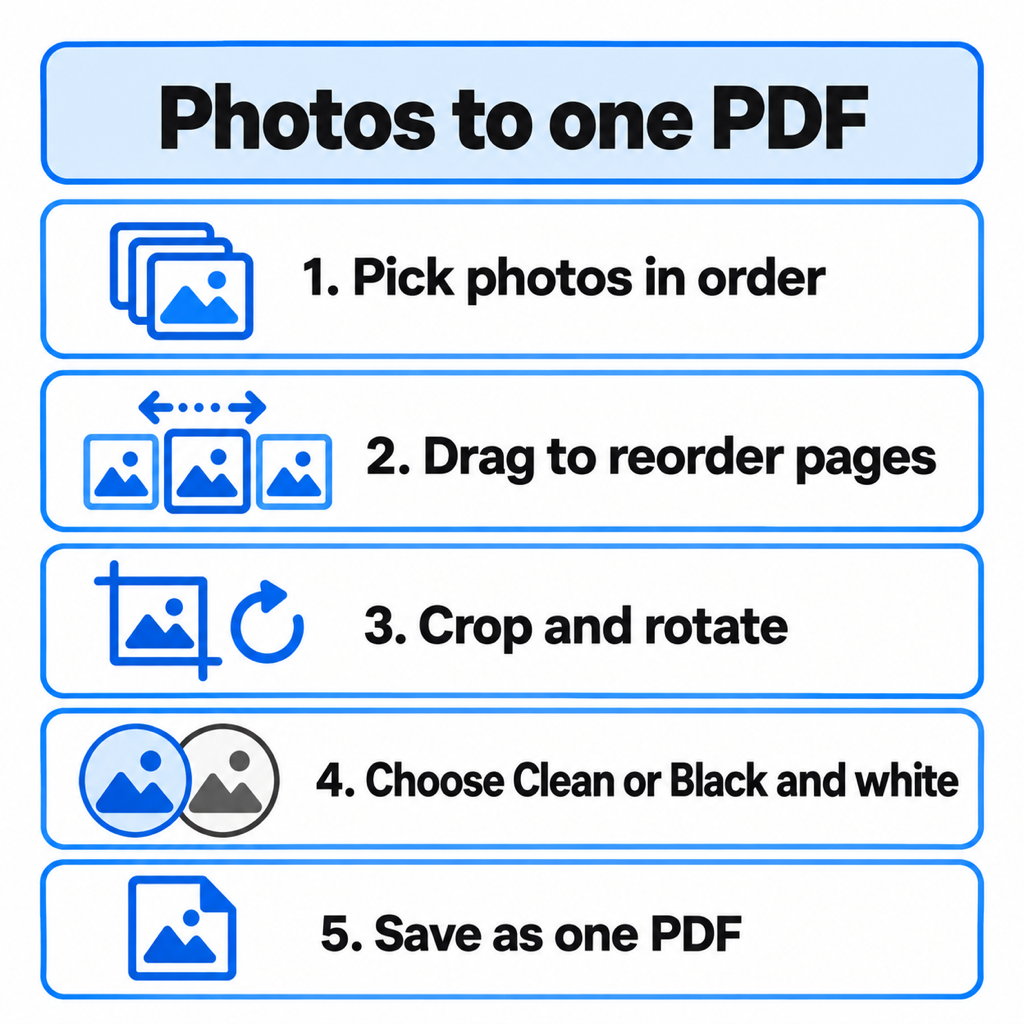
- Tap Image to PDF and select your photos from the gallery, up to 100 at a time. Prefer the camera? Scan finds the page edges, straightens them and captures several pages in a row.
- Put the pages in order. Long-press a page and drag it. Order matters more than people expect: a marksheet's back page ahead of its front gets forms rejected.
- Crop, rotate or delete any page from its card.
- Choose a look. Original keeps the photo as it is. Clean lifts the whites and boosts contrast so a photographed page reads like a scan. B&W is the sharpest and smallest option for printed text.
- Pick the size and save. Best quality and Balanced are free. If a form demands a limit, choose under 200 KB, 500 KB, 1 MB, 2 MB or 5 MB, or type your own, and the app builds the PDF to land just under it.
Page shape is a setting: Fit the photo makes each page match its picture edge to edge, while A4 pages places every photo on a standard sheet, which is what most printers and offices expect.
Which method should you use?
- One photo, size does not matter: Print → Save as PDF.
- Paper documents, straight from the camera: Google Drive scan or PDF Maker's Scan.
- Several gallery photos in one PDF, or a size limit to meet: a photo-to-PDF app. Setting the size at creation is better than making a huge PDF and compressing it afterwards, because the photos are only compressed once.
Tips for a PDF that looks like a scan, not a photo
- Shoot from straight above in daylight, with no flash. Flash leaves a white glare spot that no filter can recover.
- Use a dark, plain surface under white paper so the edge detection has a clear boundary.
- Fill the frame with the page. Background is wasted bytes, and on a strict limit it costs you sharpness.
- Check the order before saving. Re-ordering after the PDF exists means another trip through an editor.
Common questions
How do I convert multiple photos into one PDF on Android?
Use a photo-to-PDF app: select all the photos at once, drag them into order and save. The built-in Print → Save as PDF option usually handles one photo at a time.
How do I make a PDF of photos in WhatsApp?
WhatsApp cannot make PDFs. Save the photos from the chat to your gallery, combine them with a photo-to-PDF app, then send the PDF back through WhatsApp as a Document, which keeps the file unchanged.
Why is my photo PDF so big?
Phone photos are 3 to 8 MB each at full resolution, and a basic converter puts them in unchanged. Choose a target size (such as under 1 MB) when creating the PDF, or use the B&W look for text pages.
Can I make a PDF of photos without an app?
Yes, for a single photo: open it, tap Print and choose Save as PDF. For several photos, Google Drive's scanner or a website will do it, but the website uploads your photos to its server.
The short version
One photo: Print → Save as PDF. Several photos, in order, at a size a form will accept: PDF Maker on Android does it in one pass on the phone. Already have several PDFs to join? See how to merge PDF files on Android.
From the studio
Previous Article
How to Compress PDF in Mobile (Android, Free)
Next Article
How to Merge PDF Files on Android (Free, No Upload)