How to Fill Out a PDF on Android (Free, Fillable or Not)
How to fill out a PDF on Android for free: type into fillable forms in Drive or Chrome, and add text, dates, ticks and a signature to flat PDFs and scans.
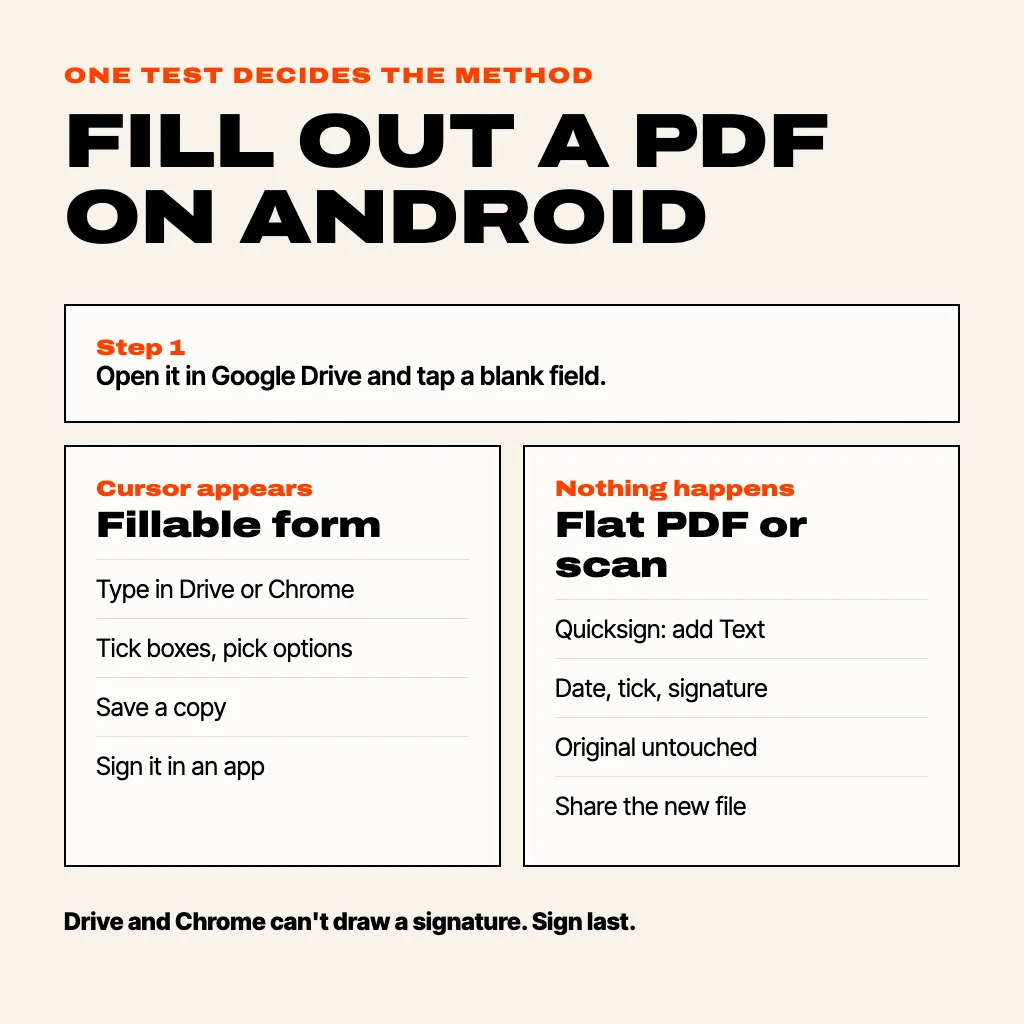
To fill out a PDF on Android, first check whether it's a fillable form: open it in Google Drive and tap a blank field. If a cursor appears, type your answers there and save a copy. If nothing happens, the PDF is flat (a printed form saved as a PDF, or a scan), so you need an app that places text on top of the page, such as Quicksign, where you tap where each answer goes and add text, dates, ticks and your signature. Both ways are free. Below are the steps for each, how to tell the two kinds apart, and how to send the finished form.
Fillable PDF or flat PDF? How to tell
A fillable PDF (sometimes called an interactive or AcroForm PDF) has real form fields built in: text boxes, checkboxes and dropdowns that a PDF reader recognises. Government forms, tax forms and many HR forms are made this way. A flat PDF only looks like a form. The lines and boxes are part of the printed page, so a reader has nowhere to put your typing. Forms exported from Word, anything scanned and most rental or school forms are flat.
The quick test: open the PDF in Google Drive or the Files app and tap inside a blank box. A cursor or keyboard means fillable. No reaction means flat. Fillable fields often show a light blue or grey tint, too.
1. How to fill out a fillable PDF form on Android (Google Drive)
- Open the PDF from Gmail, Downloads or Drive with Google Drive (or the Drive PDF viewer that opens when you tap a PDF in the Files app).
- Tap the edit (pencil) icon, or tap straight into the first field. On some versions you'll see a Fill out form option.
- Type your answers. Tap checkboxes to tick them and dropdowns to pick an option.
- Tap Save or Save as a copy, then share the saved file.
Chrome on Android can also type into fillable fields: open the PDF, fill it in, then use Share or Print to save a copy as a PDF. The downside of both is signing. Neither Drive nor Chrome lets you draw a signature into a form, so if the form ends with "Signature", you still need the next method for that last line.
2. How to fill out a flat PDF or a scanned form (Quicksign)
For a flat PDF you place each answer on the page yourself. We'll use Quicksign because it's ours, it runs on the phone without uploading the document, there's no account and it never adds a watermark. It also works on photos of paper forms.
- Install Quicksign from Google Play, tap Choose a file and pick the PDF, or a photo of the form. A password-protected PDF asks for its password and opens normally.
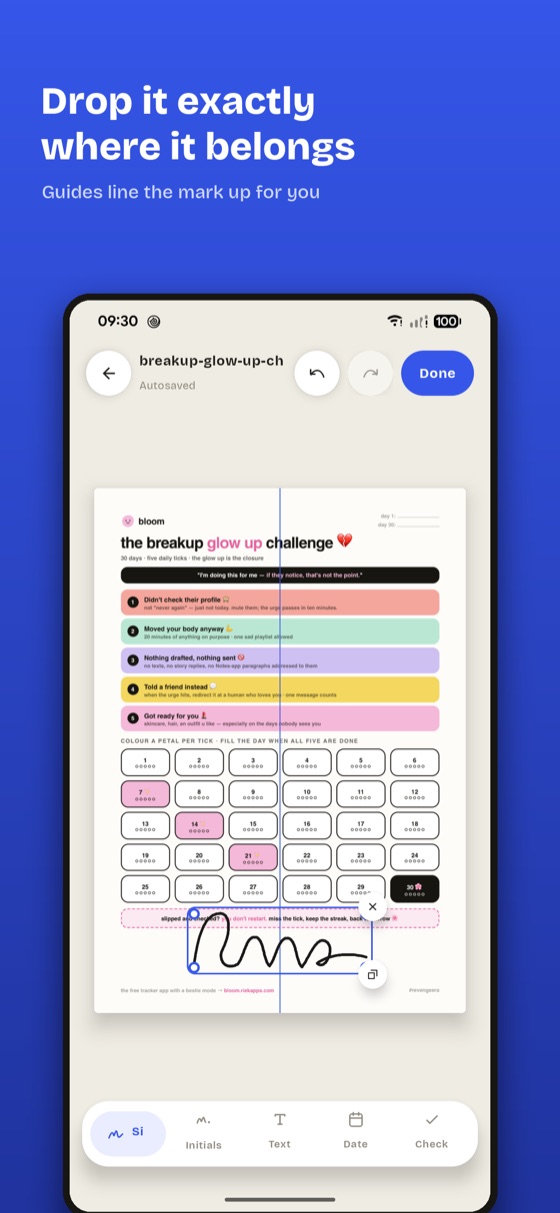
- Tap Text, type the answer and drag it onto the line it belongs to. Pinch to make it the size of the form's own print. Add the next answer the same way.
- Tap Date for date lines. Pick how it is written: as your phone writes it, day first (26/10/2026), month first (10/26/2026), with the month named, or year first. That matters on forms that say "DD/MM/YYYY".
- Tap Check for boxes. Choose a tick, a cross, a dot (for printed radio buttons) or a filled box, whichever the form asks for.
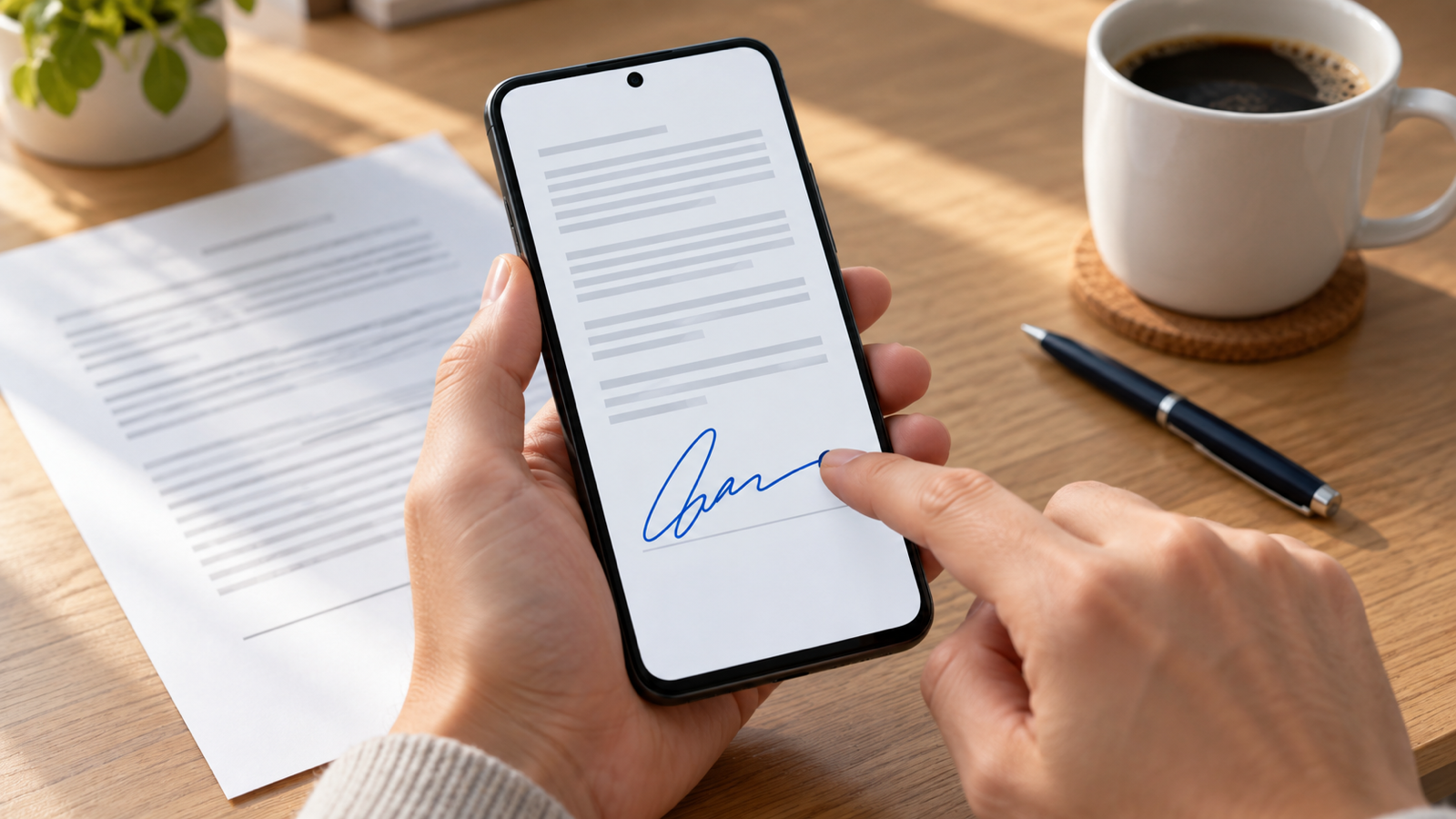
- Tap Signature or Initials, draw them once, and place them on the line. They're saved for the next form.
- Tap Done. Quicksign writes a new file and leaves the original untouched. Share it as a PDF or, for a photo, as a signed image.
The free plan includes every tool, with no watermark, and covers 5 finished documents a month, one saved signature and one set of initials. A one-time Pro purchase removes the monthly limit. For the signing step alone, see how to sign a PDF on Android.
Tips so the filled form looks right
- Zoom in to place text. Pinch the page to 200% or more before you drop an answer onto a line, so it sits on the line rather than across it.
- Match the form's size. Text that is twice the size of the printed labels looks pasted on. Resize the first answer to match, then keep the rest the same size.
- Use the form's date order. A US form wants month first, most of Europe and India want day first. Wrong order is the commonest reason a form bounces.
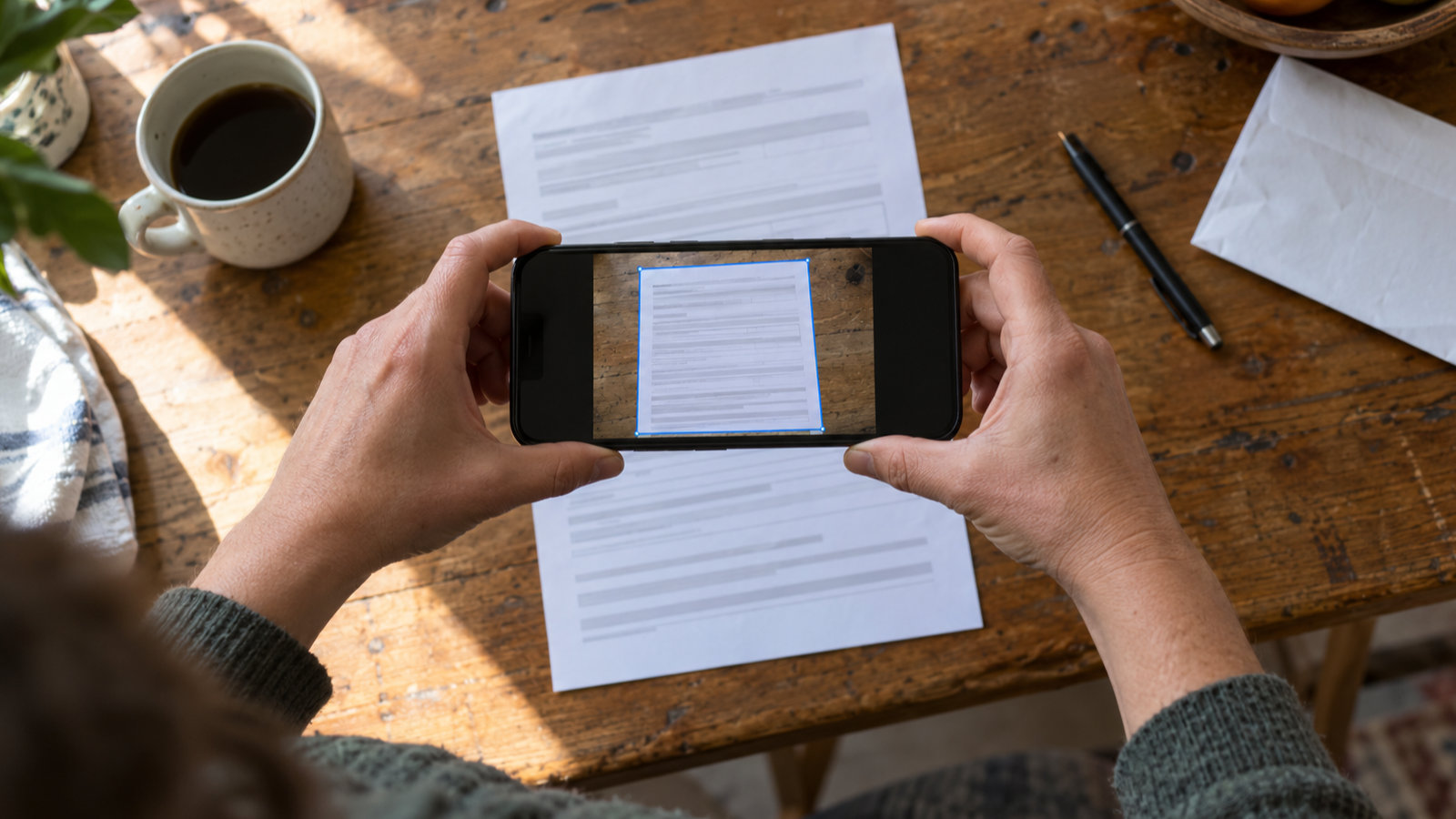
- Fill a scan straight. If you're starting from paper, scan it flat rather than photographing it at an angle: our guide to how to scan documents on Android covers getting a straight, shadow-free page.
- Check page two. Multi-page forms often hide a second signature or date at the end.
How to send the filled-out PDF
From Drive, share the saved copy as a file, not a link, unless the recipient asked for a link. From Quicksign, tap Share signed copy and pick Gmail, WhatsApp or Drive. If an upload portal rejects the file as too large, compress it first; our PDF Maker app has free presets such as under 200 KB and under 1 MB.
Common questions
How do I fill out a PDF on my Android phone for free?
For fillable forms, use Google Drive or Chrome, which are free and already on most phones. For flat PDFs and scans, use a free app that adds text on top of the page; Quicksign's free plan has every tool with no watermark.
Why can't I type in a PDF on Android?
Because the PDF is flat: its boxes are part of the printed page, not form fields. Use an app that lets you add a text box on top of the page instead.
Can I fill out a PDF on a Samsung phone?
Yes. Samsung phones open PDFs in Google Drive or Samsung's own viewer, which handle fillable fields. Samsung Notes can also import a PDF and let you write on it with a finger or S Pen. For typed answers on a flat form, use a fill-and-sign app.
Can I fill out a PDF form and sign it on Android?
Yes, but Drive and Chrome can't draw a signature. Fill the fields there, save, then open the saved copy in a signing app, or do the whole form in a fill-and-sign app from the start.
Does filling a PDF on Android change the original file?
Drive asks whether to save over it or save a copy. Quicksign always writes a new file and keeps the original untouched.
Is a form filled on my phone accepted?
Most employers, landlords and schools accept a typed PDF with a drawn signature. Some government and banking forms require a specific e-signature service or a wet signature, so check the form's instructions.
From the studio
Previous Article
How to Scan Documents on Android (Free, as a PDF)
Next Article
Christmas Games for Couples: 15 to Play at Home, Online or After Dark