How to Sign Documents on Android Phone (Free): PDF, Word and Paper
How to sign documents on an Android phone for free: PDFs, Word files, e-signature links and paper forms you scan. Samsung steps included, no printer needed.
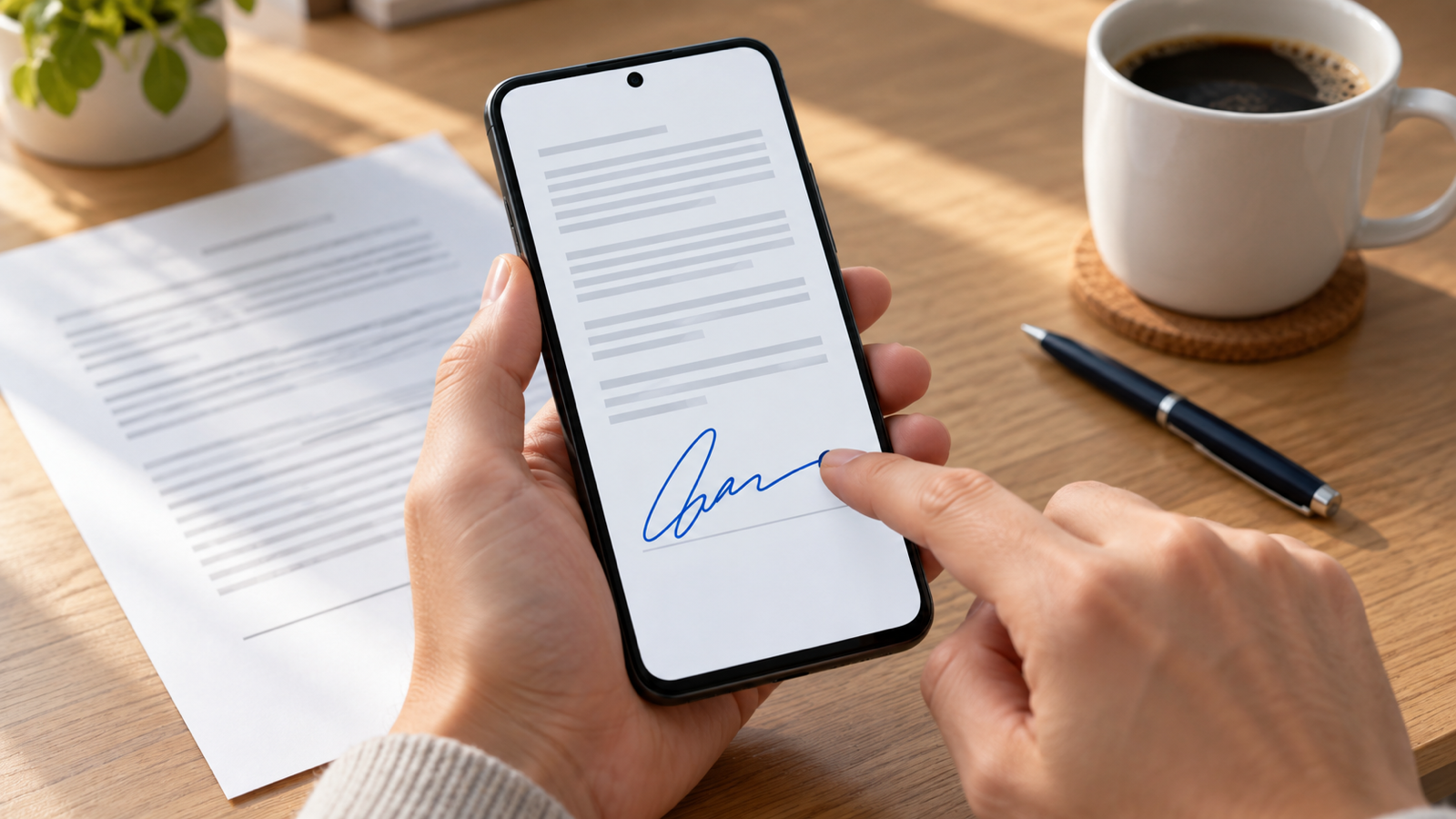
Someone sends you a document to “sign and send back”, and you’re holding an Android phone. You don’t need a printer or a scanner. How you sign documents on Android depends on what kind of document it is, so start by working out which of these four you have:
- A PDF attached to an email or chat.
- A Word document (.docx).
- A link from DocuSign, Adobe Sign, Dropbox Sign or similar.
- A paper form in front of you.
1. How to sign PDF documents on Android
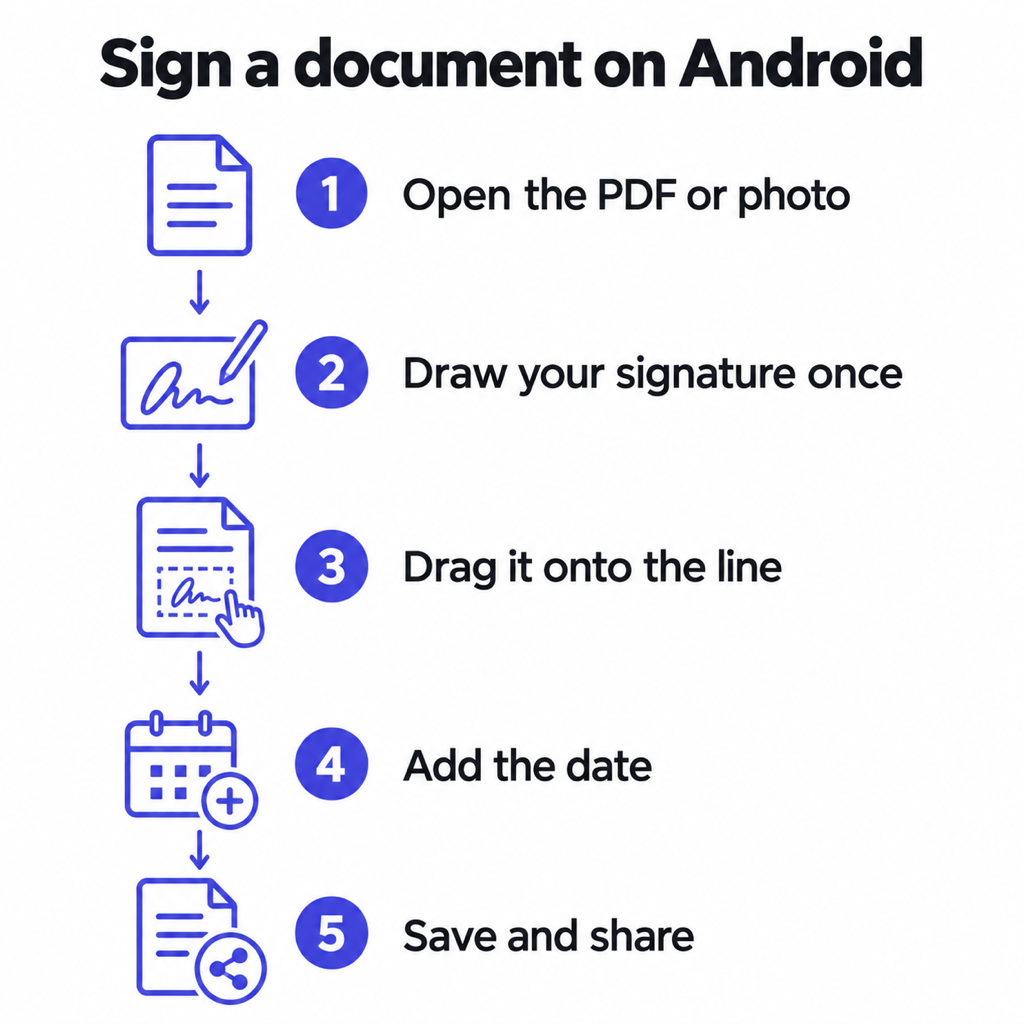
Most documents you’re asked to sign arrive as PDFs. The quickest free route is a signing app that works offline:
- Install Quicksign (free on Google Play) and open the PDF from your email, WhatsApp or Files app with it.
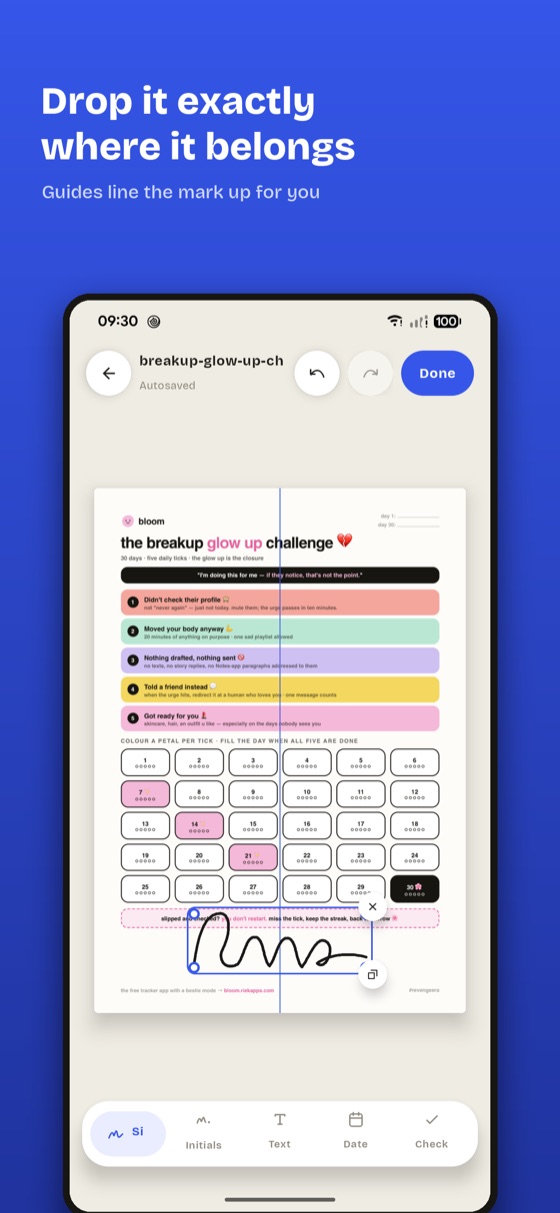
- Draw your signature once with your finger. You can also type it or take a photo of one on paper. It’s saved for next time.
- Drag it onto the signature line, then pinch to resize and rotate it until it sits on the line.
- Add a date, your printed name or tick marks where the form asks for them.
- Export and share the signed PDF straight back to the sender.
Everything happens on the phone. The document isn’t uploaded anywhere, there’s no account and no watermark, and the export keeps the document at its own resolution. That matters for contracts and ID documents you’d rather not send to a stranger’s server. Password-protected PDFs open too, and the password isn’t stored.
Other free options: Adobe Acrobat Reader has a Fill & Sign tool (it asks you to sign in to Adobe), and the Google Drive PDF viewer can draw on a PDF with its annotation pen. For a closer comparison of the three, see how to sign a PDF on Android.
2. How to sign Word documents on Android
You can’t sign a .docx directly in most signing apps, so turn it into a PDF first:
- Open the document in the Microsoft Word app or Google Docs.
- Export it as a PDF. In Word, use the file menu and save or print it as PDF. In Google Docs, use Share & export, then Save as, and choose PDF.
- Sign the PDF as in section 1, and send the PDF back.
Most people asking for a signature actually want a signed PDF anyway, because a Word file can be changed after you’ve signed it. If they need the .docx back, the Word app’s Draw tab lets you ink a signature onto the page, but it’s fiddly with a finger.
3. How to sign documents electronically on Android (DocuSign links)
If the email says “Review and sign” with a button, you don’t need to download anything:
- Tap the link. It opens the document in your phone’s browser.
- Follow the yellow or orange tags. They take you to each place that needs a signature, initials or a date.
- Choose a signature style or draw your own, tap Finish, and the sender gets the signed copy automatically.
These services store the document and record who signed when, which is why businesses use them. You never have to install their app to sign.
4. How to scan and sign documents on Android
For a paper form, photograph it first, then sign the photo:
- Scan the page. Google Drive has a built-in scanner (the + button, then Scan), and so do most Samsung phones in the camera.
- Open the scan in a signing app. Quicksign signs photographed documents as well as PDFs, so you can place your signature, a date and ticks on the image.
- Export it as a PDF and send it.
Take the photo flat and in daylight, so the result looks like a document and not a picture of one.
How to sign documents on an Android phone (Samsung)
On a Galaxy phone, everything above works the same way. Samsung also gives you Samsung Notes: import the PDF, write on it with your finger or S Pen, and share it back as a PDF. With an S Pen the signature looks noticeably more like your real one.
Is a signature drawn on a phone legally valid?
In most countries, including the US, the UK, the EU and India, an electronic signature is legally recognised for everyday agreements such as rental contracts, school forms and freelance work. Some documents, such as wills and certain property deeds, still need a wet-ink signature or a witness. If you’re unsure, ask whoever sent it; they’ll know what they accept.
Common questions
How do I sign documents on my Android phone for free?
For a PDF, use a free signing app such as Quicksign: open the file, draw your signature, place it and export. For an e-signature link, just open it in the browser. Neither costs anything.
What are the best apps to sign documents on Android?
Quicksign if you want it offline with no account or watermark, Adobe Acrobat Reader if you already use Adobe, and the Google Drive PDF viewer for a quick signature with nothing to install. For DocuSign requests, the browser is all you need.
Can I sign a document on Android without printing it?
Yes. Every method on this page works without a printer or scanner: sign the PDF or photo on the phone, then send the signed file back.
The short version
Turn the document into a PDF or a photo, then sign it with your finger in a signing app such as Quicksign, and send it back. DocuSign-style links sign in the browser, and on Samsung you can also use Samsung Notes.
From the studio
Previous Article
Rubik’s Cube Algorithms 3x3: The Beginner Solution Formula Sheet
Next Article
Party Games for Adults on Phone: The Best Mobile Party Games for Adults (18+)