How to Change Keyboard on Android (and Back to Normal)
How to change keyboard on Android: set a new default on Pixel and Samsung, switch while typing, change back to normal, and change language, theme and size.
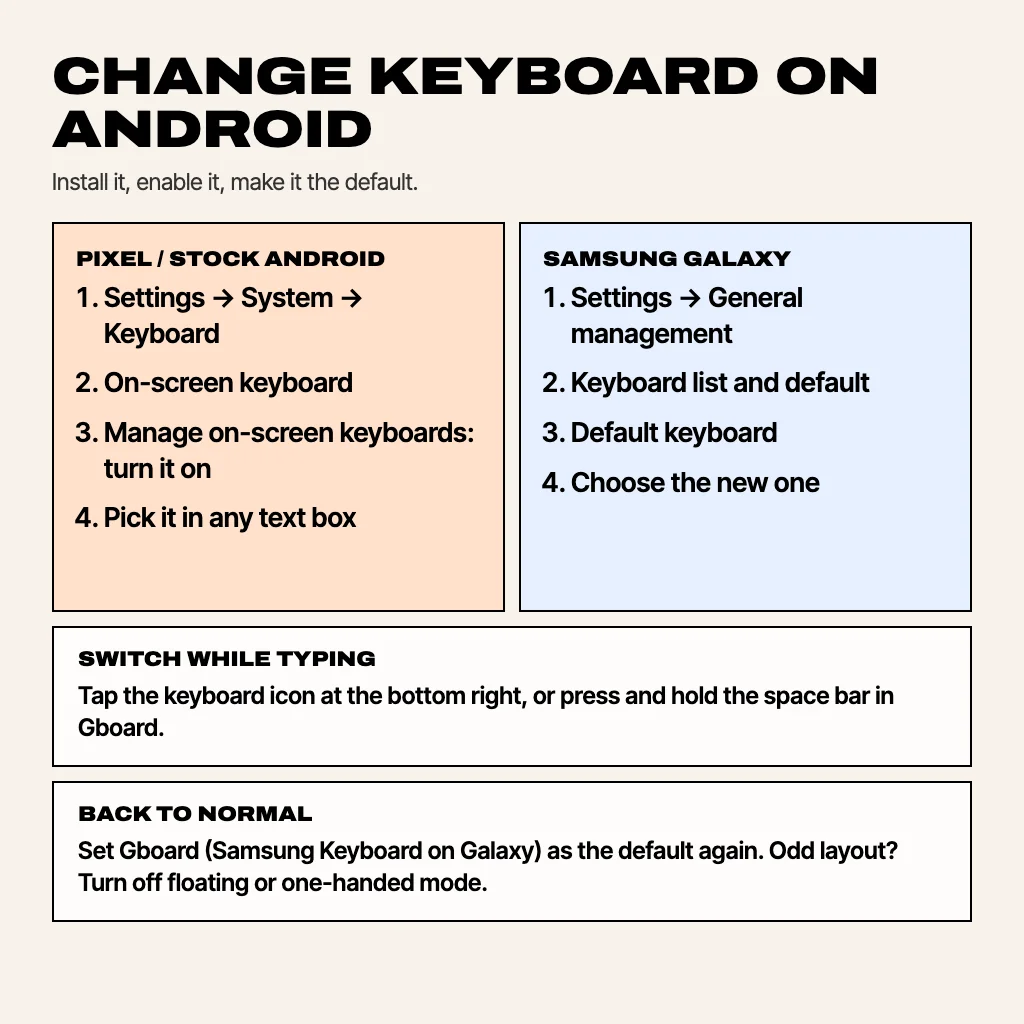
To change the keyboard on Android, install the new keyboard from the Play Store, then go to Settings → System → Keyboard → On-screen keyboard (on Samsung: Settings → General management → Keyboard list and default), turn the new keyboard on and set it as the default. You can also swap keyboards while you're typing using the small keyboard icon at the bottom of the screen. The menu names move around between Android versions and brands, so below are the exact paths for Pixel and stock Android and for Samsung, plus how to change back to normal and how to change the keyboard's language, theme and size.
Step 1: install the keyboard you want
Download the keyboard app from the Google Play Store and open it once. Most keyboard apps start with a setup screen that takes you straight to the right settings page, which saves you hunting for it. If you're not sure which to pick, see our list of Gboard alternatives for Android.
Step 2: change the default keyboard
On Pixel and stock Android (Android 14 and later)
- Open Settings → System → Keyboard.
- Tap On-screen keyboard, then Manage on-screen keyboards, and turn on the new keyboard.
- Read the warning (more on it below) and tap OK.
- Go back and open any text box, then pick the new keyboard from the keyboard switcher. Android remembers it as your default.
On Android 13 and older, the same settings live under Settings → System → Languages & input → On-screen keyboard (sometimes called Virtual keyboard).
On Samsung Galaxy phones
- Open Settings → General management.
- Tap Keyboard list and default.
- Tap Default keyboard at the top and choose the new one.
- If it isn't listed, turn it on in the list below first.
On Xiaomi, OnePlus, Oppo, Vivo and others
Open Settings and type keyboard into the search bar at the top. Look for Manage keyboards, On-screen keyboard or Current keyboard. The two steps are always the same: enable the keyboard, then select it.
How to switch keyboards while typing
- Keyboard icon: with the keyboard open, look for a small keyboard symbol in the bottom-right corner of the screen (in the navigation bar). Tap it and pick a keyboard.
- Gboard: press and hold the space bar, or the globe key if you have more than one language, to open the keyboard picker.
- Samsung Keyboard: if you don't see the icon, open Samsung Keyboard settings and turn on Keyboard button on navigation bar.
How to change your keyboard back to normal on Android
"Normal" is whatever came with your phone: Gboard on Pixel and most Android phones, Samsung Keyboard on Galaxy phones. Follow Step 2 above and choose it as the default again. If the keyboard itself looks wrong rather than being a different app (too small, floating, split, or in a strange colour), these are the usual fixes:
- Floating or one-handed mode: in Gboard, tap the four-squares menu and turn off Floating or One-handed. In Samsung Keyboard, tap Modes in the toolbar and pick Standard.
- Wrong layout (AZERTY, QWERTZ): change it under the keyboard's Languages settings.
- Reset everything: Settings → Apps → Gboard (or Samsung Keyboard) → Storage → Clear data. This also wipes words the keyboard has learned.
How to change keyboard language on Android
In Gboard: open a text box, tap the gear icon (or the four-squares menu, then Settings), go to Languages → Add keyboard, and pick a language. In Samsung Keyboard: Settings → General management → Samsung Keyboard settings → Languages and types. Once you have two languages, swipe the space bar (Samsung) or tap the globe key (Gboard) to switch.
How to change keyboard style, colour and size
- Gboard theme: Gboard settings → Theme, choose a colour, a picture or your own photo.
- Gboard height: Gboard settings → Preferences → Keyboard height.
- Samsung theme: Samsung Keyboard settings → Theme.
- Samsung size: Samsung Keyboard settings → Size and transparency, then drag the edges.
What the "this keyboard may collect all the text you type" warning means
Android shows this for every third-party keyboard because a keyboard technically sees everything you type, including passwords and card numbers. That's how keyboards work, not a sign the app is malicious. It's a reason to install keyboards only from developers you trust, and to prefer ones that keep learned words on your phone and don't upload your typing.
Keyboard not showing up?
- It isn't enabled yet: turn it on under Manage on-screen keyboards (Step 2).
- It disappeared after an update: Android sometimes disables a keyboard when the app updates. Re-enable it.
- A work profile or parental controls may only allow approved keyboards.
MagicBoard: an AI keyboard for Android (coming soon)
We're building MagicBoard, an AI keyboard for Android with swipe typing, next-word prediction and autocorrect that learns your words on your phone, plus one-tap AI replies, rewrites, grammar fixes and translation. Its setup follows the steps above and walks you through them. It's coming soon to Google Play.
Common questions
How do I change my keyboard on Android?
Install the keyboard, enable it in Settings → System → Keyboard → On-screen keyboard (Samsung: General management → Keyboard list and default), then select it as the default.
How do I change my keyboard back to normal?
Set Gboard (or Samsung Keyboard on Galaxy phones) as the default again in the same settings. If the layout looks odd, turn off floating or one-handed mode.
How do I switch between keyboards quickly?
Tap the keyboard icon at the bottom right while typing, or press and hold the space bar in Gboard.
Why can't I find my new keyboard in the list?
It has to be enabled before it can be selected. Turn it on under Manage on-screen keyboards first.
Is it safe to use a third-party keyboard?
Yes, from a trusted developer. Every keyboard can see what you type, so pick one that keeps your data on the device.
From the studio
Previous Article
Apps to Vent Anonymously: 8 Places to Get It Off Your Chest
Next Article
Gboard Alternatives for Android: 7 Keyboards Worth Switching To