Assistive Touch Android: How to Get a Floating Button for Back, Home and Screenshots
Does Android have Assistive Touch? What the built-in Accessibility Menu does, how to add a floating button for Back, Home, Lock and screenshots, and how to use it with a broken power button.
Android does not ship an exact copy of the iPhone's AssistiveTouch, but you can have the same thing in two ways: Android's own Accessibility Menu, which is a large grid that opens from a button in the navigation bar, or a third-party floating assistive button that sits over every app and gives you Back, Home, Recents, Lock, volume and screenshots from one tap. This guide explains both, how to set them up, and which one to pick when your power button has stopped working.
Does Android have assistive touch?
Not under that name. AssistiveTouch is Apple's feature. What Android has is the Accessibility Menu, built into Android 9 and later, and the AccessibilityService system that lets other apps do the same job with a movable dot. Samsung also has an "Assistant menu" in its accessibility settings, which is the closest first-party equivalent: a floating button with Home, Back, Recents, volume, lock and screenshots.
So the honest answer is: every Android phone can have an assistive touch button. On a Samsung you switch it on. On a Pixel, Motorola, Xiaomi, OnePlus or any other brand you either use the Accessibility Menu or install a floating button app.
How to turn on the built-in Accessibility Menu
- Open Settings, then Accessibility.
- Tap Accessibility Menu (on some phones it is under "Interaction controls" or "Installed apps").
- Switch on the Accessibility Menu shortcut and allow the service.
- A small accessibility icon appears in the navigation bar, or you hold both volume keys. Tap it to open the menu.
The menu gives you Lock screen, Screenshot, Notifications, Quick Settings, Volume, Brightness, Power and Google Assistant as big tiles. It works well if you need large targets. Its weak points are that it is not a floating button you can drag, it covers the whole screen when open, and it has no Back or Recents tile, because those are expected to come from the normal navigation bar.
How to turn on Assistant menu on Samsung
- Open Settings, then Accessibility, then Interaction and dexterity.
- Switch on Assistant menu.
- A grey floating button appears. Tap it for Home, Back, Recents, Volume, Lock screen, Screenshots and more. Drag it anywhere on the screen.
If you have a Galaxy, try this first. It is free, already installed and matches the iPhone feature closely. The settings under Assistant menu let you choose which tiles appear and how transparent the button is.
How to use assistive touch on Android with a floating button app
For every other brand, or if you want more than the system menu offers, a floating button app fills the gap. AssistiveDot is our take on it for Android 12 and later. Setting it up takes about a minute:
- Install the app and open it. It explains exactly what each permission is for before asking.
- Allow Display over other apps. This is what draws the dot above everything else.
- Turn on the AssistiveDot accessibility service in Settings, then Accessibility. Android only lets an accessibility service press Back, Home, Recents and Lock or take a screenshot for you, so there is no way around this step for any assistive button app.
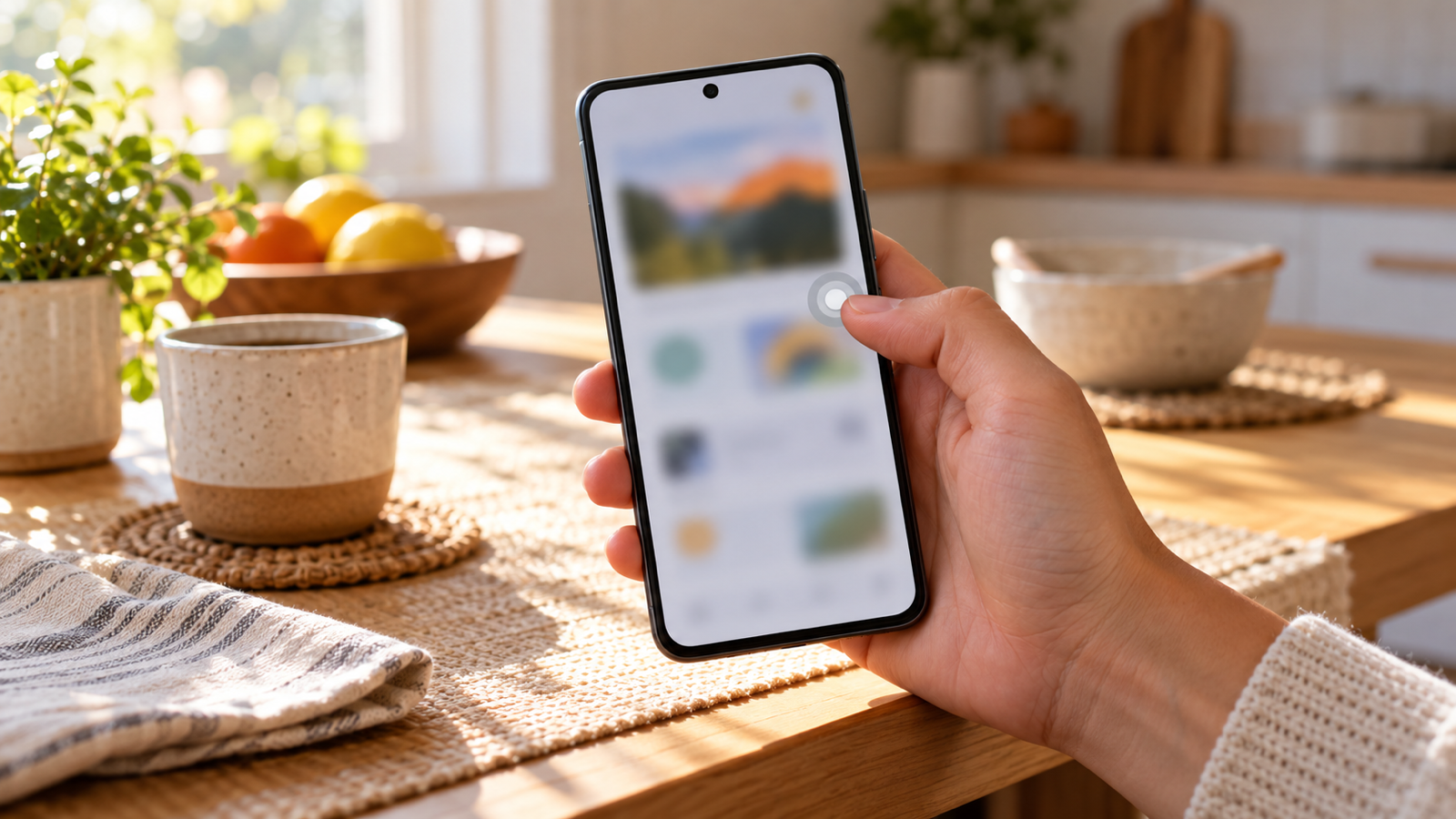
- Switch the dot on. Drag it to the edge where your thumb rests. Tap it and the panel opens.
The panel is yours to arrange: pick which tiles appear and in what order, set the dot's size and opacity, and bind a tap, double tap or long press straight to one action so it fires without opening the panel. A long press for Lock is the setting most people with a worn power button choose first.
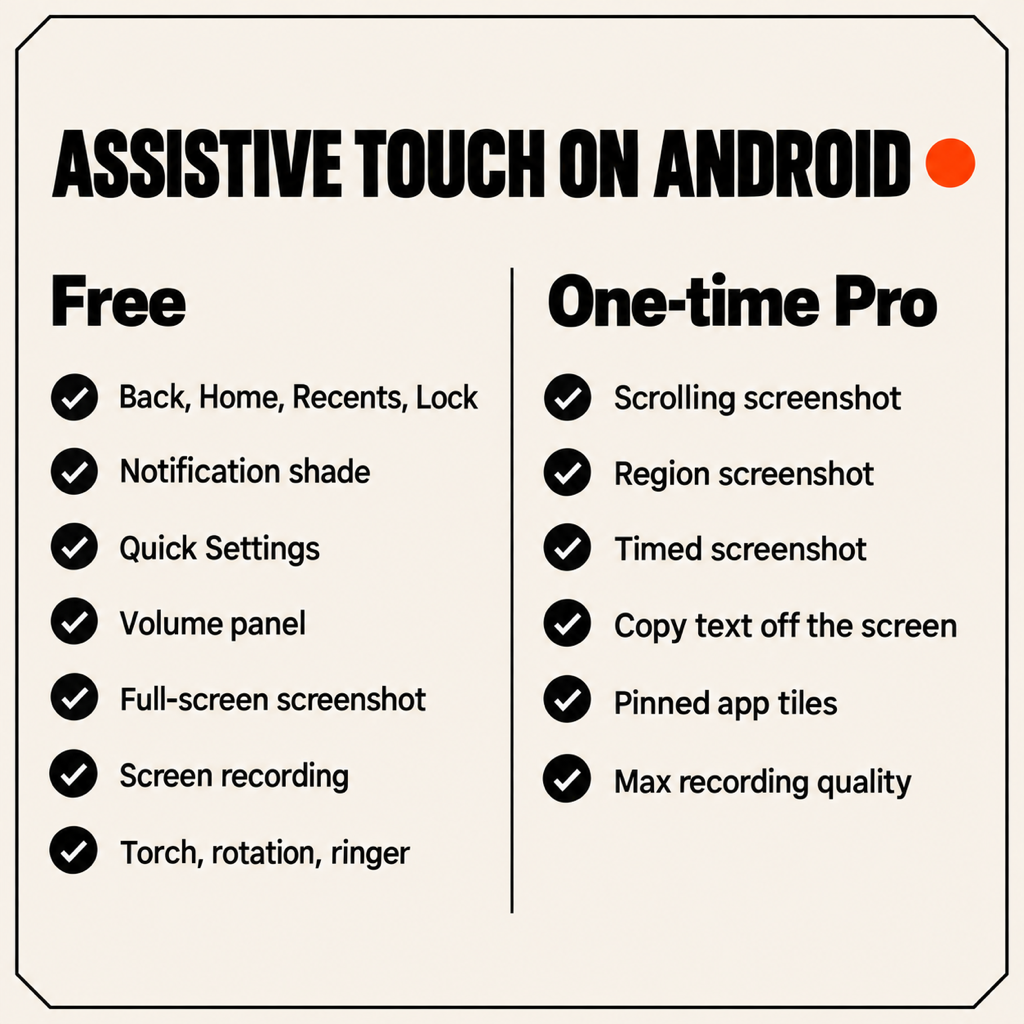
What an assistive touch button can do on Android
- Back, Home, Recents and Lock without touching a hardware button or getting an edge swipe exactly right.
- Notification shade and Quick Settings without reaching for the top of a tall screen.
- Volume, which opens Android's own volume panel.
- Screenshots: the whole screen, a region you drag, a timed 3-2-1 for menus that close when you tap away, or a scrolling capture of a long page.
- Screen recording, with your voice if you want it.
- Copy text off the screen, including from images and videos, recognised on the phone itself.
- Torch, rotation lock and ringer mode.
- Pinned apps you can launch from inside any other app.
In AssistiveDot the first five groups are free, and the scrolling, region and timed screenshots, copy-text, pinned apps and maximum recording quality are a single one-time purchase. There is no subscription and no ads.
Assistive touch android without ads
Most "assistive touch" apps on Google Play are free because they are supported by full-screen ads, and a surprising number ask for permission to read the content of your screen, which an assistive button does not need. Two things are worth checking before you install one:
- The accessibility service declaration. Android shows a warning when a service can "view and control screen". A button that only presses Back and Home should not need to view your screen. AssistiveDot declares its service without window-content access, so the system never hands it the text, fields or structure of any app, and that is enforced by Android, not by a promise.
- The data safety section on the Play listing. An app that captures screenshots should say that nothing leaves the device.
Screenshot without power button on Android
The standard Android screenshot is Power + Volume Down pressed together, which is a two-handed chord for many people and impossible if the power button is broken. The alternatives are:
- Open Recents and tap the Screenshot button under the app preview (Android 11 and later on most phones).
- Say "Hey Google, take a screenshot".
- On Samsung, swipe the edge of your palm across the screen (Palm swipe to capture).
- Add a Screenshot tile to a floating button. One tap, no chord, and in AssistiveDot the dot hides itself for the capture so it never ends up in the image.
Using assistive touch with a broken power button
A floating button replaces the power key for the things you do fifty times a day: locking the screen, waking it with a tap or raise-to-wake, screenshots and the power menu through Quick Settings. Three things it cannot do:
- Turn on a phone that is fully off. No software runs on a phone that is off. Plug in the charger; many phones boot when power is connected, and on others you can boot by holding Volume Down while plugging in and choosing Start from the recovery menu.
- Wake the screen if tap-to-wake is off. Turn on Tap to wake or Lift to wake in Settings, then Display or Gestures, before you rely on the dot.
- Survive a battery manager that kills it. On Xiaomi, Oppo, Vivo and Huawei phones, set the button app's battery use to Unrestricted, otherwise the dot can disappear after a while in the background.
If you depend on the button for Back and Home, also enable its start on boot option, so it is on screen before you need it after a restart.
How to turn off assistive touch on Android
For the Accessibility Menu or Samsung's Assistant menu, go back to Settings, Accessibility, and switch the shortcut off. For a floating button app, either turn the dot off inside the app or open Settings, Accessibility, find the app under installed services and switch it off. Uninstalling the app removes everything, including its permissions.
Common questions
Is there assistive touch for Android? Not under that name. Android's Accessibility Menu, Samsung's Assistant menu and floating button apps such as AssistiveDot do the same job: an on-screen button for Home, Back, Lock, volume and screenshots.
Why does an assistive touch app need an accessibility service? Android only exposes Back, Home, Recents, Lock, the notification shade and one-tap screenshots to accessibility services. There is no other API, which is why every such app asks for it. A well-made one does not request access to read your screen.
Does assistive touch on Android drain the battery? Very little. The dot is one small overlay window and the service does nothing until you tap it. Screen recording uses more power, as it does in any app.
Can I lock my Android phone without the power button? Yes. Add a Lock tile to the Accessibility Menu, Samsung's Assistant menu or a floating button, or bind a long press on the dot to Lock.
Can it work on Android 11 or older? The Accessibility Menu works from Android 9. AssistiveDot requires Android 12 or later, because that is where the screenshot and recording APIs it relies on became reliable.
Which one should you use?
Samsung owner: switch on Assistant menu and you are done. Pixel or anything else, and you only need big targets for lock and screenshots: the Accessibility Menu. Anyone who wants a draggable dot with Back and Recents, gestures bound to actions, scrolling screenshots or copy-text, or who has a power button that no longer clicks: install AssistiveDot, allow the two permissions, and put the dot where your thumb already is.
From the studio

Previous Article
Truth or Dare for Couples App: How to Pick One That Keeps the Night Fun and Private
Next Article
How to AirDrop from iPhone to Windows PC (4 Ways That Work)