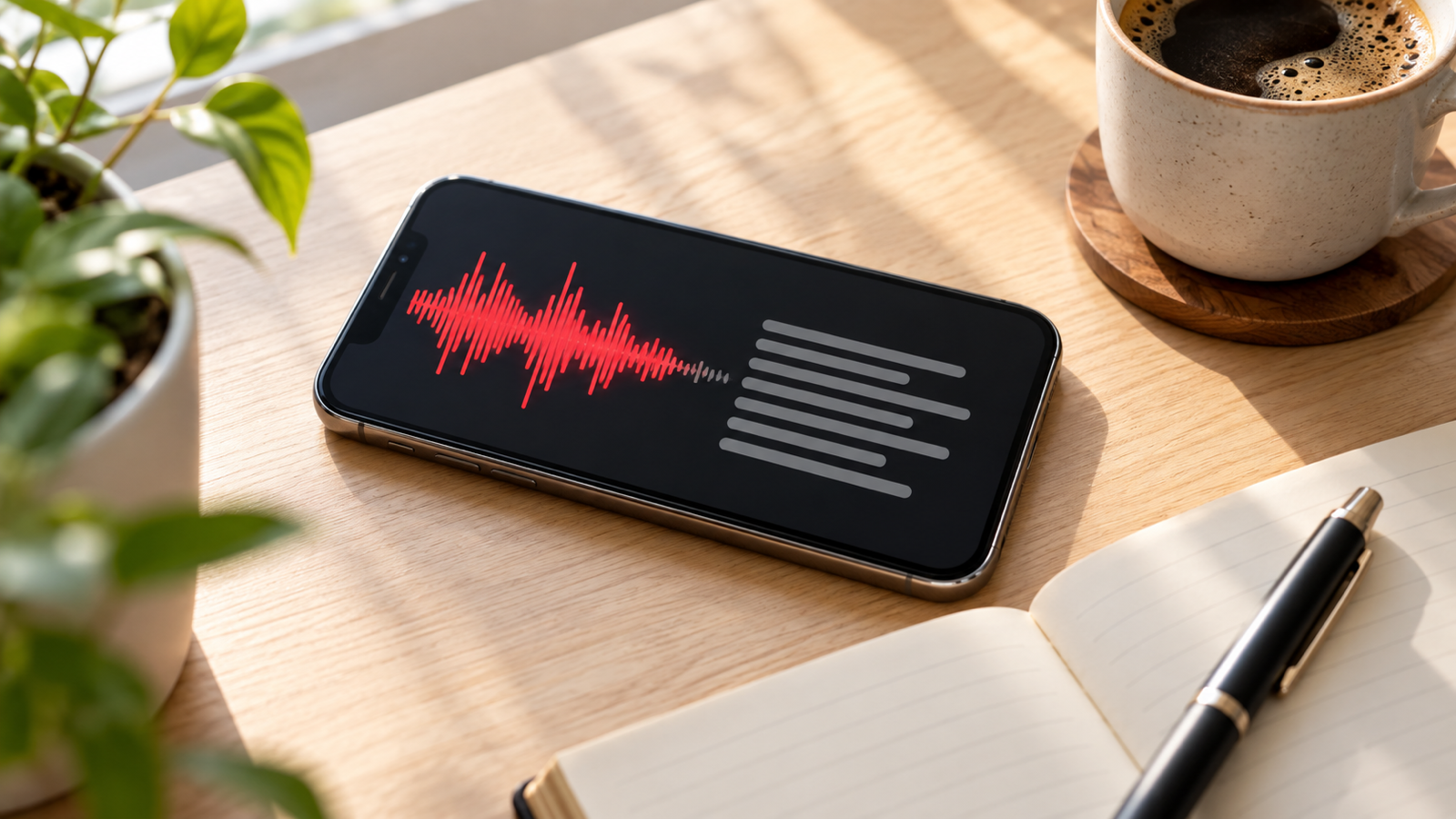
How to Record Audio With the Screen Off on Android and iPhone
Keep a voice recording going with the screen locked on Android or iPhone. Why recordings stop, the battery settings that fix it, and apps that work.
A two-hour lecture or a long meeting is exactly when you want the phone face down with the screen off. It saves battery, nothing lights up the table, and nobody gets distracted. It is also exactly when some phones quietly stop recording, and you find out afterwards that you have 11 minutes of a 90-minute class.
This guide shows how to record audio with the screen off on Android and iPhone, why recordings sometimes stop when the phone locks, and the settings that stop it happening.
iPhone: Voice Memos keeps recording when locked
On an iPhone, start a recording in Voice Memos and press the side button. The recording carries on with the screen off. The Dynamic Island or the status bar shows that the microphone is in use, and you can tap it to jump back in.
Third-party recorder apps can do the same, provided they are built to record in the background. If an app stops the moment you lock the phone, it wasn't, and no setting will fix it.
Android: it depends on the app and on your phone's battery manager
Android lets apps keep recording with the screen off through a foreground service: a running task that the app must announce with an ongoing notification. Google's Recorder on Pixel and Samsung's Voice Recorder both work this way. So does any well-built recorder app: you lock the phone, and a notification says a recording is in progress.
Problems usually come from the phone, not the app. Several Android brands ship aggressive battery managers that close apps running in the background, even ones that are allowed to be there. If your recordings stop after a few minutes with the screen off, work through this list:
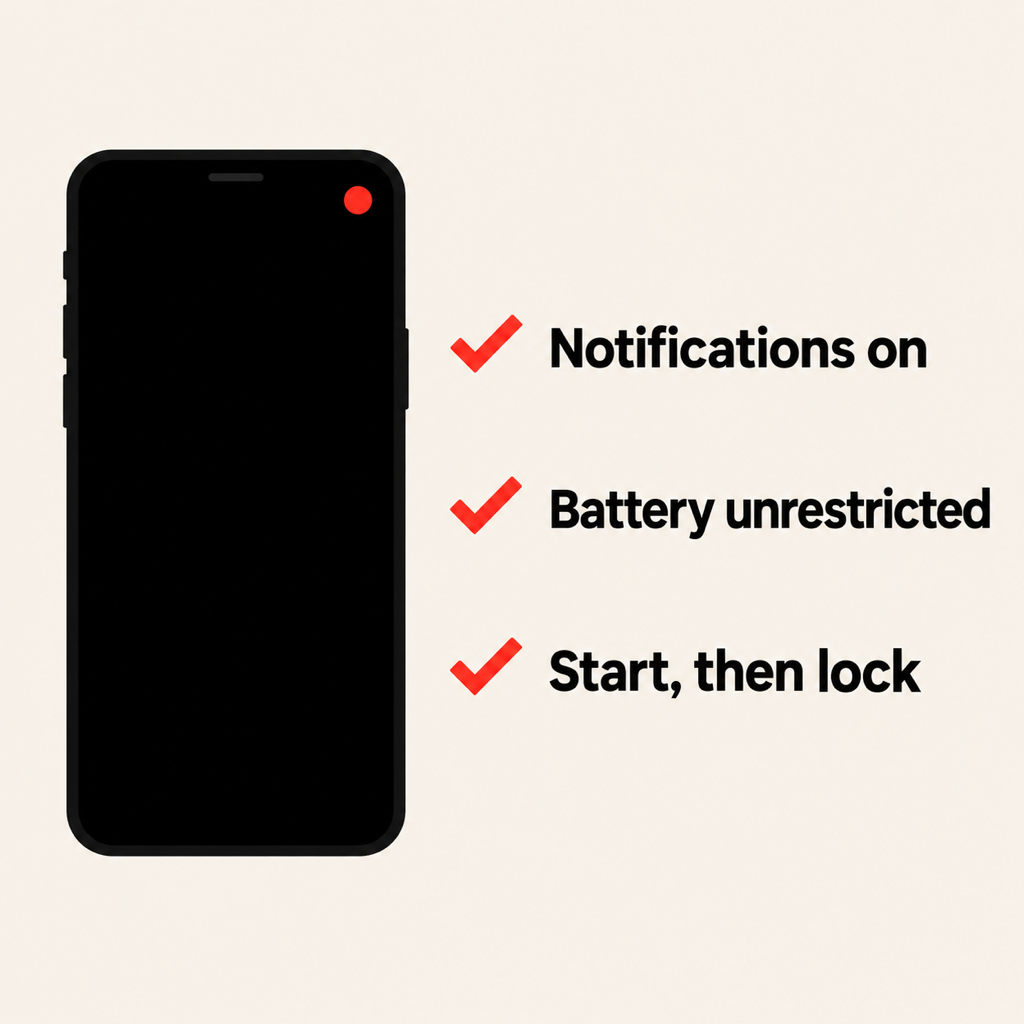
- Allow the app's notifications. On Android 13 and later, apps have to ask to show notifications. Allow them for your recorder, so that its recording notification is visible and you can see at a glance that it is still running.
- Set battery use to Unrestricted. Go to Settings, then Apps, then your recorder, then Battery, and choose Unrestricted. The wording varies by brand, and on some phones it sits under "Battery optimisation" or "App launch". This is the fix that matters most on Xiaomi, OnePlus, Oppo, Vivo and Huawei phones.
- Start the recording, then lock the phone. Tap Record, check that the timer is moving, and only then press the power button. Swiping the app away from the recent apps screen can end the recording on some phones, so leave it there.
- Check the storage. A recorder stops when the phone is full. At a voice-quality bitrate, an hour of audio is only a few tens of megabytes, but a nearly full phone can still run out in the middle of a lecture.
A recorder built for long recordings
Voice Recorder: Transcribe AI is designed for the long, screen-off session. It works like this on Android and iPhone:
- Recording keeps going with the screen off or while you use other apps. On Android, a "Recording session active" notification has a Finish & save button, so you can stop without unlocking into the app.
- The recorder screen shows roughly how many hours of recording space you have left before you start.
- You can drop bookmarks while recording, so you can jump straight to the moment the exam date was announced.
- Afterwards you can transcribe the recording on the phone and search the text, rather than scrubbing through audio.
Record openly
Screen-off recording is for your own meetings, classes, interviews and notes, where people know they're being recorded. The rules on recording conversations differ from country to country, and even between US states. Some places require everyone's consent. Ask first, say the recorder is on, and check your school's or employer's policy before recording lectures or calls.
Quick fixes
- Recording stops after a few minutes: set the app's battery use to Unrestricted.
- No notification while recording: allow notifications for the app, and check the recording is actually running.
- The file is silent: another app, such as a call or a voice assistant, took the microphone. Close it and start again.
- Recording stops when you swipe the app away: don't close the app from the recent apps screen while it is recording.
Recording a class? Our guide to recording lectures on your phone covers where to put the phone and how to turn the recording into notes.
From the studio

Previous Article
How to Transcribe a Voice Recording to Text for Free (iPhone & Android)
Next Article
How to Remove Background Noise From Audio for Free (Phone & Computer)