How to Record Lectures on Your Phone as a Student (and Turn Them Into Notes)
Record lectures on your phone: where to put it, what settings to use, and how to turn a 90-minute recording into searchable notes and a short summary.
A recorded lecture is a safety net. You can listen for the definition you missed, catch the moment the lecturer said "this will be on the exam", and stop worrying about writing everything down. Instead of copying slides, you can actually listen.
A recording is only useful if it is clear and you can find things in it. This guide covers how to record lectures on your phone as a student: before the class, during it, and the part most people skip, turning the recording into notes.
Before the lecture
Ask, and check the rules
Many universities have a policy on recording lectures. Some lecturers record their own sessions and share them, and students with a disability accommodation are often allowed to record by default. Recording laws also differ between countries and states. A quick "Is it OK if I record the lecture for my notes?" is polite, and it keeps you on the right side of the rules.
Charge up and check the storage
Recording audio uses surprisingly little space. At a standard voice quality of about 96 kbps, an hour is roughly 43 MB, so a full day of classes fits easily. Battery is the bigger risk. Start the day above half charge, or keep a cable handy for back-to-back sessions.
Make sure it keeps recording with the screen off
You will want the phone locked on the desk for 90 minutes. Some Android phones close background apps to save battery, and that cuts recordings short. Read how to record with the screen off and set your recorder's battery use to Unrestricted before the first class, not during it.
During the lecture
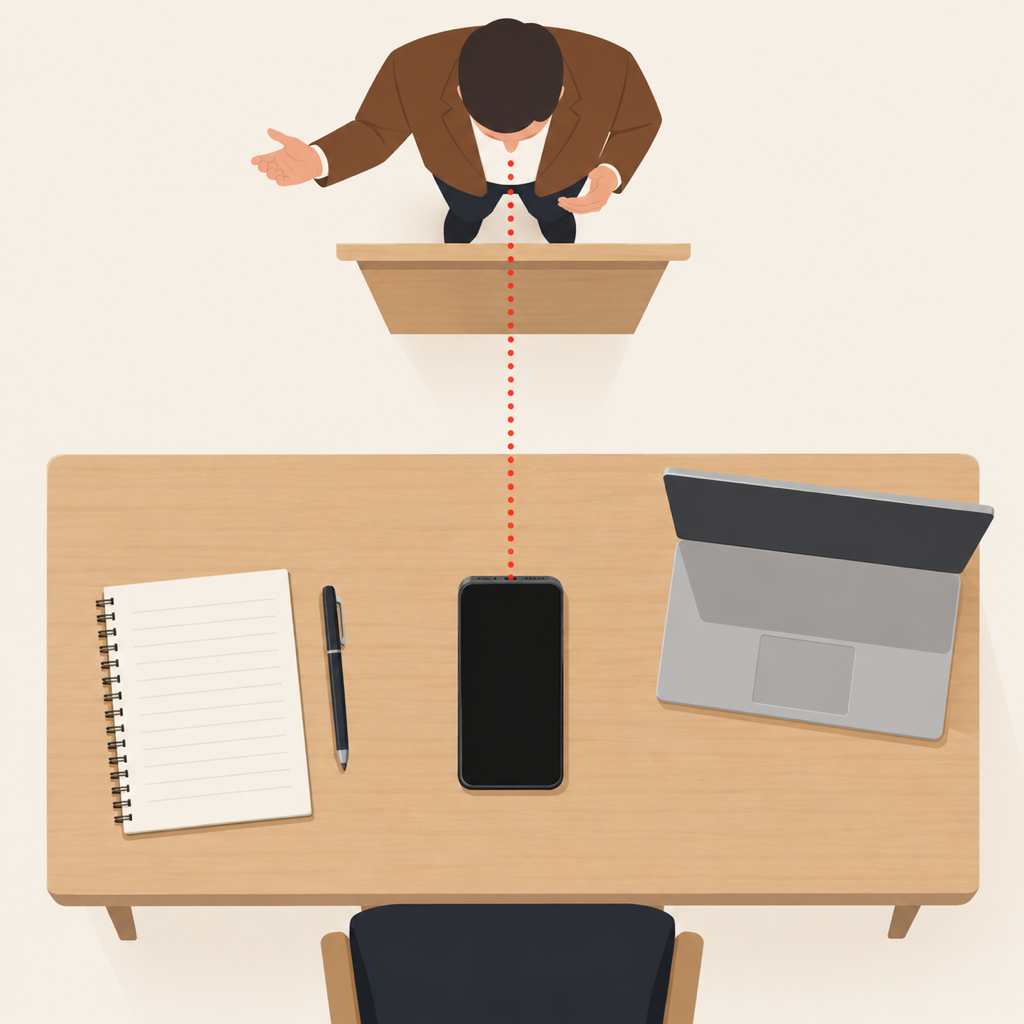
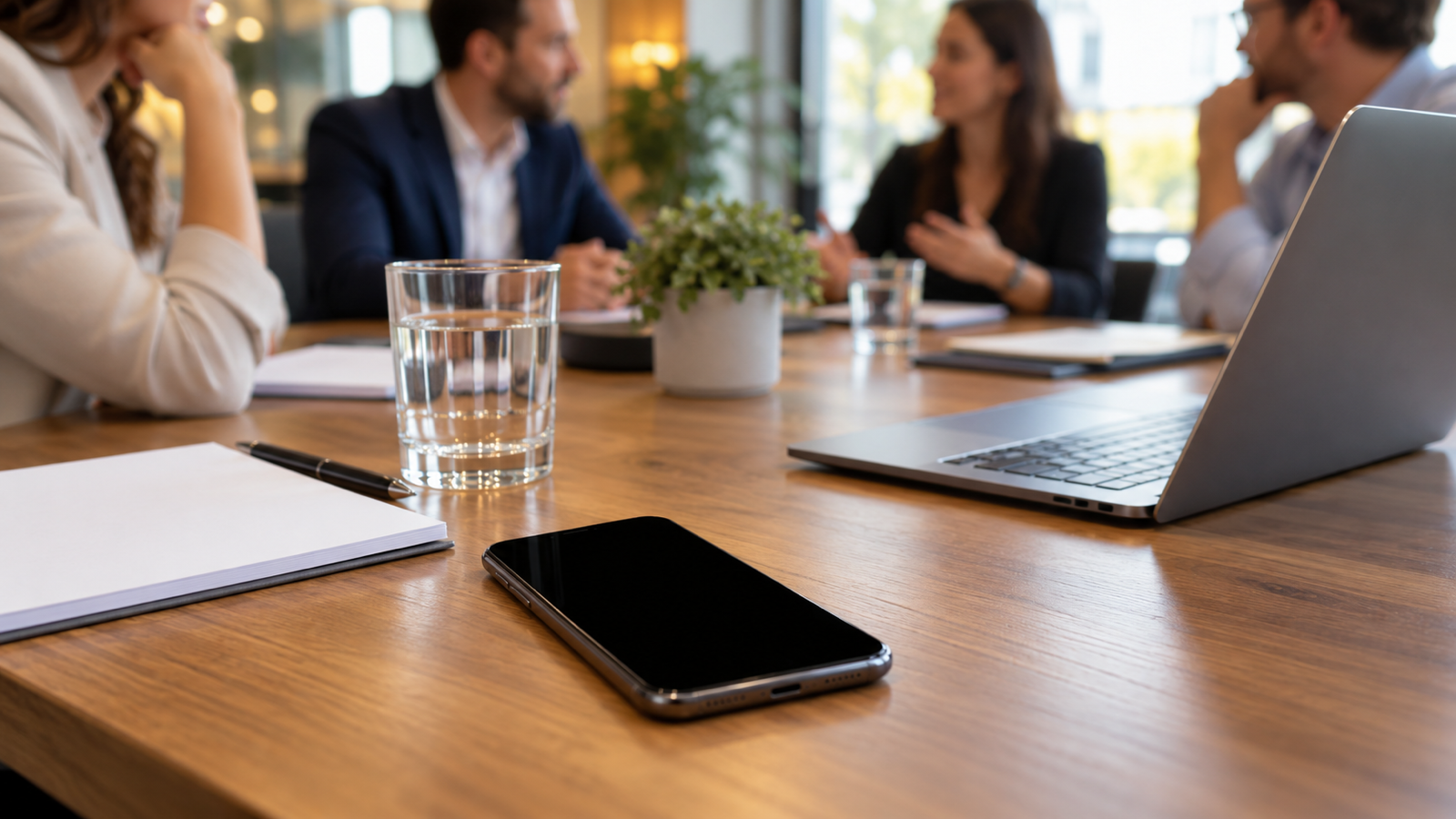
- Sit near the front. Distance is the enemy. The first third of the room gets a clear voice, and the back row gets a recording of coughing and chairs.
- Lay the phone flat, microphone end toward the lecturer. On most phones the main microphone is on the bottom edge. Keep it away from your laptop fan and your hands.
- Silence it, don't switch it off. Turn on Do Not Disturb so notification sounds don't cut into the recording, and keep the recorder running in the background.
- Bookmark the moments that matter. A good recorder lets you drop a bookmark with one tap while it records, for example at an exam hint or a key formula. Afterwards you jump straight to them instead of hunting through a timeline.
After the lecture: turn the recording into notes
This is where most lecture recordings die: 30 files called "Recording 14", never opened again. A few minutes right after class fixes that.
- Name it and file it. Rename the recording (for example "BIO 201, week 5, enzymes") and put it in a folder per course.
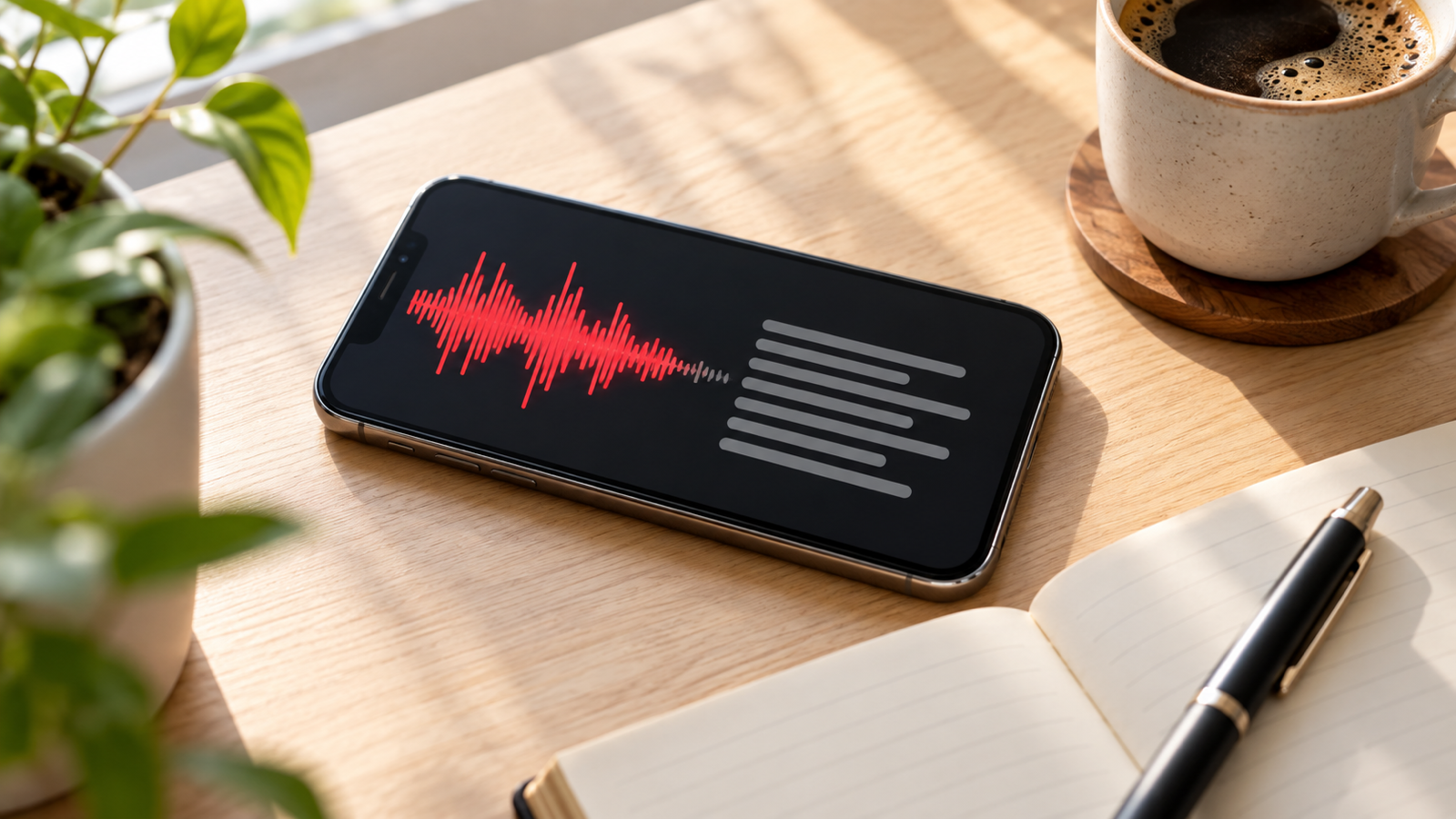
- Transcribe it. A transcript turns 90 minutes of audio into text you can skim in five. Here's how to transcribe a recording for free.
- Search instead of scrubbing. Before an exam, search every transcript for a term such as "Michaelis" and go straight to each lecture where it came up.
- Summarise it. A short summary with the key points is the revision sheet you meant to write.
An app that does all of it
We built Voice Recorder: Transcribe AI for exactly this, on Android and iPhone:
- It records with the screen off, with bookmarks while you record, and folders and stars to keep courses apart.
- It transcribes on the phone, offline, with timestamps. Tap any line to hear that moment again.
- Search works across every transcript.
- Clean voice removes fan and air-conditioning noise from a recording before you listen or transcribe. See what noise removal can fix.
- AI summaries give the overview and the key points of a lecture, in the language it was taught in. Only the transcript text is sent, never the audio.
Recording, playback and folders are free. Transcription, Clean voice and summaries are part of Voice Recorder Pro, and you can try transcription and Clean voice a few times first.
Don't let the recording replace listening
The best way to use a lecture recording is as a backup, not a replacement. Take light notes in class: headings, questions, anything that confuses you. Then use the recording and transcript to fill the gaps. You get the understanding from class and the completeness from the recording.
From the studio

Previous Article
How to Remove Background Noise From Audio for Free (Phone & Computer)
Next Article
How to Remove a Photo Background Without a Watermark (Phone or Browser)