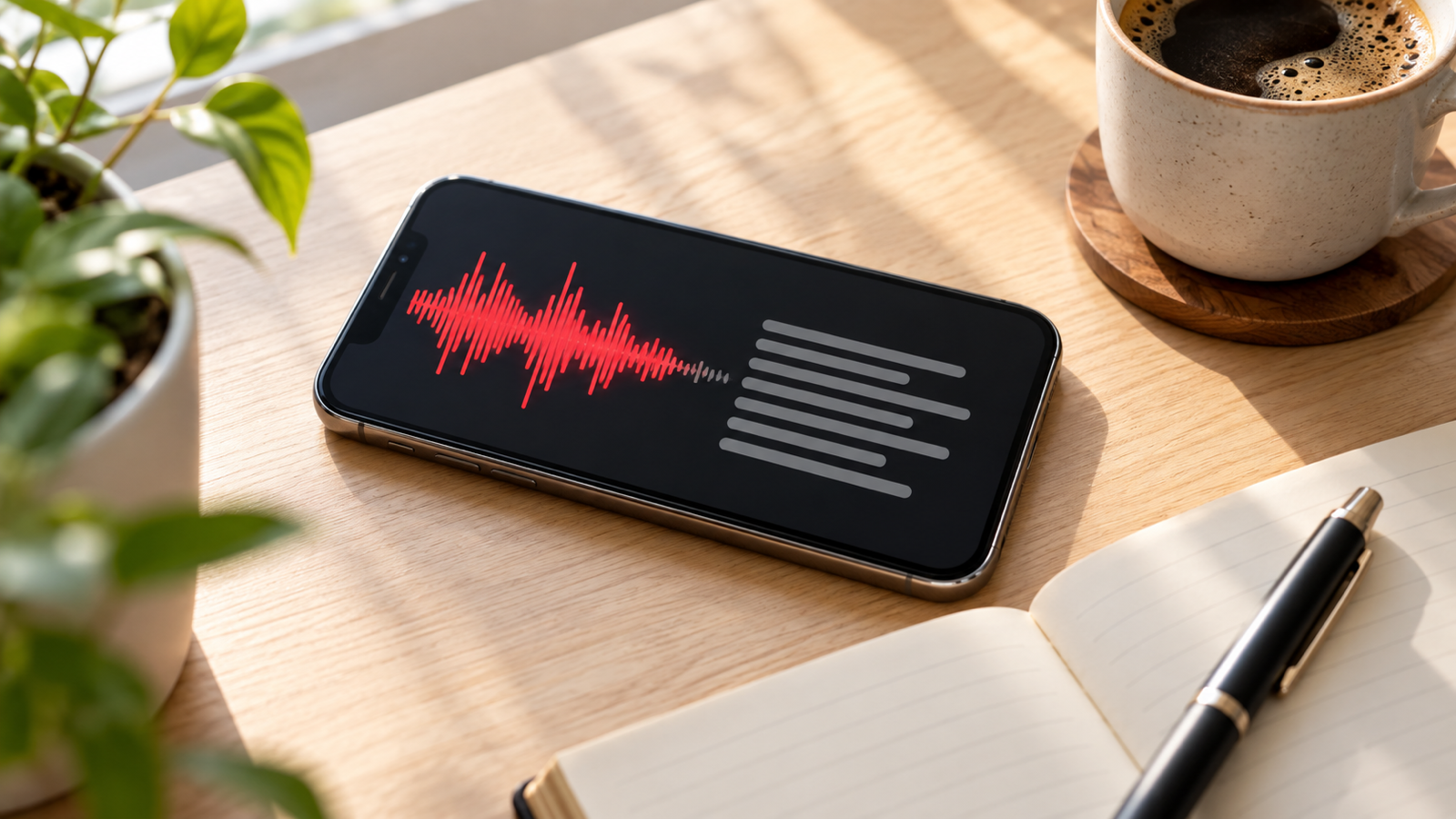
How to Transcribe a Voice Recording to Text for Free (iPhone & Android)
Turn a voice recording into text for free on iPhone, Android and Samsung, offline and without uploading your audio. Five methods, plus tips for accuracy.
You recorded the meeting, the lecture or the interview. Now you need what was said as text, so you can search it, quote it or send it on, and you don't want to listen to all 48 minutes again to type it out. The good news: your phone can already transcribe a voice recording to text for free, and most of the time the audio never has to leave the device.
Here are five ways to do it, from the tools already on your phone to a dedicated app. After that, the few habits that decide whether you get a clean transcript or a page of guesses.
1. iPhone: Voice Memos and Notes
On recent versions of iOS, Apple's own apps can show a transcript. In Voice Memos, open a recording and look for the transcript button (a speech-bubble icon) to see the text alongside the audio. The Notes app can also record audio straight into a note and write the transcript as you go.
The catch is coverage. Transcripts are available only in the languages and regions Apple supports, and only on iOS versions that include the feature. If you don't see the button, your language or phone isn't covered yet.
2. Pixel: Google Recorder
Google's Recorder app on Pixel phones transcribes live while you record, runs on the device and lets you search inside recordings. It is one of the best built-in recorders around. It is also Pixel-only, so on most Android phones it isn't an option.
3. Samsung: Voice Recorder
Samsung's Voice Recorder can turn speech into text on many Galaxy phones, and newer models with Galaxy AI add transcripts to existing recordings. Which of these your phone offers depends on the model and its One UI version, so check the recording's menu for a transcript option.
4. The workarounds: WhatsApp and Google Docs
Two tricks come up in every search, and both have limits:
- WhatsApp can transcribe voice messages once you turn on voice message transcripts in its chat settings. That covers messages you have received, not a 40-minute recording from your recorder app.
- Google Docs voice typing (Tools, then Voice typing, in Chrome) types what the computer's microphone hears. Playing a recording out loud into it works in a pinch, but it drops words, stops when it hears silence, and you have to sit with it the whole time.
5. A recorder app that transcribes on your phone
If you are not on a Pixel, or you want transcripts to work the same way on Android and iPhone, use a recorder that does the transcription itself. That is why we built Voice Recorder: Transcribe AI:
- Record. Start with one tap. It keeps going with the screen off, and you can bookmark the important moments as they happen.
- Transcribe. Open the recording and tap Transcribe. It uses the speech recognition built into your phone and runs offline, so the audio is not uploaded.
- Use the text. Every line has a timestamp, and tapping a line plays that moment. Search finds a word across every transcript you have, and you can share the text to any app.
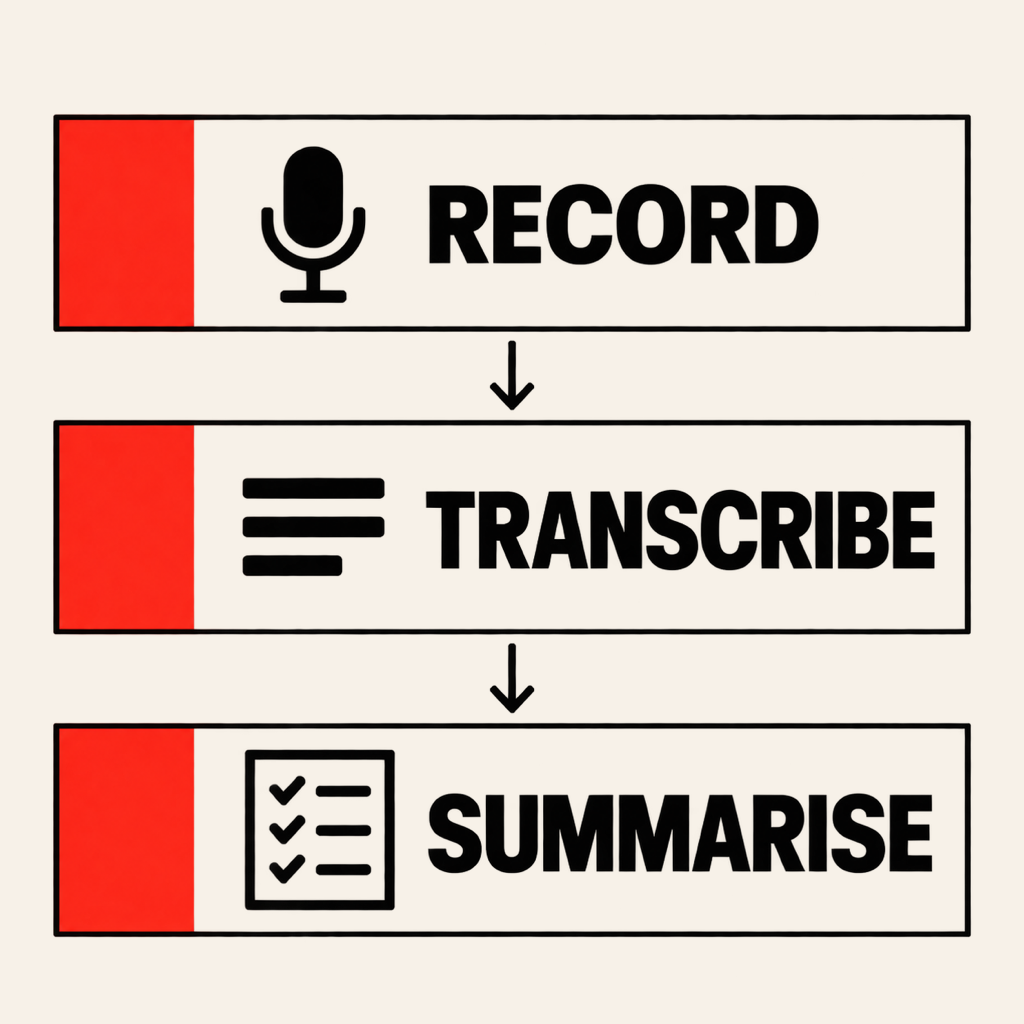
If you need the gist rather than every word, the app can also write an AI summary of the transcript: a short overview, the key points and the action items, in the language that was spoken. Only the transcript text is sent for that, never the audio. Transcription and summaries are part of Voice Recorder Pro. Transcription comes with a few free tries, so you can test it on your own recordings first.
What about "free online transcription" websites?
Upload sites are fine for a podcast episode you plan to publish anyway. For a job interview, a medical appointment or a client call, think twice. You are handing the full audio to a server you know nothing about, often with a vague retention policy. Offline transcription on your own phone avoids the question entirely.
How to get an accurate transcript
Speech recognition is only as good as the audio you give it. Whatever tool you use, these make the biggest difference:
- Put the phone close to the speaker. A phone a metre away catches mostly the room. Half a metre away catches the voice.
- Cut the steady noise. Fans, air conditioning and traffic blur consonants. Move away from them, or clean up the background noise afterwards.
- One voice at a time. Overlapping speakers are the hardest case for every engine. In a meeting, it's worth asking people not to talk over each other.
- Pick the right language. Set the transcription language to the one being spoken. An English model hearing Hindi or Spanish produces confident nonsense.
- Keep the phone recording. A recording that stops when the screen locks has nothing to transcribe. Here's how to record with the screen off reliably.
The short version
On a Pixel, use Google Recorder. On an iPhone with a supported language, try Voice Memos first. For the same offline transcripts, search and AI summaries on any Android phone or iPhone, Voice Recorder: Transcribe AI does the whole job on the device. And if you are recording classes, our guide to recording lectures on your phone covers the setup.
From the studio

Previous Article
How to Send Large Video Files Without Losing Quality (Phone, Mac & PC)
Next Article
How to Record Audio With the Screen Off on Android and iPhone