How to AirDrop from iPhone to Windows PC (4 Ways That Work)
You can't AirDrop to a Windows PC, but you can get the same result: four ways to send photos and files from iPhone to Windows 10 or 11.
You cannot AirDrop from an iPhone to a Windows PC. AirDrop only talks to other Apple devices, and Apple has never made it for Windows. You can get the same result, though: install a local sharing app such as LocalSend or Beam on both, use a browser tool like PairDrop, plug in a cable and import with the Windows Photos app, or sync through iCloud for Windows. For a few photos right now, the browser is quickest. For something you will do every week, use an app.
Can you AirDrop from iPhone to Windows at all?
No, and no setting or update changes that. AirDrop uses Apple's own wireless protocol, and only iPhones, iPads and Macs speak it. When you open the share sheet on an iPhone, a Windows laptop will never appear in the AirDrop row, however close it is.
What people actually want from "AirDrop to Windows" is simple: tap a file on the phone, have it on the PC a second later, at full quality, without emailing it to themselves. All four methods below do that. They differ in setup, speed and whether anything goes through the internet.
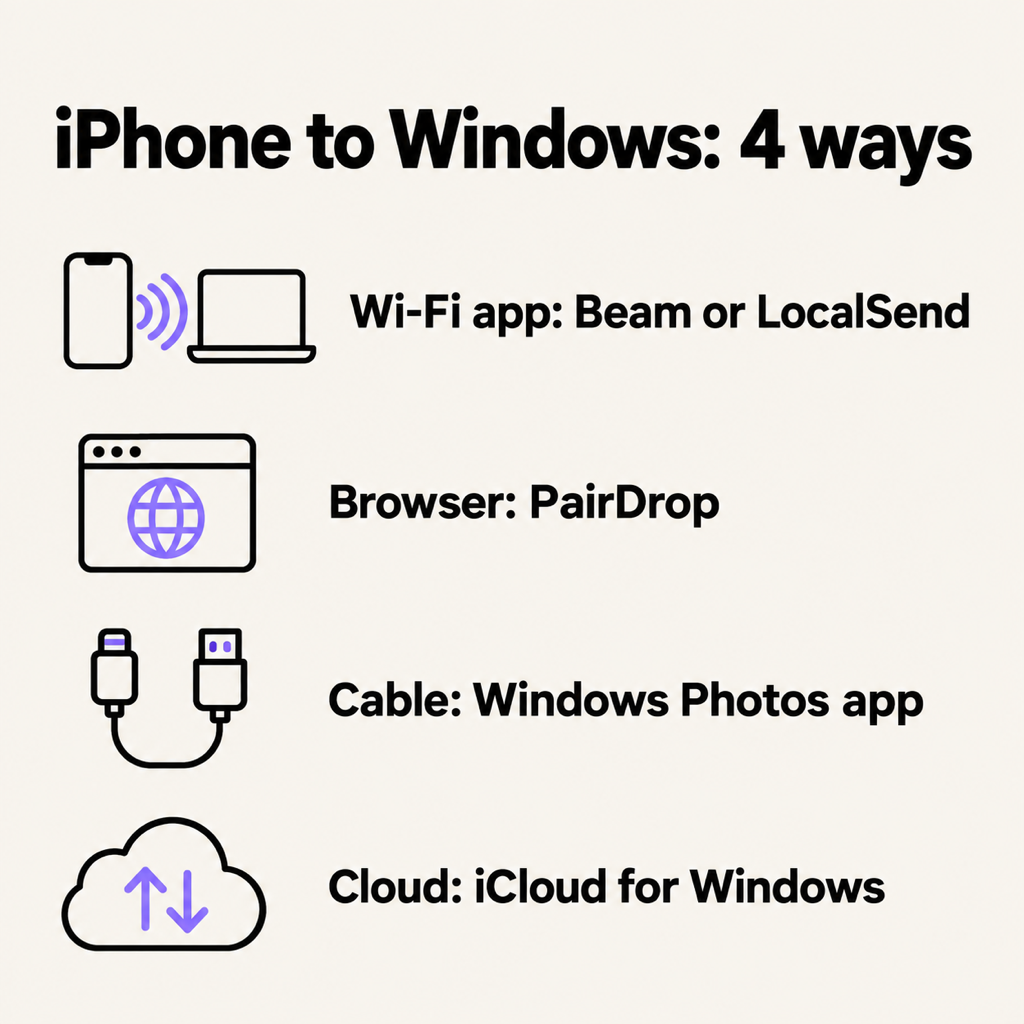
1. A Wi-Fi sharing app: the closest thing to AirDrop
A local sharing app runs on both devices, finds the other one on your Wi-Fi and sends the file straight across. Nothing is uploaded, nothing is compressed, and it works for any file type, not just photos.
LocalSend is free and open source, with apps for iPhone and Windows:
- Install LocalSend from the App Store on the iPhone and on the Windows PC.
- Put both on the same Wi-Fi network and open the app on each.
- On the iPhone, tap Send, pick the photos or files, then tap your PC's name.
- Accept on the PC. Files land in your Downloads folder unless you choose another.
Beam is our own version of the same idea, built to feel like AirDrop across Mac, Windows, iPhone and Android. On Windows it sits in the system tray and adds Send to › Beam to the right-click menu, so going the other way is one click too. Every transfer is encrypted, each file is checked against a SHA-256 hash before it is saved, and an interrupted 4 GB video resumes where it stopped. The Windows and Mac apps are on beam.riekapps.com and the Android app is on Google Play. The iPhone app is coming to the App Store; until it lands, LocalSend is the one to use for iPhone.
One honest limit applies to every app like this: iOS will not let apps listen in the background, so the app has to be open on the iPhone while it sends or receives.
2. In the browser: PairDrop, no install
PairDrop (and the older Snapdrop it grew out of) is a web page that works like AirDrop between any two browsers on the same network.
- On the PC, open pairdrop.net in Edge or Chrome.
- On the iPhone, open the same address in Safari.
- Each device shows the other with a random name. Tap the PC on the iPhone and choose the photos or files.
- Click to save on the PC.
It is the fastest way to move a handful of photos when you are on someone else's computer. It is less good for big batches, because a browser tab does not like holding hundreds of files, and the page has to stay open on both ends.
3. With a cable: the Windows Photos app
For a whole camera roll, a cable is still the most reliable option, and it needs no network.
- On Windows 11, install Apple Devices from the Microsoft Store (on Windows 10, iTunes does the same job). It provides the driver Windows needs to see an iPhone.
- Connect the iPhone with a USB cable, unlock it, and tap Trust This Computer, then enter your passcode.
- Open the Photos app on Windows, click Import and choose the iPhone.
- Select the photos and videos and import them.
If the photos arrive as .HEIC files that Windows will not open, either install Microsoft's HEIF Image Extensions, or on the iPhone go to Settings › Apps › Photos (older iOS: Settings › Photos) and set Transfer to Mac or PC to Automatic, which converts them to JPG as they copy. The cable route only reaches photos and videos; documents need one of the other methods.
4. Through the cloud: iCloud for Windows
If you already use iCloud Photos, install iCloud for Windows from the Microsoft Store, sign in with your Apple Account and switch on Photos and iCloud Drive. Your library shows up in File Explorer and new photos sync across on their own.
It is hands-off, but it is not instant: every file uploads from the phone first, then downloads to the PC, and it counts against your iCloud storage. For one quick file, iCloud.com in the PC's browser also works.
What about Phone Link, Bluetooth and email?
- Phone Link connects an iPhone to Windows for calls, messages and notifications. It is not a way to move your photos and files off an iPhone.
- Bluetooth is out: iPhones do not send files over Bluetooth to anything that is not made by Apple.
- Email and chat apps work for one or two images, but most compress photos and cap attachments at around 20 to 25 MB, so videos rarely make it.
Going the other way: Windows to iPhone
Every method above works in reverse except the cable import. With LocalSend or PairDrop, start the send on the PC and pick the iPhone. With Beam on Windows, right-click a file and choose Send to › Beam. With iCloud for Windows, drop files into the iCloud Drive folder and open them from the Files app on the iPhone.
Which one should you use?
- A few photos, right now: PairDrop in the browser.
- Regularly, any file, full quality: a local app on both devices.
- The entire camera roll: the cable and Windows Photos.
- You never want to think about it: iCloud for Windows.
For a wider look at every cross-platform option, including Android, see AirDrop for Windows: the alternatives that actually work.
Common questions
Can I AirDrop from my iPhone to a Windows laptop?
Not with AirDrop itself. A local sharing app on both devices, or PairDrop in the browser, gives you the same tap-and-send result over Wi-Fi.
Is there an AirDrop app for Windows 11?
Apple does not make one. Apps like LocalSend and Beam fill the gap, and both work on Windows 10 and 11.
Why won't my PC see my iPhone over USB?
Usually the iPhone is locked, you have not tapped Trust This Computer, or Windows is missing Apple's driver. Install Apple Devices (or iTunes on Windows 10), unlock the phone and reconnect.
Does sending files from iPhone to PC reduce the quality?
Not with a local app, PairDrop, a cable or iCloud: the original file arrives. Messaging apps and email are the ones that compress.
Can I send files from iPhone to Windows without Wi-Fi?
Use the cable, or turn on the iPhone's Personal Hotspot and join it from the PC so both are on the same network. Local transfers over a hotspot do not use mobile data.
The short version
There is no AirDrop for Windows, but a Wi-Fi app on both devices gets you the same result. Use PairDrop for a quick one-off, a cable for the whole camera roll, and LocalSend or Beam for everything in between.
From the studio

Previous Article
Assistive Touch Android: How to Get a Floating Button for Back, Home and Screenshots
Next Article
Android File Transfer for Mac: Why It's Gone and What to Use Instead