Android File Transfer for Mac: Why It's Gone and What to Use Instead
Google's Android File Transfer for Mac is discontinued. What happened, how to fix 'could not connect to device', and the best free alternatives.
Android File Transfer for Mac is discontinued. Google took the download off android.com in 2024, it was never properly updated for Apple silicon Macs, and there is no official replacement. If you still have the old copy, it may work, but "Could not connect to device" is the usual result. The best free alternative over a cable is OpenMTP; if you would rather skip the cable, a Wi-Fi app such as Beam or LocalSend sends files straight from the phone's share menu to the Mac.
What happened to Android File Transfer?
Android File Transfer was a small Google app that let a Mac browse an Android phone's storage over USB. Macs do not understand MTP, the protocol Android phones use for files over a cable, so without an app like this the phone simply does not appear in Finder.
The app had not been seriously updated in years, and in 2024 Google removed it from its website without a successor. Old download links now redirect away, and copies hosted on other sites are unofficial, so be careful where you get one. Even when it is installed, it is famous for disconnecting when the phone's screen locks and for refusing to see the phone at all.
Android File Transfer not working on Mac? Try this first
If you still have the app, or you are trying one of the cable alternatives below, the fixes are the same, because the problem is almost always the connection, not the app:
- Use a data cable. Many USB cables only charge. If the phone charges but never shows a USB notification, swap the cable.
- Unlock the phone and keep the screen on while you connect.
- Choose File transfer. Pull down the notification shade, tap the Charging this device via USB notification and pick File transfer (sometimes called Transferring files or MTP).
- Close anything else that grabs the phone. Only one Mac app can talk MTP to the phone at a time. Quit Samsung Smart Switch, any other transfer app, and Android File Transfer's own helper if you are trying an alternative.
- Try another port, and plug in directly rather than through a hub or dock.
The best Android File Transfer alternatives for Mac
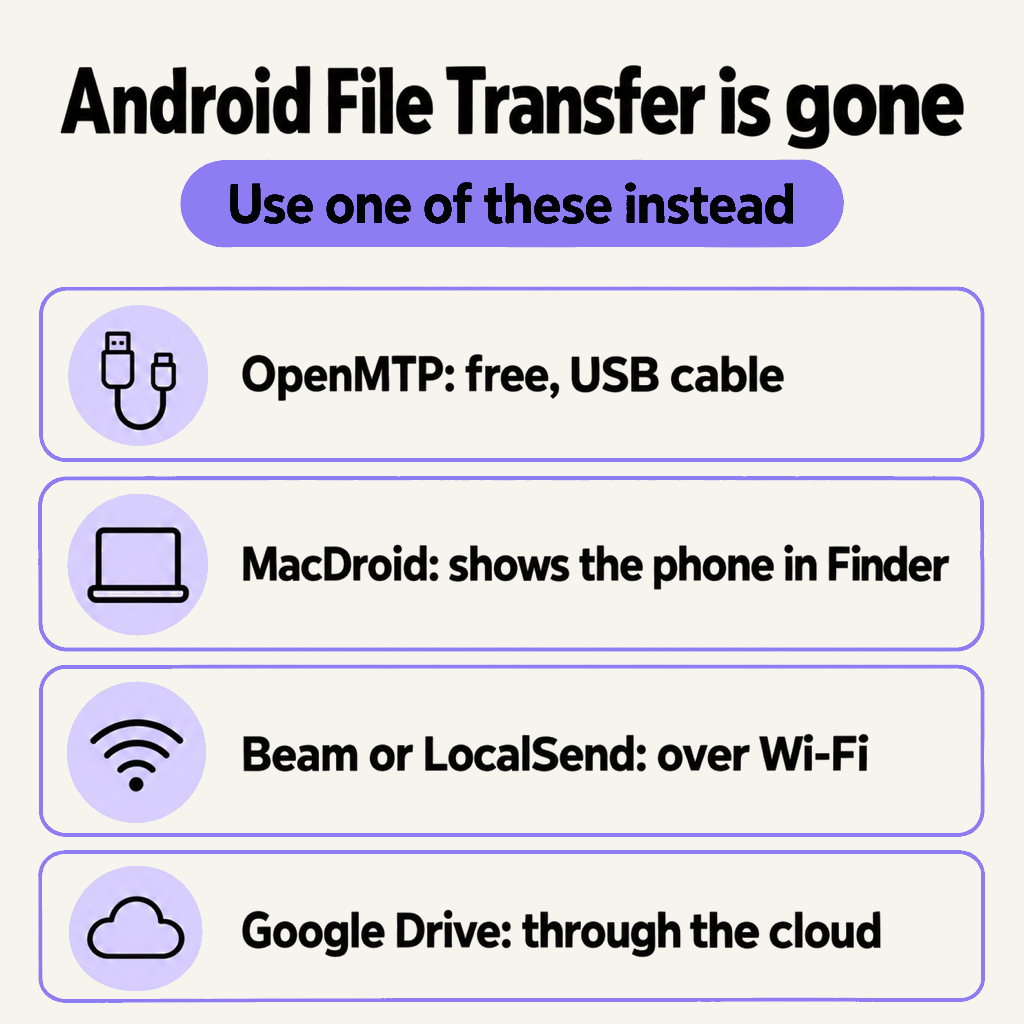
1. OpenMTP: free, open source, over USB
OpenMTP is the closest thing to the original, and better at it. It shows the Mac on one side and the phone on the other, you drag files between them, and it runs natively on Apple silicon. It is free and has no file size limit. If you just want Android File Transfer back, this is it.
2. MacDroid: the phone in Finder
MacDroid mounts the phone as a drive, so it appears in Finder's sidebar like a USB stick and you work with files in Finder itself. It has a free tier and a paid plan for the full feature set. Worth it if you move files every day and want the most "Mac-like" cable experience.
3. Over Wi-Fi: Beam or LocalSend
The cable is the part that fails, so the most reliable fix is not to use one. A local Wi-Fi app runs on the phone and the Mac, they find each other on your network, and the file goes straight across at full quality. Nothing is uploaded anywhere.
Beam is our app for this. On Android it adds Send with Beam to the share menu, so from Photos, Files or WhatsApp you tap Share, tap your Mac, and the file is in its Downloads folder. On the Mac it lives in the menu bar and keeps receiving in the background; drop a file on its window to send the other way. Transfers are encrypted, every file is checked against a SHA-256 hash before it is saved, and big videos resume if the Wi-Fi drops. Get it on Google Play for the phone and from beam.riekapps.com for the Mac. LocalSend is a free, open-source app that works the same way.
4. Through the cloud: Google Drive or Google Photos
Upload on the phone, download on the Mac. It needs no setup, and photos you already back up to Google Photos are already waiting at photos.google.com. It is slower for big files, because everything goes up to a server and back down, and it uses your Google storage.
What about Samsung phones?
Samsung's Smart Switch for Mac is a backup and restore tool, not a file browser, so it does not replace Android File Transfer. For everyday files, Galaxy phones work with all four options above. Quick Share, Samsung and Google's built-in sharing, does not exist for macOS; see Quick Share on Mac for what to do instead.
Which one should you use?
- You want the old app back: OpenMTP.
- You live in Finder: MacDroid.
- You are tired of cables: Beam or LocalSend over Wi-Fi.
- It is one file and you are in a hurry: Google Drive, or Bluetooth for something small.
Our full walk-through of every method, including going from Mac back to Android, is in how to transfer files from Android to Mac.
Common questions
Is Android File Transfer still available for Mac?
No. Google removed it from android.com in 2024 and has not released a replacement. Downloads on other sites are unofficial copies of the old version.
Does Android File Transfer work on Apple silicon Macs?
The old app was never properly updated for M-series Macs and is unreliable on them. OpenMTP and MacDroid both run natively on Apple silicon.
Why does my Mac say "could not connect to device"?
Usually the cable is charge-only, the phone is locked, USB mode is not set to File transfer, or another app is already holding the connection. Work through the five checks above.
Can I transfer files from Android to Mac without a cable?
Yes. A Wi-Fi app like Beam or LocalSend sends files directly over your network, and Google Drive works through the cloud. Bluetooth works too, but slowly.
Is there an official Google app to replace it?
No. Google has not made a Mac app for Android files since, and Quick Share is not available for macOS.
The short version
Android File Transfer is gone. Use OpenMTP if you want a cable, or drop the cable entirely with Beam or LocalSend: share on the phone, tap the Mac, done.
From the studio

Previous Article
How to AirDrop from iPhone to Windows PC (4 Ways That Work)
Next Article
How to Send Files from Android to Mac via Bluetooth