How to Transfer Photos from iPhone to PC (Windows 11 & 10, With or Without a Cable)
Move iPhone photos and videos to a Windows PC at full quality: the Photos app over USB, iCloud for Windows, or wirelessly over the same Wi-Fi. No iTunes.
AirDrop only talks to other Apple devices, so the moment your photos need to reach a Windows laptop you are back to cables, iCloud or emailing yourself. Here are the three ways to transfer photos from an iPhone to a PC that actually hold up, on Windows 11 and Windows 10, and which to use when.
Before you start: keep the originals
iPhones shoot in HEIC by default. When you copy photos to a PC over a cable, iOS can quietly convert them to JPG on the way, which is slower and not quite the same picture. To get exactly what the camera took, set this once:
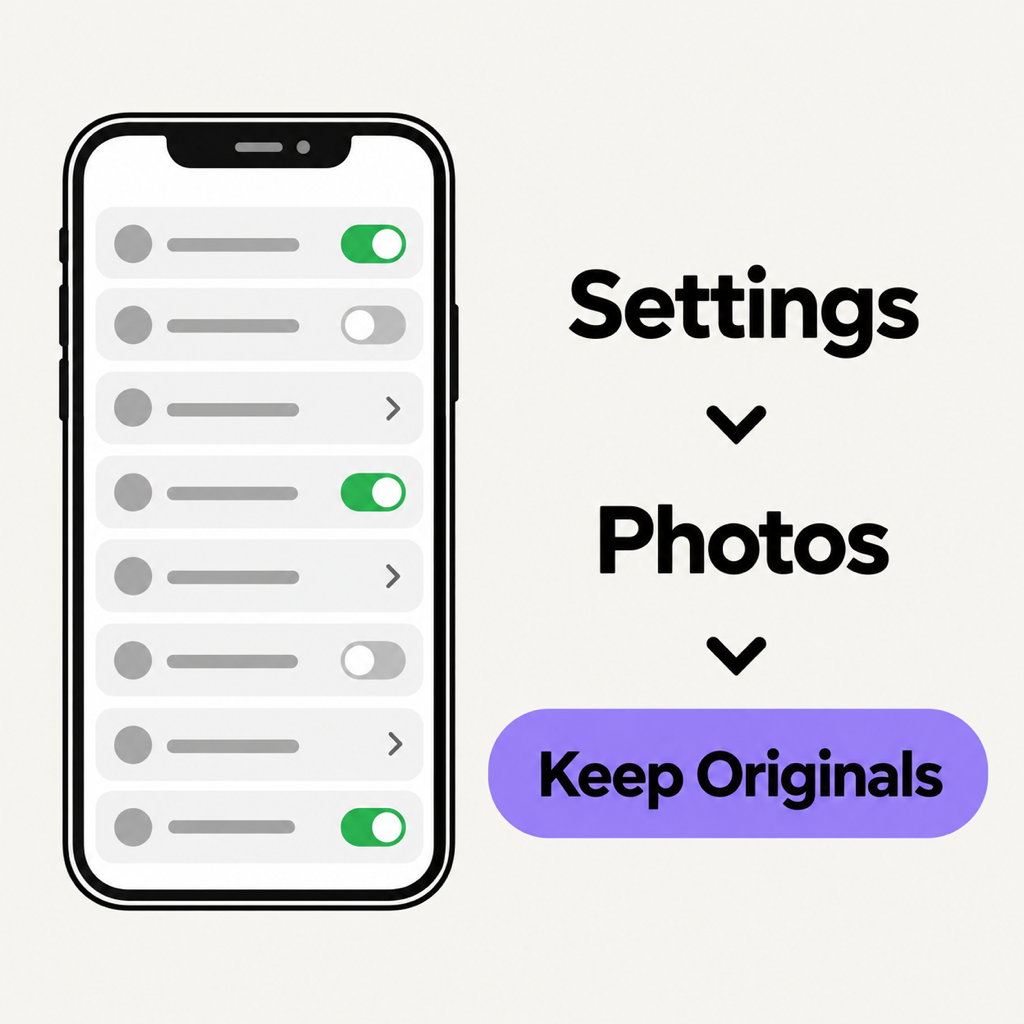
Windows can open HEIC files once the free HEIF Image Extensions from the Microsoft Store is installed; many PCs already have it. If an app on your PC can't open HEIC, leave the setting on Automatic and iOS will convert to JPG.
1. With a USB cable: the Windows Photos app
You don't need iTunes. On Windows 11 and 10, the built-in Photos app imports straight from an iPhone.
- Install Apple Devices from the Microsoft Store. It brings the driver Windows needs to see the iPhone.
- Connect the iPhone with a cable, unlock it and tap Trust when it asks about this computer.
- Open Photos on the PC, choose Import, pick the iPhone, select the photos and import.
A cable is the right tool for moving a whole camera roll at once. For three photos you want in a document right now, it's a lot of ceremony, and a locked phone or a flaky cable stops the import halfway.
2. Through iCloud: iCloud for Windows
If you already pay for iCloud storage and use iCloud Photos, install iCloud for Windows from the Microsoft Store, sign in and turn on Photos. Your library then shows up in File Explorer and the Windows Photos app.
It's hands-off once set up. The catch: everything goes through Apple's servers, so new photos appear only after they upload from the phone and download to the PC, and the free 5 GB fills up fast. It's a sync, not a quick send.
3. Wirelessly, over the same Wi-Fi: Beam
For "get these photos onto my laptop now", the quickest route is straight across the Wi-Fi you're already on. Beam is our free app for iPhone, Windows, Mac and Android that does just that, with no account and no cloud.
- Install Beam on both. On the PC, download it from beam.riekapps.com; it sits in the system tray and starts with Windows. On the iPhone, get Beam for iPhone.
- Same Wi-Fi. Put both on one network. They see each other within seconds.
- Send. In Beam on the iPhone, tap Choose, pick Photos or Files, select what you want and tap your PC. Accept on the PC the first time.
Photos arrive in the PC's Downloads folder as the original files, HEIC or RAW or JPG as they were, with nothing compressed. Every file is checked against a SHA-256 hash, and the transfer is encrypted end to end. A 4 GB video that gets interrupted resumes instead of starting over.
One iPhone limitation to know: iOS doesn't let apps listen on the network in the background, so keep Beam open on screen while the iPhone is receiving. The PC, sitting in the tray, receives any time.
PC to iPhone
The same app works the other way. On Windows, right-click a file and choose Send to › Beam, or drag it onto the Beam window, then tap your iPhone. It lands in the Files app under On My iPhone › Beam.
What about Bluetooth, email or Phone Link?
- Bluetooth: iPhones don't send files to Windows over Bluetooth at all.
- Email or chat apps: fine for one photo, but attachment limits (around 20 to 25 MB) rule out video, and chat apps compress. See how to send large videos without losing quality.
- Phone Link: on iPhone it covers calls, messages and notifications, not your photo library.
Common questions
How do I transfer photos from iPhone to PC without iTunes?
Use the Windows Photos app with a cable (with Apple Devices installed for the driver), iCloud for Windows, or a Wi-Fi transfer app such as Beam. None of them need iTunes.
Why are my iPhone photos HEIC on Windows?
HEIC is the iPhone's default format. Install HEIF Image Extensions to view them on Windows, or set Transfer to Mac or PC to Automatic so iOS converts to JPG during a cable import.
Can I transfer photos from iPhone to PC wirelessly for free?
Yes. iCloud for Windows is free up to 5 GB of iCloud storage, and Beam is free with no size limit because the files go straight across your local network instead of to a server.
The short version
Whole library once: cable plus the Photos app. Always-on sync: iCloud for Windows. A handful of photos or a big video right now: Beam over your Wi-Fi. Moving them to an Android phone instead? Here's how to transfer photos from iPhone to Android.
From the studio

Previous Article
How to Transfer Files from Android to Mac (Wirelessly or with a Cable)
Next Article
How to Transfer Files from PC to Android Wirelessly (and Back)