How to Transfer Files from PC to Android Wirelessly (and Back)
Send files between a Windows PC and an Android phone without a cable: Quick Share, Phone Link, Bluetooth and a Wi-Fi app, compared, plus the USB fallback.
Windows and Android get along better than most pairs: plug the phone in and File Explorer opens it. But hunting for a data cable to move one PDF is silly. Here's how to transfer files from a PC to Android wirelessly, and from Android to the PC, with the options ranked by how often they just work.
1. Quick Share for Windows
Google makes a Quick Share app for Windows, the same feature Android and Samsung phones use to share with each other. Install it on the PC, sign in or set visibility, and your phone's share sheet can send to the PC, and the PC can send to the phone.
When it works it's great. The rough edges: it needs Bluetooth and Wi-Fi on both sides, visibility settings trip people up ("Contacts only" vs "Everyone"), and some PCs, especially desktops without Bluetooth, never show up.
2. Phone Link
Windows' built-in Phone Link pairs with the Link to Windows app on Android. It's built mainly for notifications, messages and calls. File drag-and-drop between the PC and the phone is supported on some phones, mostly Samsung and a few others, and recent Windows 11 builds can show a linked Android phone in File Explorer. If you already use Phone Link, check whether your phone gets these; if not, it's not the tool for files.
3. A local Wi-Fi app: Beam
If both are on the same Wi-Fi, a file doesn't need Bluetooth pairing, a Microsoft account or a cloud upload. Beam is our free app for Windows, Android, Mac and iPhone that finds your devices on the local network and sends the file straight across.
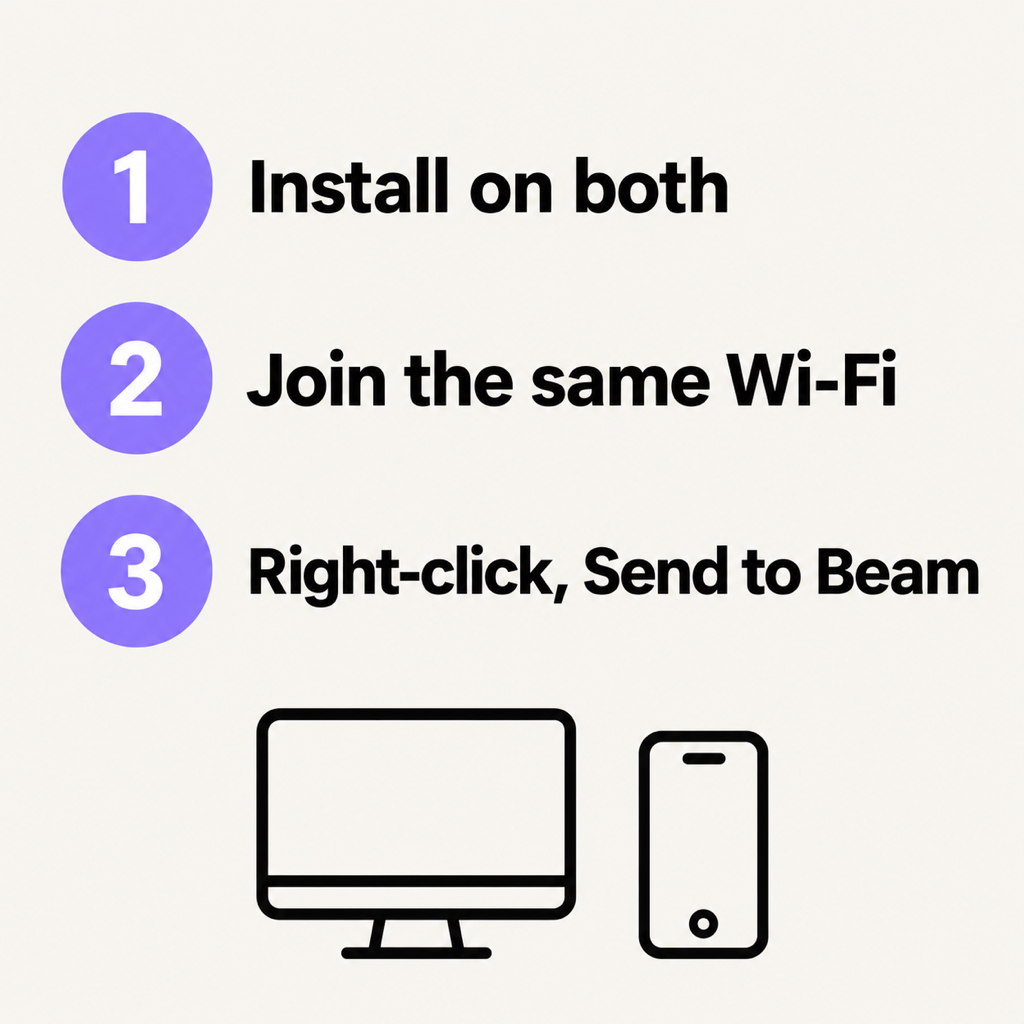
- Install on both. Download the Windows app (it installs for your account, no admin rights) and get Beam on Google Play.
- Join the same Wi-Fi. The PC and the phone see each other in a few seconds. If Windows Firewall is blocking Beam, the app says so and one click on Allow fixes it.
- PC to phone: right-click any file in File Explorer, choose Send to › Beam, and tap your phone. Or drag files onto the Beam window.
- Phone to PC: in any app, tap Share, then Send with Beam, then your PC.
On Android, files land in Downloads/Beam with a notification, even if Beam isn't open. On the PC they go to Downloads, and Beam keeps receiving from the system tray. Tick "Always accept" once and your own devices never have to ask again. Transfers are encrypted end to end and every file is hash-checked before it's saved, so a 3 GB video arrives exactly as it left.
4. Bluetooth
It works without Wi-Fi: pair the phone in Settings › Bluetooth & devices, then use "Send or receive files via Bluetooth". It is also painfully slow, fine for a contact card or a small PDF, hopeless for video.
5. The fallback: a USB cable
For a whole camera folder, a cable is still the fastest. Connect, unlock the phone, tap the USB notification and choose File transfer. The phone appears in File Explorer under This PC. If it doesn't, the cable is probably charge-only.
Which should you use?
- Quick one-off send, both devices nearby: Beam or Quick Share.
- Desktop PC with no Bluetooth: Beam, since it only needs the network.
- Thousands of files: USB cable.
- No Wi-Fi at all: turn on the phone's hotspot and connect the PC to it, then use Beam; the transfer stays local and doesn't use mobile data.
Common questions
How do I transfer files from PC to Android without USB?
Use Quick Share for Windows, Phone Link on supported phones, Bluetooth for small files, or a Wi-Fi app such as Beam that sends straight across your local network.
Why can't my phone see my PC?
For Wi-Fi apps, the usual culprits are a guest or office network that isolates devices, or Windows Firewall blocking the app. Try your home Wi-Fi or a phone hotspot, and allow the app through the firewall.
Is it safe to send files over Wi-Fi?
With an encrypted app, yes. Beam encrypts each transfer with keys made for that transfer alone, and both devices prove who they are before anything is sent, so others on the Wi-Fi can't read your files.
The short version
Windows and Android have plenty of options. For the one that needs no pairing, no account and no Bluetooth, use Beam: right-click, Send to, tap the phone. Using a Mac? Here's how to transfer files from Android to a Mac.
From the studio
Previous Article
How to Transfer Photos from iPhone to PC (Windows 11 & 10, With or Without a Cable)
Next Article
How to Transfer Photos from iPhone to Android Without Losing Quality