How to Sign a Word Document on Android (Free, No Printer)
How to sign a Word document on Android for free: save it as a PDF and sign it, draw on the .docx in the Word app, or insert a signature image. Samsung steps too.
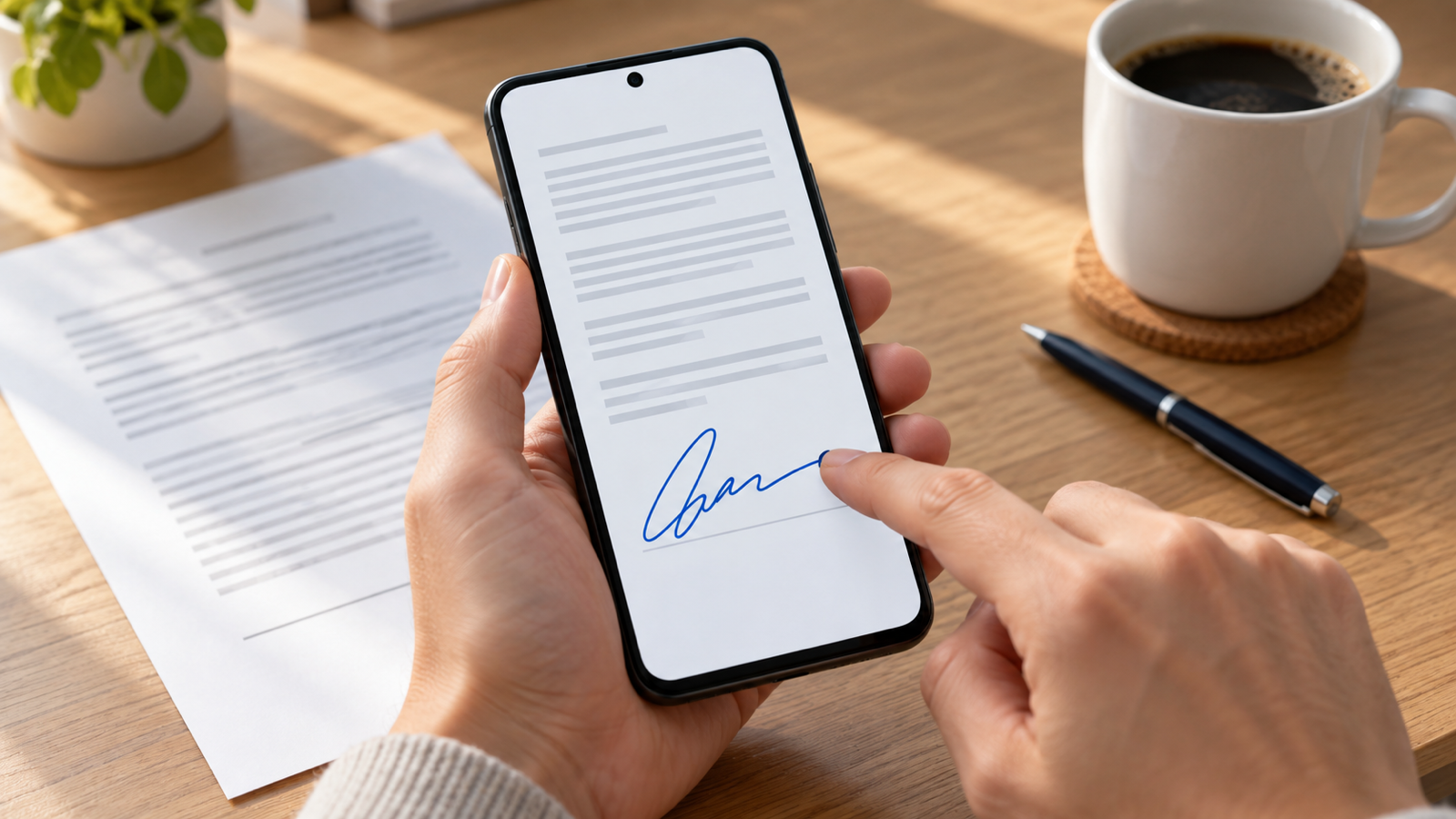
To sign a Word document on Android, first decide what the sender needs back. If they want a signed copy (most do), save the .docx as a PDF from the Word or Google Docs app, open the PDF in a signing app, draw your signature on the line and share it back. If they need the editable .docx returned, open it in Microsoft Word for Android, switch on the Draw tab and write your signature with a finger or stylus. Both routes are free and take about two minutes. The steps for each are below, plus the paper fallback and what to do on a Samsung phone.
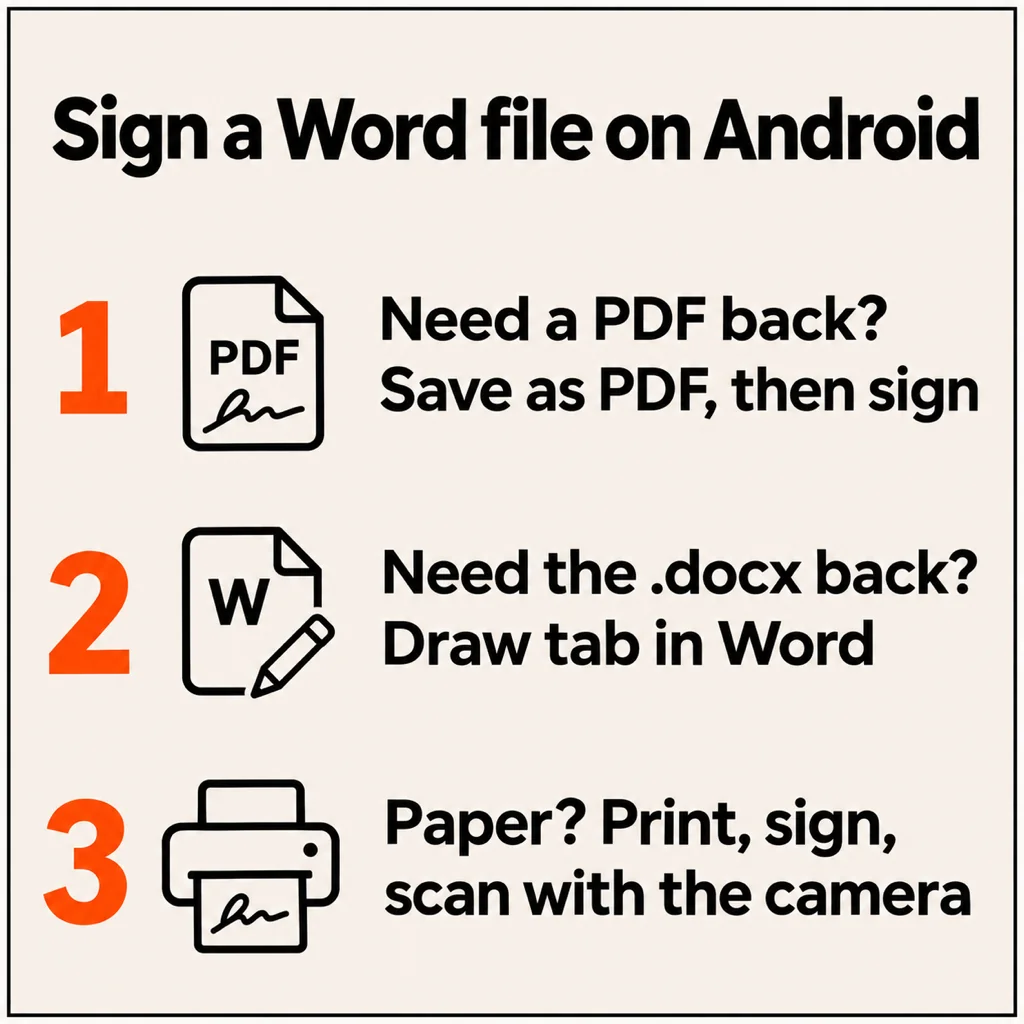
Should you send back a PDF or a Word file?
A signed Word file can be edited by anyone who opens it, including the line above your signature. That is why most contracts, offer letters, rental forms and school consent forms are expected back as a PDF, even when they were sent as .docx. If the email just says "sign and send back", a signed PDF is the safe answer. Send the .docx back only when you're asked to keep editing it, for example when a colleague still has to fill in their part.
Method 1: Save the Word file as a PDF, then sign it (best for most people)
This gives you a clean signed copy that nobody can quietly change afterwards.
Step 1: turn the .docx into a PDF
- In Microsoft Word for Android: open the document, tap the three-dot menu (or File), choose Print or Save as, and pick PDF. Save it to your Downloads folder.
- In Google Docs: open the .docx from Drive or your Files app, tap the three-dot menu, then Share & export → Save as → PDF document.
- With no office app at all: open the file in any viewer that can print (Gmail's attachment preview often can), tap Print, and choose Save as PDF as the printer. Android has this built in.
Step 2: sign the PDF
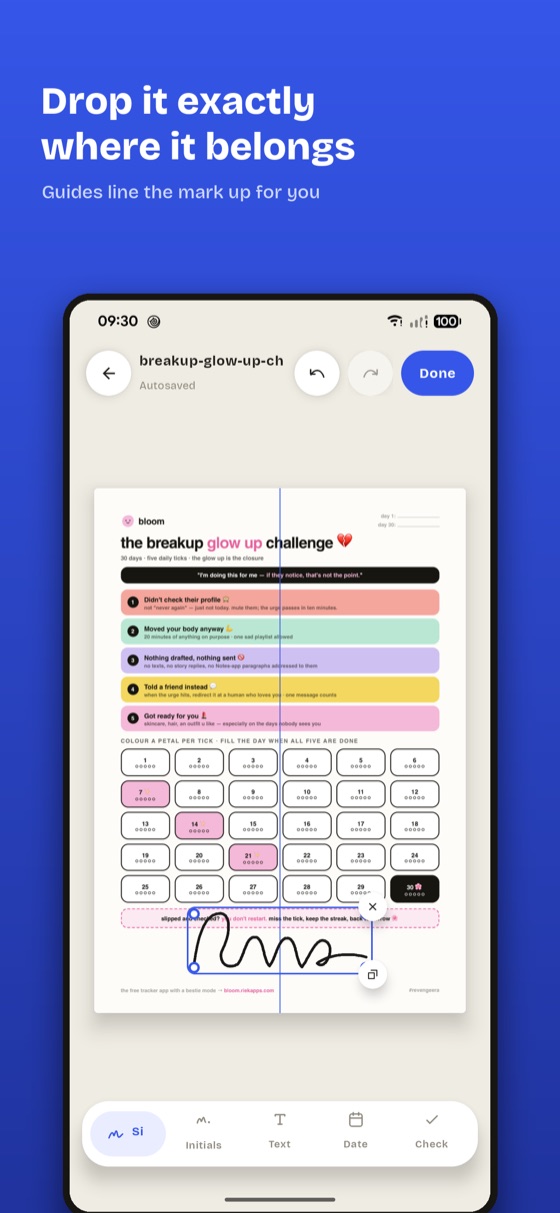
- Open the PDF in Quicksign (free on Google Play). Share it to the app from your Files app, or open it from inside Quicksign.
- Draw your signature once with your finger. You can also type it or photograph one you signed on paper. It's saved for the next document.
- Drag it onto the signature line, then pinch to resize and rotate it until it sits on the line.
- Add the date, your printed name or tick marks where the form asks for them.
- Export and share the signed PDF back by email or WhatsApp.
Quicksign works offline: the file stays on your phone, there's no account and no watermark. The free plan covers 5 signed documents a month; Quicksign Pro removes that limit with a single payment, not a subscription. If you just want a quick comparison of tools, our guide to signing a PDF on your phone for free covers the other options.
Method 2: Sign the .docx itself in the Word app
Use this when the person needs the editable Word file back.
- Install Microsoft Word (or the Microsoft 365 app, which includes Word) and sign in with a free Microsoft account. On phones, basic editing is free.
- Open the document and tap the pencil icon to edit.
- Open the ribbon menu (the arrow at the bottom, or the tab name such as Home) and switch to Draw.
- Pick a pen, set it to black or dark blue and a thin width, and zoom in on the signature line.
- Write your signature with a finger or stylus. If it goes wrong, use the eraser or undo and try again.
- The file saves to OneDrive or the phone automatically. Share it with the share icon at the top.
A finger signature drawn at normal zoom tends to look shaky and too large. Zoom in to fill the screen with the signature line first, then sign; it comes out much closer to your pen signature.
Method 3: Insert a signature image into Word
If you sign many Word files, keep a picture of your signature and drop it in each time:
- Sign a sheet of white paper with a dark pen and photograph it in good light.
- Crop the photo close to the signature. A transparent PNG looks best; a background remover can strip the white paper for you.
- In Word for Android, tap where the signature goes, then Insert → Pictures, and choose the image.
- Resize it with the corner handles and set it to sit in front of text if it pushes lines around.
Keep that image private. Anyone who gets the .docx can copy the picture out of it, which is another reason to send a PDF when you can.
How to sign a Word document on a Samsung phone
The steps above are the same on Samsung Galaxy phones; Samsung doesn't add a separate Word signing tool. Two Samsung-specific tips: Galaxy phones often come with Microsoft Office apps preinstalled, so check your app drawer before downloading anything; and on S Pen models (Galaxy S Ultra, Note, Tab), the Word Draw tab and Quicksign both accept the pen, which gives a far neater signature than a finger.
Method 4: Paper (when they insist on a wet signature)
Some forms still ask for a handwritten signature on paper. Print the document at a library or print shop, sign it, then scan it with your phone: Google Drive's scan button or your camera's document mode turns the photo into a flat PDF. Send that PDF back. You can skip this entirely unless the sender explicitly asks for ink on paper.
What doesn't work on Android
- Digital signatures with a certificate (the "Signature Line" with a certificate ID in desktop Word) can't be created in Word for Android. If your company requires one, it has to be done in Word for Windows or through an e-signature service they send you.
- Google Docs on Android can't draw on a page or insert a drawing. Use it only to convert the file to PDF, then sign the PDF.
- A typed name in a script font is accepted for many informal forms, but some banks and landlords reject it. A drawn signature is safer.
For other file types (PDF attachments, DocuSign links, photos of forms), see our full guide on how to sign documents on Android, or the PDF-only walkthrough on signing a PDF on Android.
Common questions
Can I sign a Word document on my phone for free?
Yes. Microsoft Word for Android lets you draw a signature in the Draw tab with a free Microsoft account, and you can also save the file as a PDF and sign it in a free signing app.
How do I sign a Word document on Android without the Word app?
Open the .docx in Google Docs or any viewer that can print, save it as a PDF with Android's built-in Save as PDF printer, then sign that PDF in a signing app and share it back.
Is a signature drawn on a phone legally valid?
In most countries, including the US, UK, EU and India, an electronic signature is valid for most everyday agreements, but some documents (wills, certain property deeds) need ink or a certified digital signature. Check with the sender if in doubt; this isn't legal advice.
Why does my signature look shaky in Word on Android?
You're drawing at normal zoom, so a small finger movement becomes a big jagged line. Zoom in on the signature line until it fills the screen, use a thin pen, then sign.
What is a good app to sign documents on Android?
Quicksign is a free Android app that signs PDFs and photographed documents on the phone, offline, with no account and no watermark. It doesn't open .docx files directly, so save the Word file as a PDF first.
From the studio
Previous Article
How to Record Voice on iPhone (Voice Memos, Lossless, Screen Off and Texts)
Next Article
What to Reply When Someone Says Thank You: 50 Replies for Work, Friends and Texts