How to Record Voice on iPhone (Voice Memos, Lossless, Screen Off and Texts)
How to record voice on iPhone: Voice Memos step by step, lossless quality, recording with the screen off, long recordings, voice texts, and better sound.
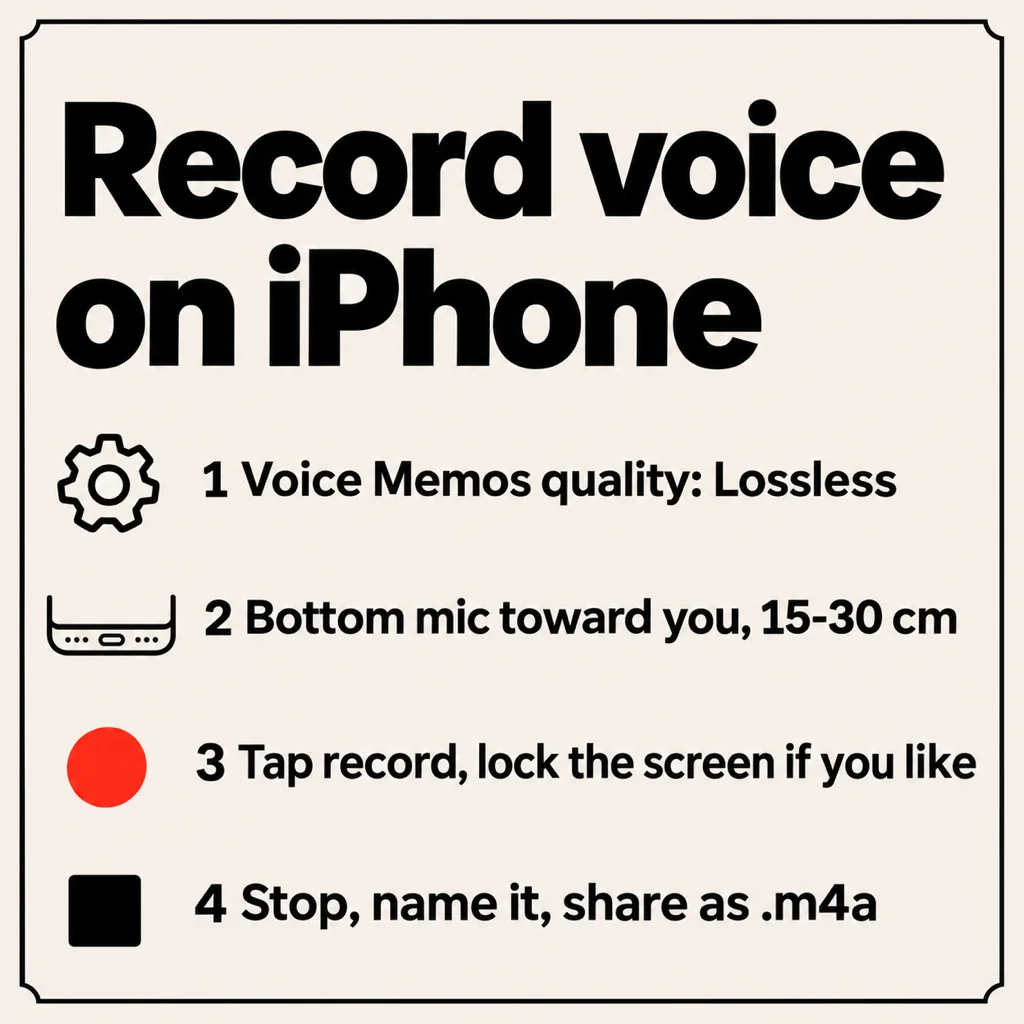
To record your voice on iPhone, open the Voice Memos app (it comes preinstalled; swipe down on the Home Screen and type "Voice Memos" if you can't find it), tap the red record button, speak with the bottom of the phone 15 to 30 cm from your mouth, and tap the button again to stop. The recording saves automatically as an .m4a file you can rename, trim and share. For better sound, switch Voice Memos to Lossless in Settings first. Recording keeps going when you lock the screen, and the only length limit is your free storage. The rest of this guide covers quality settings, long recordings, voice texts and what to do when you need more than Voice Memos.
How to record voice on iPhone with Voice Memos, step by step
- Open Voice Memos. If you deleted it, it's free to download again from the App Store.
- Tap the big red circle at the bottom. The waveform starts moving as soon as it hears you.
- Swipe the recording panel up to see the full-screen view with Pause and Resume. Pausing lets you skip a break without making two files.
- Tap the red square (or Done) to stop. The recording lands at the top of the list, named after your location or "New Recording".
- Tap the name to rename it, then the ⋯ menu for Edit Recording, Duplicate, Share or Copy.
In the editor you can trim the start and end, replace a section by recording over it, and on recent iOS versions tap the magic wand (Enhance Recording) to cut background hum and room echo.
How to record high-quality audio on iPhone
Voice Memos saves compressed audio by default. That's fine for reminders, but you can hear the difference on singing, voice-over and anything you'll edit later. To change it, go to Settings → Apps → Voice Memos → Audio Quality and pick Lossless. Lossless files are several times larger, so a one-hour lossless memo can take a few hundred MB instead of tens.
The setting matters less than placement:
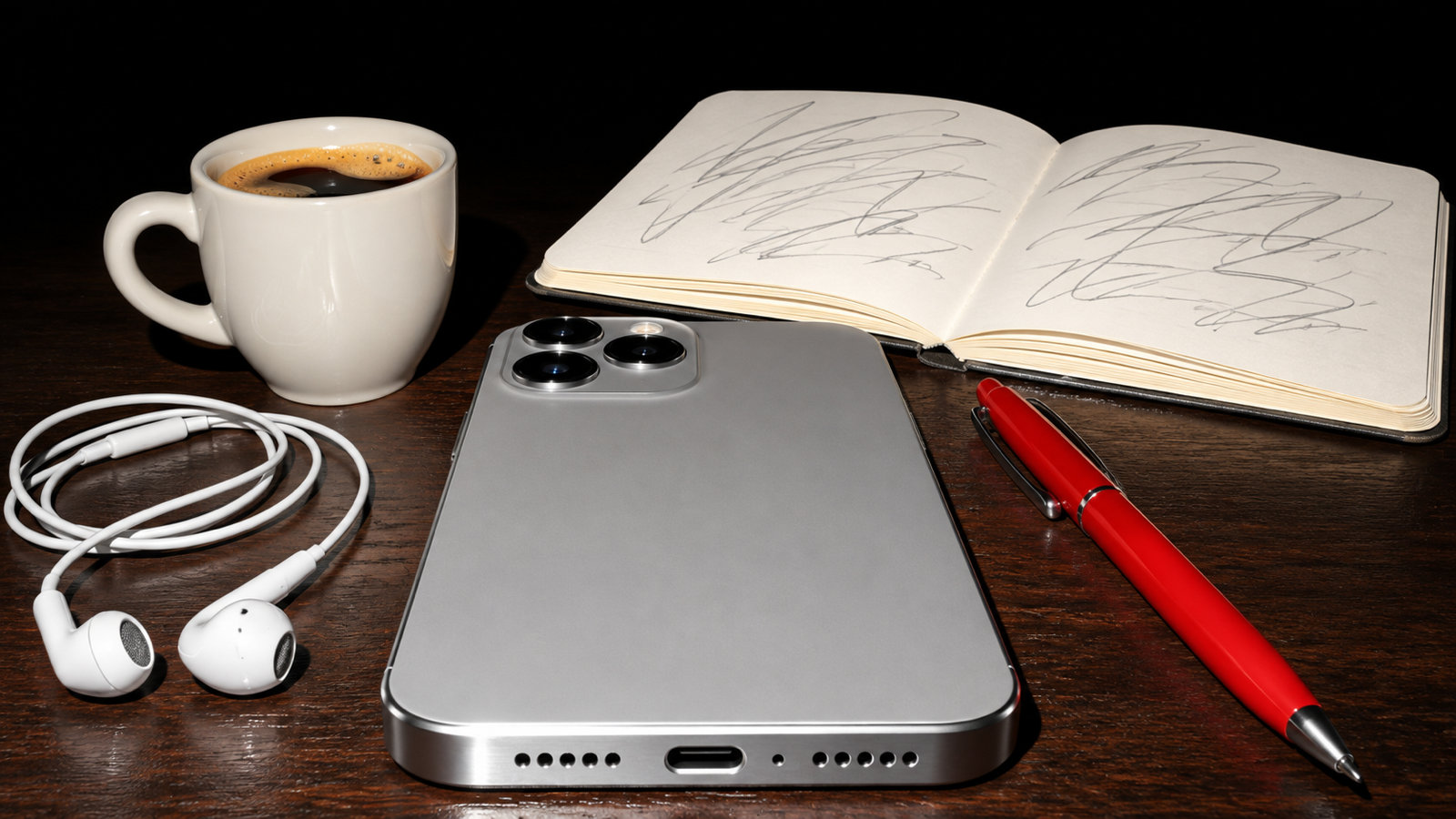
- Point the bottom edge at your mouth. The main microphone sits next to the charging port. Covering it with a finger or a thick case muffles everything.
- Stay 15 to 30 cm away. Closer and your "p" and "b" sounds pop; further and the room takes over.
- Pick a soft room. A bedroom with curtains, a bed and a wardrobe of clothes beats a kitchen with tiles. Recording inside a car with the engine off works surprisingly well.
- Turn on Do Not Disturb or Airplane Mode so a notification sound doesn't end up in the take.
- Wired or USB-C earphones with a mic keep the mic at the same distance from your mouth while you move. AirPods work too, but they record through a compressed Bluetooth link, so the phone's own mic usually sounds better for voice-over.
How to record voice on iPhone with the screen off
Start recording in Voice Memos, then press the side button. The recording keeps running with the screen locked; a red indicator in the status bar (or on the Lock Screen and Dynamic Island on newer models) shows it is still live. Tap that indicator to jump back in. This is also how you save battery on long recordings: the screen is what drains it, not the microphone.
Two things stop a recording in the background: an incoming phone or FaceTime call (iOS pauses the microphone for the call) and the phone running out of storage. Check you have a few GB free before recording something long.
How to record a long voice recording on iPhone
Voice Memos has no time limit. People record three-hour lectures and all-day interviews with it. For anything over an hour:
- Start at 50% battery or more, or plug in. A locked phone uses roughly 5 to 10% an hour while recording.
- Use compressed quality unless you really need Lossless; it keeps a long file small enough to share.
- Lock the screen, put the phone face up on something soft, and leave it alone.
Once it's done, scrolling through two hours to find one sentence is the hard part. On iPhone 12 and later with iOS 18 or newer, Voice Memos can show a transcript; our guide to transcribing voice memos explains how. For lectures specifically, see how to record lectures on your phone.
How to record a voice message in a text on iPhone
In Messages, tap the + next to the text field, choose Audio, speak, then tap the arrow to send. (On older iOS versions, press and hold the microphone or waveform icon to the right of the field.) Audio messages delete themselves two minutes after they're played unless you change Settings → Apps → Messages → Audio Messages → Expire to Never. In WhatsApp, hold the microphone button; slide up to lock it for long messages.
If you want to send a Voice Memos recording instead, open it, tap ⋯ → Share and pick Messages, WhatsApp or Mail. It arrives as an .m4a audio file anyone can play.
Other ways to record voice on iPhone
- Control Center: add the Voice Memos control (open Control Center, tap +, Add a Control, search Voice Memos) and start a recording without unlocking to your Home Screen.
- Action button: on iPhone 15 Pro and later, set Settings → Action Button to Voice Memo. A long press starts recording instantly.
- Notes: in a note, tap the paperclip and choose Record Audio. The recording sits inside the note next to your text, with a transcript on supported models.
- Phone calls: Voice Memos can't record calls. On iOS 18.1 and later, the call screen has its own record button, which announces itself to everyone. Our guide to recording a conversation covers calls and consent laws.
- Video with no picture: there is no "audio only" mode in the Camera app. Use Voice Memos and you'll get a far smaller file.
When Voice Memos isn't enough
Voice Memos is great for capturing sound. It's weaker at what comes after: finding a moment in a long recording, cleaning up a noisy room, organising dozens of files. Voice Recorder: Transcribe AI is our recorder for iPhone and Android, built for that part:
- Bookmarks while recording: tap to mark the moment the important bit starts, then jump straight to it later.
- Three quality presets: Low (64 kbps, voice notes), Standard (96 kbps, meetings and lectures) and High (192 kbps, music), with the size per hour shown before you start.
- Keeps recording with the screen locked, and pauses cleanly if a call comes in instead of losing the take.
- Transcripts made on the phone, searchable across every recording, plus Clean voice to cut background noise.
- Folders and Recently Deleted, so a mis-swipe doesn't cost you a recording for 30 days.
Recording, playback, trimming and folders are free. Transcription, Clean voice, WAV export and the other Pro tools come with three free tries, then Voice Recorder Pro at $3.99 a month or $19.99 a year in the US.
Common questions
Does iPhone have a voice recorder?
Yes. Voice Memos comes preinstalled on every iPhone. Open it, tap the red button to record and tap again to stop. Recordings are saved automatically and can sync to your other Apple devices through iCloud.
How long can you voice record on iPhone?
As long as you have free storage and battery. Voice Memos has no time limit; compressed audio takes roughly 30 to 60 MB an hour, Lossless several times more.
Can I record voice on iPhone without the screen on?
Yes. Start a recording, then lock the phone. It keeps recording in the background until you stop it, a call interrupts it, or storage runs out.
How do I make Voice Memos sound better?
Set Audio Quality to Lossless, point the bottom of the phone at your mouth from 15 to 30 cm, record in a soft room, and use Enhance Recording in the editor to reduce background noise.
What is a good voice recorder app for iPhone?
Voice Memos covers simple recording. If you need bookmarks while recording, searchable transcripts and noise cleanup, Voice Recorder: Transcribe AI does those on the phone; recording is free and Pro is $3.99 a month or $19.99 a year.
From the studio
Previous Article
What to Reply When Someone Says I Miss You: 50 Replies for Every Situation
Next Article
How to Sign a Word Document on Android (Free, No Printer)