Transfer Files from Windows to Android: Every Method, USB to Wi-Fi
How to transfer files from Windows to Android: USB in File transfer mode, Quick Share for Windows, Phone Link, Wi-Fi apps, APKs and whole photo libraries.
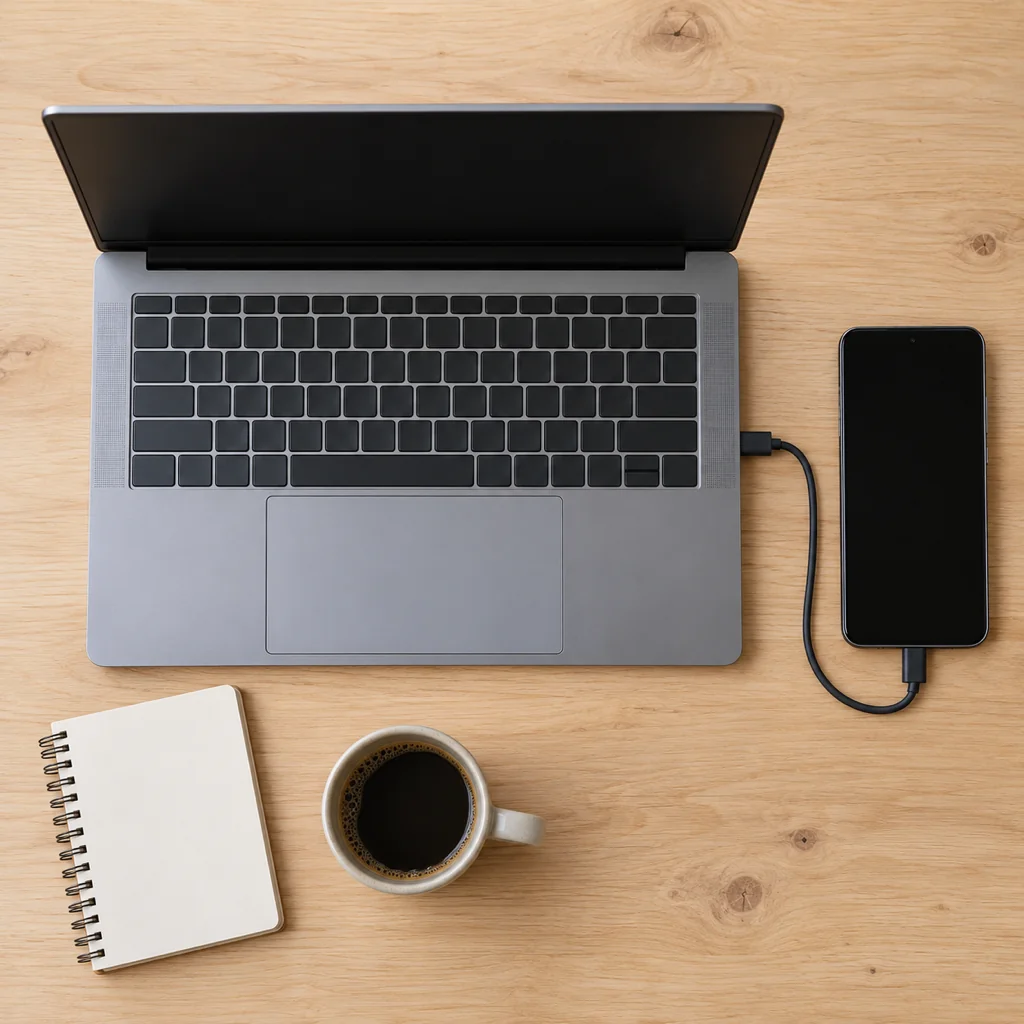
There are three ways to transfer files from Windows to Android that are worth your time. A USB cable with the phone set to File transfer mode is the fastest for anything over a few gigabytes, and it is the only method that needs no setup on either side. Quick Share for Windows is Google's own wireless option, but the PC must be running 64-bit Windows 10 or later with Bluetooth. A local Wi-Fi app such as Beam sends files straight across your home network and works on any PC, Bluetooth or not. Phone Link and Bluetooth are limited for files, and MMS is not a file transfer method at all. Below: each method, where files land on the phone, and which to pick for a given size.
Transfer files from Windows to Android with a USB cable
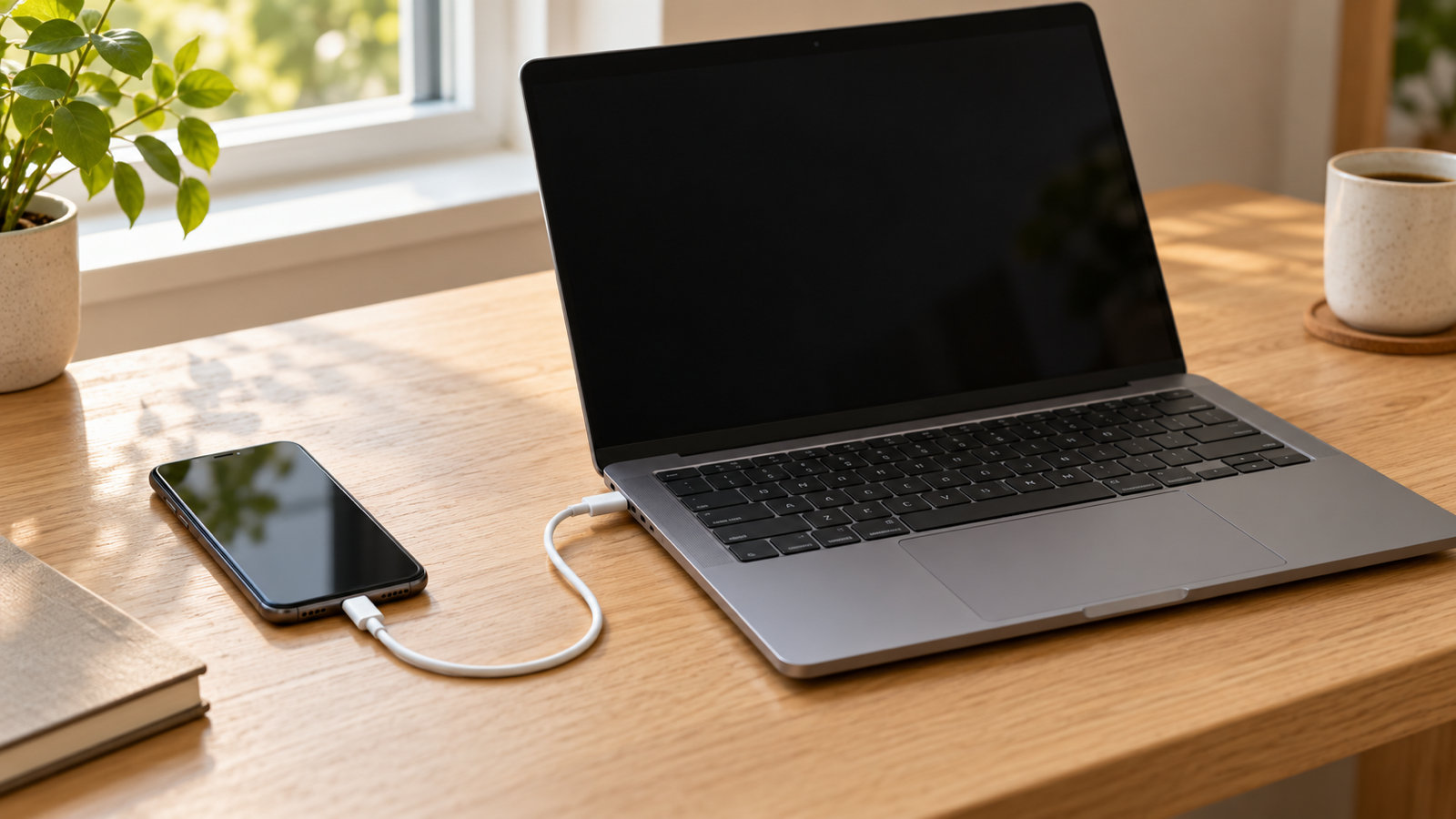
Android talks to Windows over MTP (Media Transfer Protocol), built into Windows since Windows 7, so there is no driver to install. The part people get wrong is on the phone.
- Connect with a data cable. Many charger cables are power-only; if the phone charges but never appears in File Explorer, suspect the cable first.
- Unlock the phone. A locked phone stays invisible to the PC on purpose.
- Pull down the notification shade and tap the Charging this device via USB notification. Choose File transfer (some phones label it File Transfer / Android Auto or MTP). The default is charging only.
- In File Explorer the phone appears under This PC with an Internal shared storage drive, and an SD card if one is fitted. Drag folders in and out like any other drive.
Where things live on the phone:
- DCIM/Camera: photos and videos the camera took. Copy new photos here and the gallery picks them up after a rescan, usually within a minute.
- Pictures and Pictures/Screenshots: edited images and screenshots.
- Download: anything the browser saved, and the sensible place to drop documents.
- Music, Movies, Documents: scanned by the matching apps.
- Android/media/com.whatsapp: WhatsApp photos, videos and voice notes on current versions.
MTP sometimes stalls on folders with thousands of small files. If a copy freezes, cancel, unplug and copy in batches. The speed itself is good: a USB 3 port moves a 4 GB video in well under a minute.
Transfer files from Windows to Android wirelessly
Quick Share for Windows
Google's Quick Share app for Windows mirrors the sharing built into Android and Samsung phones. Install it, sign in with the Google account from your phone or set the PC visible to everyone, and files move both ways. The requirements are strict: 64-bit Windows 10 or later, Bluetooth and Wi-Fi on, and no Windows on ARM at the time of writing. A desktop without a Bluetooth adapter never shows up on the phone. Visibility trips people too: a phone set to Contacts will not see a PC signed into a different account.
Phone Link
Microsoft's Phone Link pairs Windows with the Link to Windows app on the phone. It is good for messages, calls, notifications and recent photos. For files it is limited: drag-and-drop is only offered on some phones, mostly Samsung, and the File Explorer view of a linked phone in recent Windows 11 builds is also model-dependent and off until you enable it under Settings › Bluetooth & devices › Mobile devices. Convenient if you already use it; not worth installing just for files.
Beam, over the Wi-Fi you already have
Beam is our app for Mac, Windows, iPhone and Android. Both devices join the same Wi-Fi, find each other without pairing, and the file goes straight across with no account and no cloud. On Windows it lives in the system tray with Send to › Beam on the right-click menu; on Android it receives in the background into Downloads/Beam. Transfers are encrypted end to end, hash-checked before saving, and resume if interrupted. No Bluetooth needed, so a tower PC is fine. The step-by-step setup is in how to transfer files from PC to Android wirelessly.
Transfer files from Windows to Android without USB when Quick Share is not available
If Quick Share will not install (32-bit Windows, no Bluetooth, an ARM laptop, a locked-down work PC), the fallbacks in order of usefulness:
- A local network app. Beam or LocalSend only need the two devices on the same Wi-Fi. Our broader comparison, including browser-based options, is in AirDrop for Windows and Android alternatives.
- The phone's hotspot. No shared Wi-Fi? Connect the PC to the phone's hotspot and use the same local app; the transfer stays local and uses no mobile data.
- Bluetooth. Pair in Settings › Bluetooth & devices, then use Send a file. Roughly 1 to 2 MB per second: fine for a PDF, impractical for video.
- Cloud storage. Google Drive or OneDrive works anywhere, but a 2 GB file uploads and then downloads in full, so it is the slowest option and the only one that leaves a copy on someone else's server.
- Email yourself. Fine up to about 25 MB, the usual attachment ceiling.
Skip MMS entirely: carriers cap it at a few megabytes and recompress images, so photos arrive blurry and videos are refused.
Transfer APK from PC to Android
An APK is just a file, so any method above moves it. The extra step is on the phone: open the APK in the Files app, grant that app permission to install unknown apps when prompted, and the normal install screen appears. Play Protect scans it first.
Sideloading note: only install APKs from the developer's own site or a source you trust; a modified APK can carry anything. Developers can skip the copy with adb install app.apk over USB debugging.
Transfer data from Windows to Android
Moving a few files and moving your life are different jobs.
- A large folder (music collection, project directory): use the cable. MTP copies the tree as it is. Wireless apps usually want folders zipped first, Beam included.
- A whole photo library: copy into DCIM or Pictures over USB, in batches by year so a stall does not cost you the lot. Already in Google Photos? Just sign in on the phone.
- Contacts and calendar: not a file job. Sync them to a Google account and sign in on the phone.
- Large single videos: either the cable or a Wi-Fi app with no size cap and no recompression. We cover the quality side in how to send large video files without losing quality.
Check free space first. Phones accept a 40 GB copy readily and tell you late that it ran out at 38 GB.
Which method for which file size
- Under 25 MB, one file: anything works, including email and Bluetooth.
- 25 MB to 2 GB: Quick Share if the PC qualifies, otherwise a local Wi-Fi app; a couple of minutes at most on a home router.
- 2 GB to 20 GB: a Wi-Fi app works and resumes if interrupted, but the cable is faster.
- Over 20 GB, or thousands of files: USB cable, in batches.
- Any size, no shared Wi-Fi: cable, or the phone's hotspot plus a local app.
Common questions
Why does my Android phone not show up in File Explorer?
A charge-only cable, a locked phone, or the USB mode still set to charging. Unlock, tap the USB notification, choose File transfer.
Does Quick Share for Windows work without Bluetooth?
No. It uses Bluetooth to find nearby devices, then Wi-Fi for the transfer, and it requires 64-bit Windows 10 or later. A PC without Bluetooth needs a cable or a Wi-Fi-only app.
Can Phone Link transfer files to any Android phone?
Not reliably. File drag-and-drop and the File Explorer view are only offered on certain phones, mostly Samsung. Check the Phone Link app on your PC to see whether your phone gets them.
Is there a file size limit when transferring from Windows to Android?
Not with a cable or a local Wi-Fi app. Email stops at about 25 MB, MMS at a few megabytes, cloud at whatever your plan allows.
Where do transferred files go on Android?
Wherever you put them over USB. Wireless apps use a set folder: Quick Share and most apps save to Download, and Beam saves to Downloads/Beam.
The short version
Cable in File transfer mode for big libraries and folders; Quick Share for Windows on a 64-bit PC with Bluetooth; a local Wi-Fi app such as Beam otherwise. Phone Link and Bluetooth are for small jobs, and MMS is not an option. Step-by-step wireless setup: transfer files from PC to Android wirelessly.
From the studio
Previous Article
Transcribe Voice Memos to Text: iPhone, Android and Mac
Next Article
Games to Play with Family on Phone: 10 Free Games for One Phone or Everyone’s