How to Take Screenshot Without Power Button on Android (Every Brand)
Take a screenshot without the power button on Android: Recents, Quick Settings, voice, gestures for Samsung, Pixel, Xiaomi, Realme and Motorola, or a floating button.
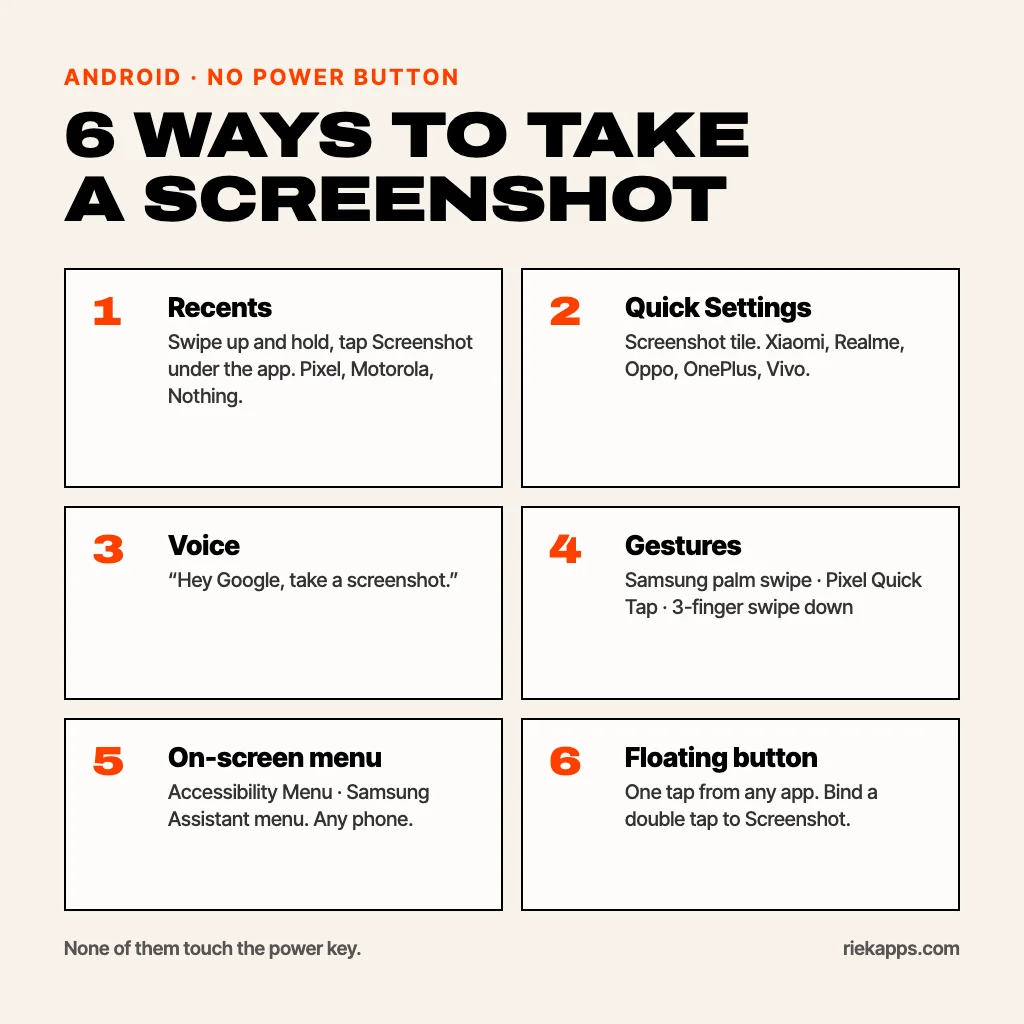
To take a screenshot without the power button on Android, open Recents and tap Screenshot under the app, tap the Screenshot tile in Quick Settings, say “Hey Google, take a screenshot”, or use your phone's gesture: palm swipe on Samsung, Quick Tap on Pixel, a three-finger swipe down on Xiaomi, Realme, OnePlus and Motorola. If you need it every day, a floating screenshot button is the fastest option. Here is every method, brand by brand.
The default Android screenshot is Power and Volume Down pressed together. That chord is the problem: it needs two hands on many phones, it locks the screen if you are a fraction late with Volume Down, and it is impossible once the power button is broken or stuck. None of the methods below touch the power key.
1. Screenshot from the Recents screen
On Pixel phones and most phones that run close-to-stock Android 11 or later (Motorola, Nokia, Nothing, many Android One models), swipe up from the bottom and hold to open Recents. Under the app's preview there is a Screenshot button. Tap it and Android captures that app exactly as it looked, without the Recents frame around it.
This is the quickest method that needs nothing switched on. It does not exist on Samsung's One UI, which is why Samsung owners usually go straight to palm swipe or the Assistant menu.
2. The Screenshot tile in Quick Settings
Xiaomi, Redmi, POCO, Realme, Oppo, OnePlus and Vivo all put a Screenshot tile in the Quick Settings panel. Swipe down twice from the top, tap Screenshot, and the panel closes before the capture. If you do not see it, tap the pencil or edit icon and drag the tile into the first row.
3. Voice: “Hey Google, take a screenshot”
With Google Assistant, say “Hey Google, take a screenshot” while the screen you want is open. The screen flashes and the image saves to your gallery. On phones where Gemini has replaced Assistant, the command is supported on most recent versions but can open a share sheet instead of saving straight away. It is the most hands-free method, but you need to be somewhere you can talk to your phone.
4. Brand gestures: Samsung, Pixel, Xiaomi, Realme, Motorola, OnePlus
Most manufacturers add their own gesture. Menu names change between versions, so search Settings for “screenshot” if a path below does not match.
- Samsung (Galaxy A12, A14, A15, A17, S21, S24 and others): Settings, Advanced features, Motions and gestures, Palm swipe to capture. Swipe the side of your hand across the screen. Some budget A-series models leave it out; on those, use the Assistant menu in method 5.
- Google Pixel: Settings, System, Gestures, Quick Tap to start actions, then choose Take screenshot. Double-tap the back of the phone. Available from Pixel 4a (5G) onwards.
- Xiaomi, Redmi and POCO: Settings, Additional settings, Gesture shortcuts, Take a screenshot, then Slide 3 fingers down.
- Realme and Oppo: Settings, Additional settings, Screenshot, 3-finger swipe down. Also works on the Realme C-series (C11, C21Y, C25Y).
- Motorola: the Moto app, Gestures, Three finger screenshot: touch and hold the screen with three fingers.
- OnePlus: Settings, Buttons and gestures, 3-finger screenshot.
5. The Accessibility Menu or Samsung Assistant menu
Android has a built-in on-screen menu with a Screenshot button, meant for exactly this situation.
- Pixel and most other phones (Android 9 and later): Settings, Accessibility, Accessibility Menu, turn on the shortcut. A small accessibility button appears; tap it, then tap Screenshot. If it is not installed, the Android Accessibility Suite app from Google Play adds it.
- Samsung: Settings, Accessibility, Interaction and dexterity, Assistant menu. A floating button appears with Screenshots in its grid, along with Lock and volume.
Both work on every model, including the budget Samsungs without palm swipe. The trade-off is size: the menu is a large grid that covers half the screen, and it takes two taps every time.
6. A floating screenshot button
If your power button is broken, or you take screenshots all day, a floating button is the least effort per capture. AssistiveDot is ours: a small draggable dot that sits above every app on Android 12 and later.
- Install it, allow Display over other apps and turn on its accessibility service when the app asks. Android only lets an accessibility service take a screenshot on your behalf, which is why every app of this kind asks for it.
- Tap the dot, then tap Screenshot. The capture is instant, with no “start recording?” consent dialog.
- To make it one tap, bind a gesture on the dot, such as double tap or a quick swipe up, straight to Screenshot so it fires without opening the panel.
The dot hides itself for the frame of the capture, so it never appears in your screenshot, and the image is saved to the same Pictures/Screenshots folder your phone uses, so it shows up in your gallery as usual. Plain screenshots, Lock, Back, Home, Recents, volume and screen recording are free. A one-time Pro unlock adds a crop screenshot, a 3-second timed screenshot, a scrolling long screenshot and copying text off the screen, which runs entirely on the phone. The assistive touch for Android guide covers the rest of the panel.
How to take a scrolling screenshot without the power button
Scrolling screenshots usually start from the toolbar that appears after a normal screenshot, so any method above gets you there: take the screenshot, then tap Capture more (Pixel), the down-arrow scroll icon (Samsung) or Scrolling (Xiaomi). Not every app supports it; it fails in many chat and banking apps. AssistiveDot's Long shot scrolls the page itself and stitches the result, which helps where the system button does not appear.
What about iPhone?
On an iPhone, turn on AssistiveTouch in Settings, Accessibility, Touch, and set a double tap or long press to Screenshot, or use Back Tap in the same menu to take one by tapping the back of the phone twice. Everything else in this guide is Android only.
Common questions
How can I take a screenshot on Android if my power button is broken?
Use the Screenshot button in Recents, the Screenshot tile in Quick Settings, “Hey Google, take a screenshot”, your brand's gesture, the Accessibility Menu or a floating button app. None of them need the power key.
How do I take a screenshot on Samsung without the power button?
Turn on Palm swipe to capture in Settings, Advanced features, Motions and gestures, or switch on the Assistant menu in Accessibility, Interaction and dexterity and tap Screenshots in its floating menu.
Can I take a screenshot without any buttons at all?
Yes. Every method in this guide works with no hardware button: on-screen buttons, voice, back taps and finger gestures.
Why does a screenshot app need accessibility permission?
Android only lets an accessibility service capture the screen silently on your behalf. A well-made screenshot button does not ask to read the content of your screen; AssistiveDot declares its service without that access.
How do I lock my phone without the power button?
Add a Lock button through the Accessibility Menu, Samsung's Assistant menu or a floating button app, or on Samsung turn on Double tap to turn off screen in Advanced features, Motions and gestures.
Which method should you use?
For the occasional screenshot, the Recents button or the Quick Settings tile is already on your phone. For a gesture you will remember, turn on palm swipe, Quick Tap or the three-finger swipe. If the power button is broken and you need screenshots, Lock and Back every day, put AssistiveDot where your thumb already rests and bind a double tap to Screenshot.
From the studio
Previous Article
Friendsgiving Games: 15 Ideas for Adults, Big Groups and Phones
Next Article
Main Character Energy Meaning: What It Is (and How to Get It)