How to Record Audio on Android (Samsung, Pixel and Any Phone)
How to record audio on Android: the built-in recorder on Samsung and Pixel, recording sound from a video, calls, an external mic, and settings for clear audio.
To record audio on Android, open your phone’s recorder app (Voice Recorder on Samsung, Recorder on Pixel, or Recorder/Sound Recorder on most other brands), tap the red record button, and tap stop when you are done; the file saves as an M4A you can play, rename and share. If your phone has no recorder, install one from the Play Store. To capture sound playing on the phone itself, such as a video, use the built-in screen recorder with device audio switched on. The rest of this guide covers each brand, calls, external mics and the settings that make a recording clear.
How to record audio on an Android phone (any brand)
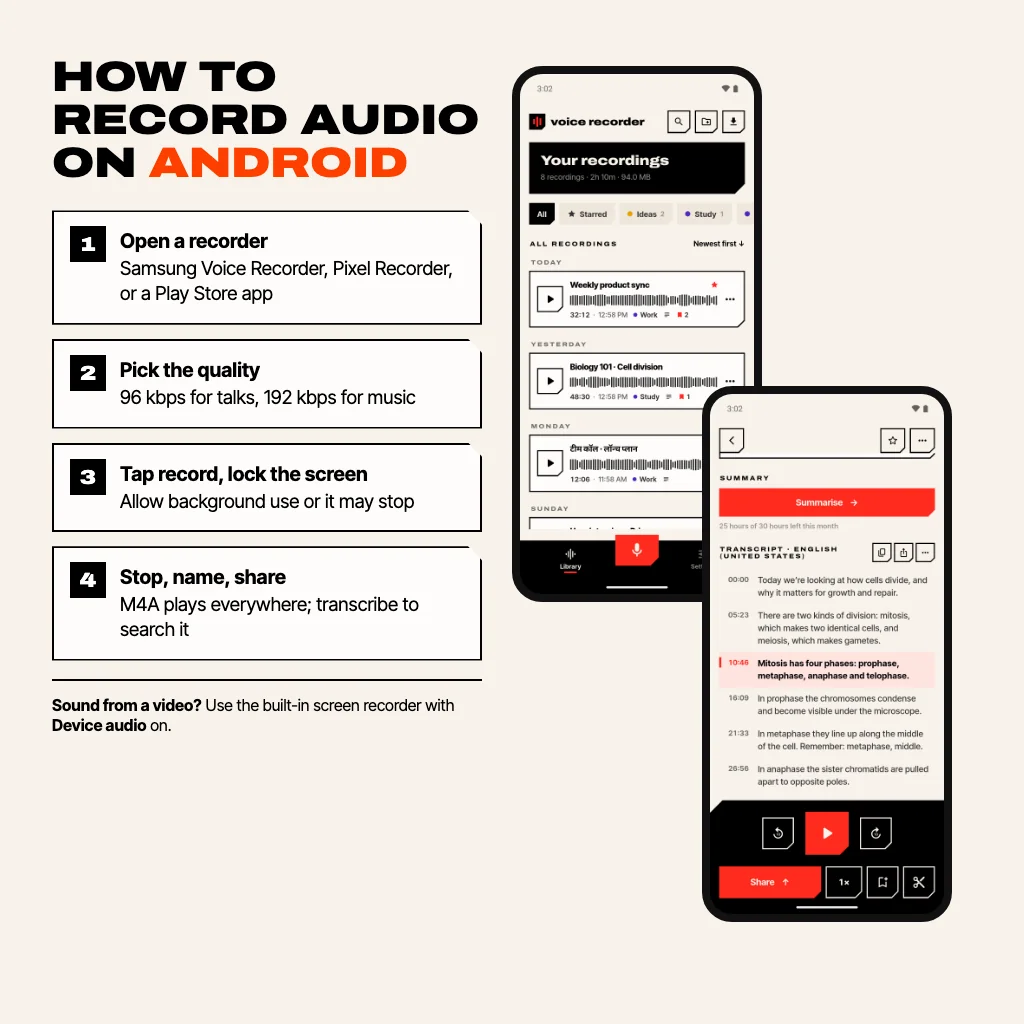
- Open a recorder app. Search your app drawer for “record”. Most phones ship one; if yours doesn’t (some Motorola and budget phones don’t), install one from the Play Store.
- Allow the microphone the first time Android asks. If you tapped “Don’t allow” earlier, go to Settings › Apps › the recorder › Permissions › Microphone.
- Tap the red record button. Put the phone on a table with the microphone (the small hole on the bottom edge) facing the person speaking.
- Lock the screen if you like. A good recorder keeps going with the screen off and shows a notification while it records.
- Tap stop, then name it. Rename it now (“Biology 101, week 6”) rather than hunting for “Recording 47” later, then share it or keep it in the app.
How to record audio on Samsung
Samsung Galaxy phones come with Samsung Voice Recorder (it is often in the Samsung or Tools folder). Open it, choose a mode at the top, and tap the red button:
- Standard for everyday recording.
- Interview uses the top and bottom microphones to pick up two people facing each other across a table.
- Speech-to-text types out what is said while it records, on models that support it.
Recording quality lives in the three-dot menu › Settings. Files go to the Recordings folder on the phone’s storage, which you can open in My Files.
How to record audio on a Google Pixel
Pixels have Google’s Recorder app. Tap the red button to start; the Transcript tab writes down the speech as it goes, on the device, and you can search past recordings by word. It is one of the best built-in recorders, but it only exists on Pixel phones.
How to record audio on Android without an app
Android itself has no “record audio” switch, so “without an app” means using something already on your phone:
- The built-in recorder above, if your phone has one; it counts, because you don’t have to install anything.
- The screen recorder (Android 11 and later): swipe down twice, tap Screen record, choose Microphone as the audio source. You get a video file with your voice; any video-to-audio converter turns it into sound only.
- A voice note to yourself in a messaging app works for a quick reminder, but the quality is compressed and long recordings are clumsy.
How to record audio from a video or app on Android
To record the sound playing on the phone, not the room around it, use the screen recorder again and pick Device audio (or “Media sounds” on Samsung) as the source. Android has allowed this since Android 10, with one catch: apps can opt out of being captured, and streaming services with copy protection do. If the recording comes out silent, that app has blocked it. Only record what you have the right to keep.
Can you record a phone call on Android?
Not with a normal recorder app. Since Android 10, third-party apps can’t capture call audio, and Play Store rules stopped the workarounds in 2022. What works is the call recording built into some phones’ own Phone app (Samsung and Google’s Phone app offer it in some countries): open the dialler’s settings and look for “Record calls”. If it isn’t there, it isn’t available in your region. Call recording laws differ by country and US state; in many places everyone on the call has to agree, so always tell them.
How to record good quality audio on Android
- Pick a quality that fits the job. In Voice Recorder the tiers are Low (64 kbps, 22 kHz) for voice notes, Standard (96 kbps, 44.1 kHz) for meetings and lectures, and High (192 kbps, 48 kHz) for music. An hour at Standard is about 43 MB; at High about 86 MB.
- Get close. Distance matters more than any setting. Half a metre from the speaker beats any “high quality” option from the back of a room.
- Soft rooms sound better. Curtains, sofas and carpet cut echo; bare walls and tiled kitchens add it.
- Use a USB-C microphone for serious work. Most recorder apps switch to it automatically when you plug it in. Avoid Bluetooth earbuds as a microphone: Android records them through the low-quality call channel.
- Turn on Do Not Disturb so notification sounds and vibrations don’t end up in the recording.
- Clean it afterwards. If a fan or traffic got in anyway, see how to remove background noise from audio.
Why does my Android recording stop when the screen turns off?
Battery savers on some brands (Samsung, Xiaomi, OnePlus and others) close apps that run in the background, and a recorder is one of them. Set the recorder’s battery use to “Unrestricted” in Settings › Apps › the recorder › Battery. The full fix, brand by brand, is in how to record audio with the screen off.
A recorder that also turns audio into text
Recording is the easy part; finding the two minutes you need in a 90-minute recording is the hard part. Voice Recorder is our app for that, on Android and iPhone:
- Records with the screen off, with bookmarks you tap while recording to mark the important moments.
- Transcribes on the phone, with no upload (Android 13 or newer), and searches every transcript by word.
- Clean voice removes fans, traffic and room noise; trim, fade and remove silence; export as M4A or WAV.
- AI summaries with key points and action items, in the language you spoke.
- No account; recordings stay on your phone.
Recording, playback, trimming and the library are free. Transcription, Clean voice, fades, Remove silence and WAV export come with three free tries, then Voice Recorder Pro, a monthly or yearly subscription that also adds AI summaries. If you mostly record classes, our guide to recording lectures on your phone goes deeper.
Common questions
Does Android have a built-in voice recorder?
Most Android phones do: Samsung Voice Recorder on Galaxy phones, Recorder on Pixels, and a Recorder or Sound Recorder app on Xiaomi, OnePlus and others. Android itself doesn’t include one, so a few phones ship without; a free app from the Play Store fills the gap.
Where are audio recordings saved on Android?
It depends on the app. Samsung saves to the Recordings folder in internal storage; Pixel’s Recorder keeps files inside the app; most other recorders save to a Recordings or Music folder. Open the recording in the app and use Share or Save to put a copy anywhere you like.
How long can I record audio on Android?
Until the storage or battery runs out, in a good app. At 96 kbps an hour of audio is about 43 MB, so a phone with 10 GB free can hold more than 200 hours.
What format does Android record audio in?
Usually M4A (AAC audio), which plays on every phone and computer. Some apps also export WAV, which is uncompressed and much larger, for editing in audio software.
Can I record audio on Android while using other apps?
Yes. Start the recording, then go home or open another app; the recording keeps going and shows a notification you can tap to get back to it.
From the studio
Previous Article
Christmas Games for Adults: Free Printable Bingo, Trivia and More (PDF)
Next Article
75 Day Challenge Tracker Printable (Free PDF)