How to Lock Phone Without Power Button (Android and iPhone)
Lock your phone without the power button: double tap to turn off screen, the Accessibility Menu, Samsung Assistant menu, a floating Lock button, or AssistiveTouch on iPhone.
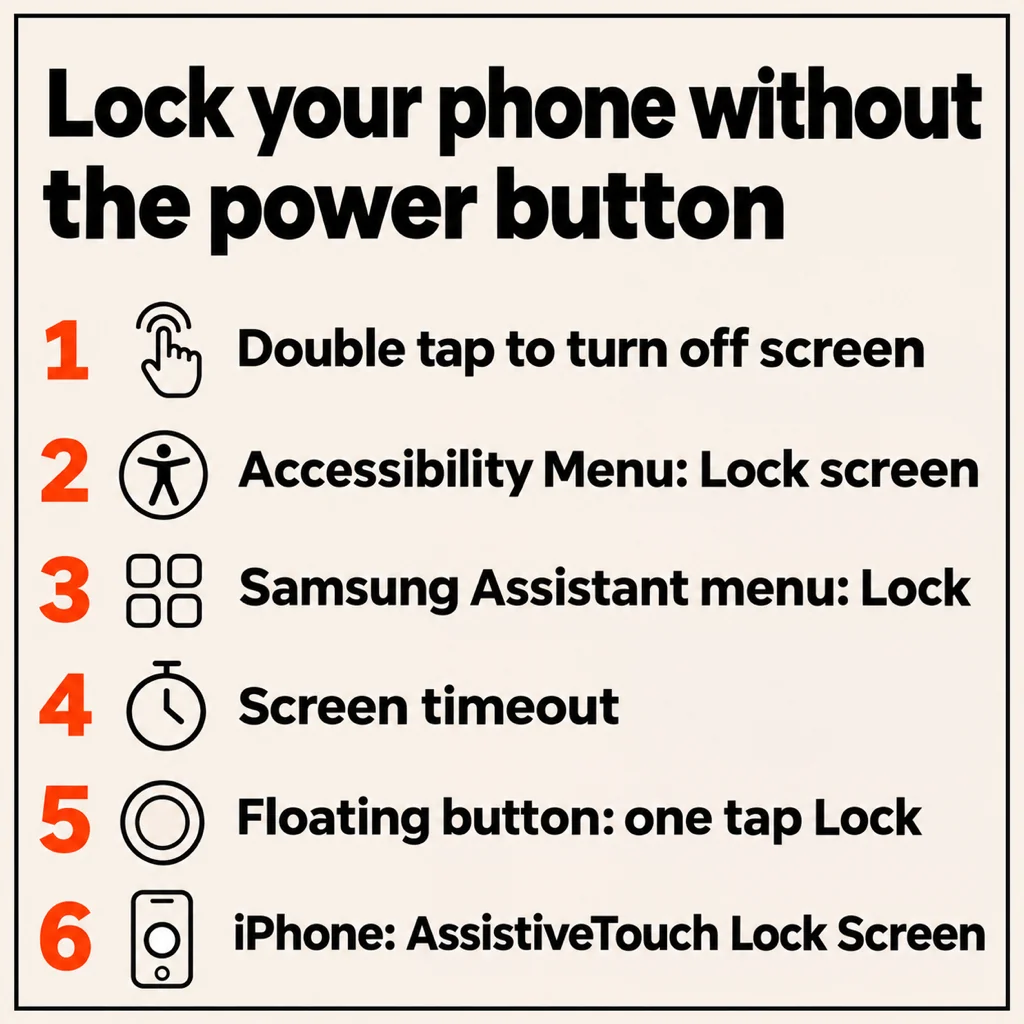
To lock your phone without the power button, turn on “double tap to turn off screen” (Samsung, OnePlus, Oppo, Realme, Xiaomi), use the Lock screen button in Android's Accessibility Menu or Samsung's Assistant menu, add a floating Lock button, or on iPhone set AssistiveTouch to Lock Screen. If nothing else works, a short screen timeout locks the phone on its own. Here is each method, brand by brand, plus how to wake and switch off the phone when the button is dead.
A stuck or broken power key is one of the most common phone faults, and repairs often mean a week without the phone. You do not need to wait: Android and iOS both have on-screen ways to lock, and none of them need root or a computer.
1. Double tap to turn off the screen
Many Android skins let you double tap an empty part of the home screen or lock screen to switch the screen off. It is the closest thing to a power button press.
- Samsung (One UI): Settings, Advanced features, Motions and gestures, Double tap to turn off screen. Turn on Double tap to turn on screen in the same menu to wake it.
- OnePlus, Oppo and Realme: search Settings for “double tap”, usually under Accessibility and convenience, Gestures and motions, Double-tap to turn screen off.
- Xiaomi, Redmi and POCO: long-press the home screen, open Settings (home screen settings) and turn on Double tap to lock screen where your HyperOS or MIUI version has it.
- Pixel: the Pixel Launcher has no double-tap-to-lock switch. Use the Accessibility Menu in method 2 or a floating button.
Menu names change between versions, so if a path above does not match, type “double tap” or “turn off screen” into the Settings search bar.
2. Android's Accessibility Menu
Google's Accessibility Menu puts a large on-screen panel with Lock screen, Power, volume, brightness and Screenshot one tap away. It works on Pixel, Motorola, Nokia, Nothing and most other phones running Android 9 or later.
- Open Settings, Accessibility, Accessibility Menu, and turn on its shortcut. If you do not see it, install Android Accessibility Suite from Google Play.
- A small accessibility icon appears at the edge of the screen or in the navigation bar.
- Tap it, then tap Lock screen.
It is reliable and built in. The downside is two taps every time, and the panel covers half the screen while it is open.
3. Samsung's Assistant menu
On Galaxy phones, go to Settings, Accessibility, Interaction and dexterity, and turn on Assistant menu. A floating button appears; tap it and choose Lock. The same menu has Power off, Screenshots and the volume keys, which is useful when the volume rocker is also worn out. It exists on every Samsung, including the budget Galaxy A models that sometimes skip double-tap gestures.
4. A floating Lock button
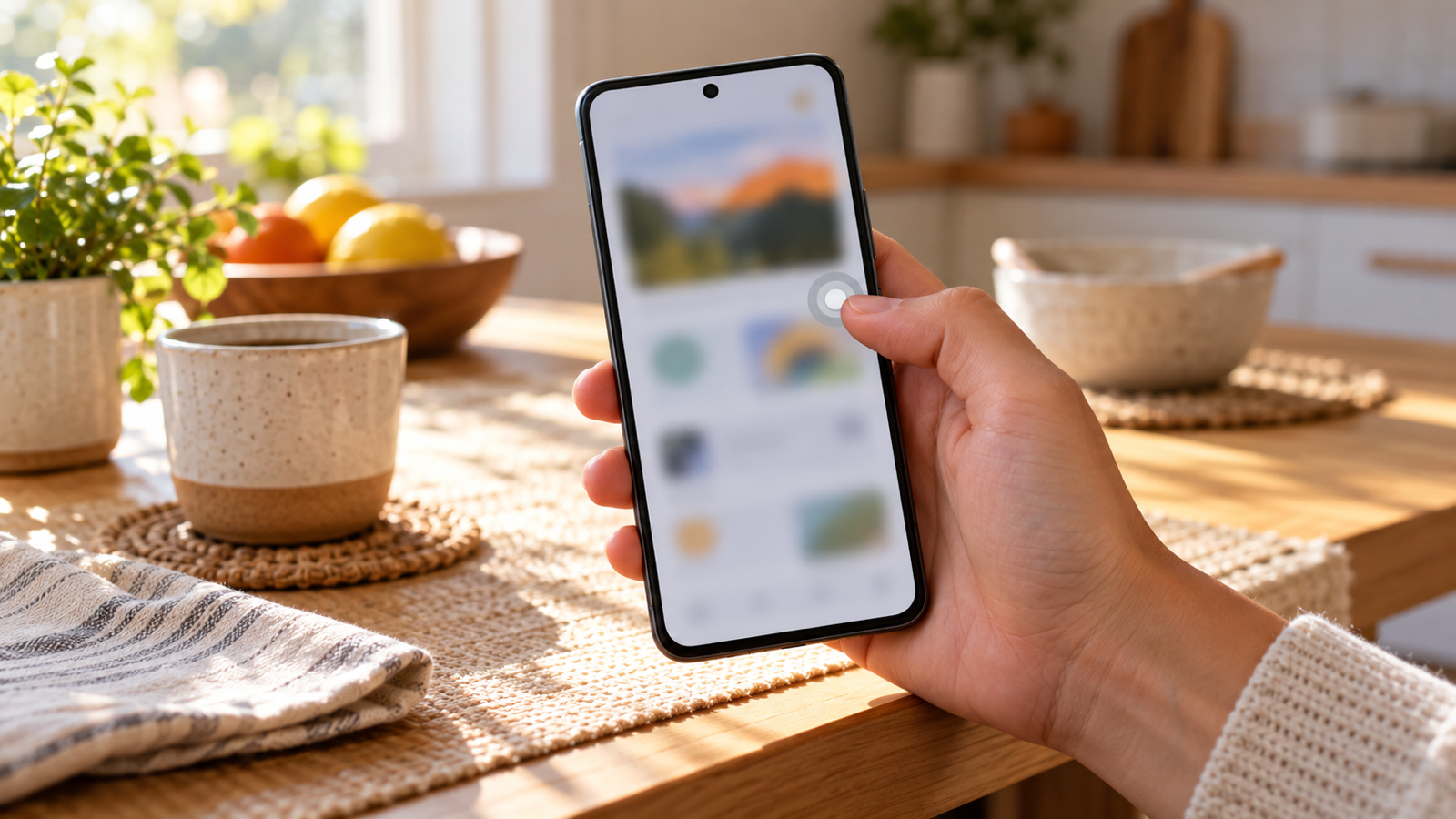
If you lock your phone dozens of times a day, the fastest option is a small floating button with Lock bound to a single gesture. AssistiveDot is ours: a draggable dot that sits above every app on Android 12 and later.
- Install it, allow Display over other apps and turn on its accessibility service when it asks. Android only lets an accessibility service lock the screen for you, which is why every lock button app needs it.
- Tap the dot, then tap Lock. The screen locks immediately, exactly as if you had pressed the power key, so your fingerprint and face unlock keep working.
- To make it one move, bind a gesture on the dot (tap, double tap, long press, swipe up or swipe down) straight to Lock.
Lock, the Power menu, Back, Home, Recents, volume, plain screenshots and screen recording are all free; the app keeps everything an assistive button needs out of the paywall. A one-time Pro unlock adds extras such as a crop screenshot, a timed screenshot and a scrolling long screenshot. The assistive touch for Android guide shows the rest of the panel, and if you also lost your screenshot shortcut, see how to take a screenshot without the power button.
5. Let the screen timeout lock it
The zero-setup fallback: Settings, Display, Screen timeout, and pick 15 or 30 seconds. Put the phone down and it locks itself. On iPhone the same setting is Settings, Display and Brightness, Auto-Lock. It is fine as a backup, but annoying while you read, so pair it with one of the methods above.
How to lock an iPhone without the power button
Turn on AssistiveTouch in Settings, Accessibility, Touch, AssistiveTouch. A grey floating button appears; tap it, then Device, then Lock Screen. To make it one tap, open Single-Tap under Custom Actions in the same menu and choose Lock Screen. You can also set Back Tap (Settings, Accessibility, Touch, Back Tap) to Lock Screen and lock the iPhone by tapping its back twice.
How to wake or unlock the phone without the power button
Locking is half the problem; you also need to wake the screen.
- Double tap to wake: Samsung, OnePlus, Oppo, Realme and Xiaomi have it next to the double-tap-to-lock switch. Pixel has Tap to check phone and Lift to check phone under Settings, System, Gestures.
- Raise to wake on iPhone: Settings, Display and Brightness. Tap to Wake is under Accessibility, Touch.
- Fingerprint sensor: a rear or side sensor usually wakes and unlocks in one touch. Under-display sensors may need the always-on display or “show icon when screen is off”.
- Plug in the charger: almost every phone lights the screen when power is connected, which helps if the phone is stuck dark.
How to turn off the phone without the power button
Locking is not the same as switching off. On Android 12 and later, swipe down twice: Pixel and Samsung show a power icon in Quick Settings that opens the Power off and Restart menu. The Accessibility Menu, Samsung's Assistant menu and AssistiveDot's Power tile open the same menu. On Samsung you can also say “Hey Bixby, turn off my phone”. On iPhone, go to Settings, General, Shut Down, or ask Siri to turn off your iPhone. To turn it back on later, plug in the charger; a phone with a dead power key may not start any other way.
Common questions
How do I lock my Samsung phone without the power button?
Turn on Double tap to turn off screen in Settings, Advanced features, Motions and gestures, or switch on the Assistant menu under Accessibility, Interaction and dexterity, and tap Lock.
Is there an app to lock my phone without the power button?
Yes. A floating button app such as AssistiveDot (Android 12 and later) puts Lock on a small dot you can tap or double tap. It needs the accessibility service, because that is the only way Android lets an app lock the screen. Lock is free in AssistiveDot.
Does locking this way disable fingerprint unlock?
No. The Accessibility Menu, Assistant menu and accessibility-based lock buttons perform a normal lock. Older apps that use device administrator permission can force a PIN on the next unlock; avoid those.
How do I lock a Pixel without the power button?
Turn on the Accessibility Menu in Settings, Accessibility and tap Lock screen, or use a floating Lock button. The Pixel Launcher has no double-tap-to-lock gesture.
Can I use the volume button as a power button?
Not natively. Button remapping apps can do it through an accessibility service, but on-screen methods are simpler and do not wear out a second button.
Which method should you use?
On Samsung, OnePlus, Oppo, Realme or Xiaomi, start with double tap to turn off screen; it costs nothing and feels like the real button. On a Pixel or any phone without that gesture, use the Accessibility Menu. If the power key is gone for good and you lock, go back and go home all day, put AssistiveDot under your thumb and bind a double tap to Lock. Then get the button repaired when it suits you, not when the phone forces you to.
From the studio
Previous Article
What to Reply When Someone Says Thank You: 50 Replies for Work, Friends and Texts
Next Article
Truth or Dare Questions for Friends: Funny, Juicy and Deep (100+)