How to Clear Derived Data in Xcode (Settings, Finder and Terminal)
How to clear Derived Data in Xcode: the Settings → Locations route, one project or all, the Terminal command, and when Clean Build Folder is enough.
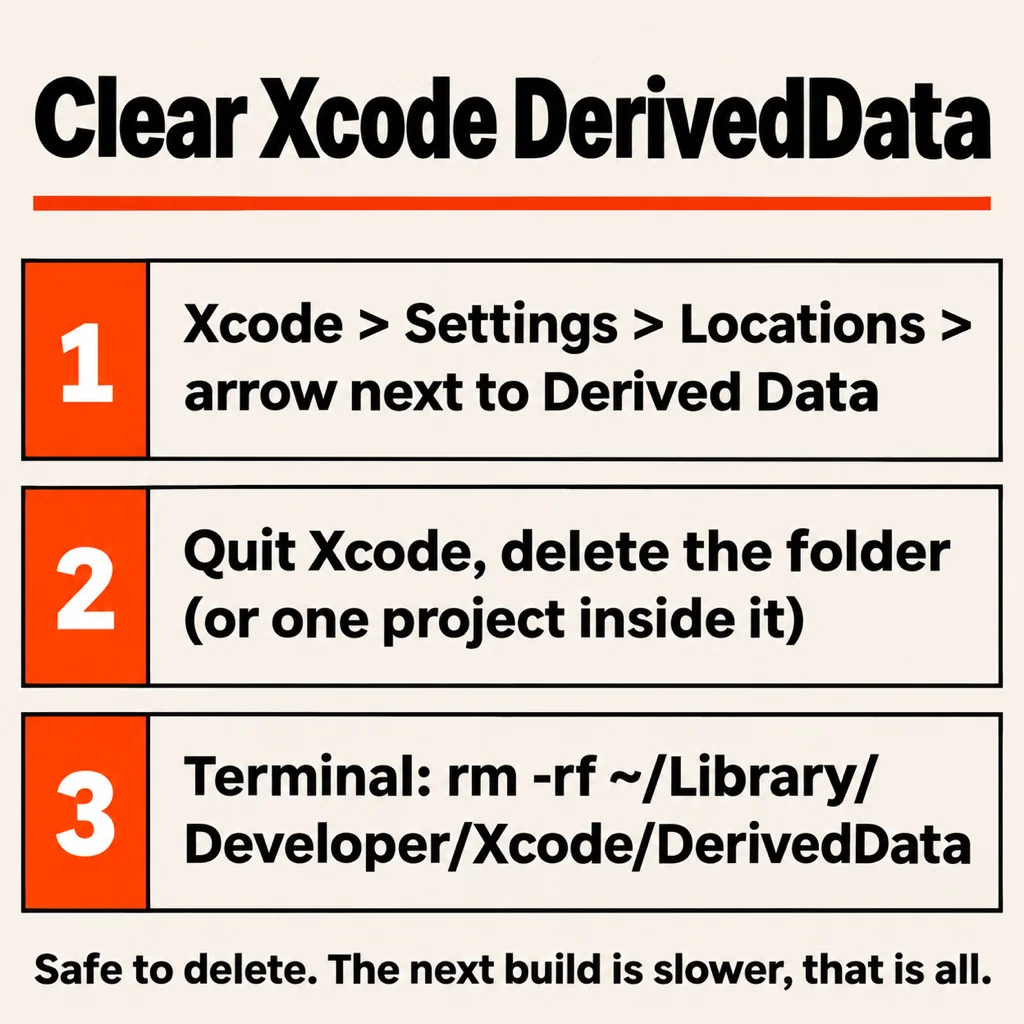
To clear Derived Data, quit Xcode and delete the folder ~/Library/Developer/Xcode/DerivedData, or only your project’s subfolder inside it. The quickest way to find it is Xcode → Settings → Locations, then the small arrow next to the Derived Data path. In Terminal, the same thing is rm -rf ~/Library/Developer/Xcode/DerivedData. It is safe: Derived Data holds build output, indexes and module caches that Xcode rebuilds on its own. The cost is a slower first build and a few minutes of re-indexing. Below are the three routes, how to clear one project only, when Clean Build Folder is enough, and the other Xcode folders that eat more space than Derived Data.
What is Derived Data in Xcode?
Derived Data is Xcode’s working folder for everything it generates from your source code. For each project it creates a subfolder named after the project plus a random string, such as MyApp-gxkzqbemnhfvla…. Inside are:
- Build: intermediate object files and the built app for each scheme and destination.
- Index.noindex: the index behind autocomplete, jump-to-definition and search.
- SourcePackages: checked-out Swift packages and their build output.
- Logs: build and test logs.
There is also a shared ModuleCache.noindex folder at the top level. None of it is your code, so nothing you wrote is lost when it goes. On a Mac that builds several apps, Derived Data commonly reaches 10–50 GB, because Xcode never removes the folders of projects you stopped opening.
How to clear Derived Data from Xcode Settings
- Open Xcode and choose Xcode → Settings (called Preferences before Xcode 14), or press
⌘,. - Click the Locations tab.
- Under Derived Data, click the small grey arrow at the end of the path. Finder opens the DerivedData folder.
- Quit Xcode (
⌘Q). - In Finder, select either the single project folder you want to reset or everything inside DerivedData, and move it to the Trash. Empty the Trash to get the space back.
The steps are the same in Xcode 15, 16 and 26. Very old guides send you to a Projects list in the Organizer window; in current Xcode, Settings → Locations is the route.
How to delete Derived Data in Terminal
Quit Xcode, then run:
rm -rf ~/Library/Developer/Xcode/DerivedDataXcode recreates the folder the next time it builds. To check how big it is first:
du -sh ~/Library/Developer/Xcode/DerivedDataTo clear one project only, delete just its subfolder (the asterisk covers the random suffix):
rm -rf ~/Library/Developer/Xcode/DerivedData/MyApp-*rm -rf skips the Trash, so type the path carefully, and never run it with a space or variable that could expand to ~ on its own. If you set a custom Derived Data location in Settings → Locations (Relative or Custom), use that path instead.
On CI or with fastlane, the clear_derived_data action does the same job, and xcodebuild -derivedDataPath ./build keeps a build’s Derived Data inside the project so it is thrown away with the checkout.
Clean Build Folder vs clearing Derived Data
Product → Clean Build Folder (⇧⌘K) removes the build products for the current project only. It does not touch the index, the module cache or downloaded Swift packages. Try it first for a stubborn build error; it is quicker and the next build is faster.
Clear Derived Data when:
- Clean Build Folder didn’t fix the error, especially “module compiled with a different version of Swift”, stale “No such module” errors, or a build that succeeds but runs old code.
- Autocomplete, syntax highlighting or jump-to-definition are broken (a corrupted index lives in Index.noindex).
- SwiftUI previews keep failing after you changed a package or the deployment target.
- You need the disk space back.
For package trouble specifically, File → Packages → Reset Package Caches is the narrower fix before deleting everything.
Is it safe to delete Derived Data?
Yes. Everything in it is regenerated from your project and its packages. What you lose is time: the next build of each project is a full build, Xcode re-indexes in the background (the status bar shows “Indexing”), and Swift packages are fetched again if their checkouts were inside. Delete it with Xcode closed so a running build doesn’t write half a folder back.
What is not in Derived Data: your source, your signing certificates, your archives for App Store uploads and your simulators. Those live elsewhere, which is also why clearing Derived Data alone rarely frees all the space Xcode uses.
Other Xcode folders that take more space
If du shows Derived Data is only a few gigabytes, look at these in ~/Library/Developer:
- Xcode/iOS DeviceSupport: debug symbols copied from every iPhone and iOS version you plugged in, often 3–5 GB each. Old versions are safe to delete; Xcode copies them again when that device connects.
- Xcode/Archives: every build you archived for TestFlight or the App Store. Keep the ones you may need for crash symbolication.
- CoreSimulator/Devices and simulator runtimes:
xcrun simctl delete unavailableremoves simulators for runtimes you no longer have. - ~/Library/Caches/com.apple.dt.Xcode: Xcode’s own cache, safe to clear with Xcode closed.
Our guide to clearing System Data on a Mac covers the non-Xcode side, and free up disk space on a Mac covers the rest.
Clear Derived Data and the rest in one pass: TidyDisk
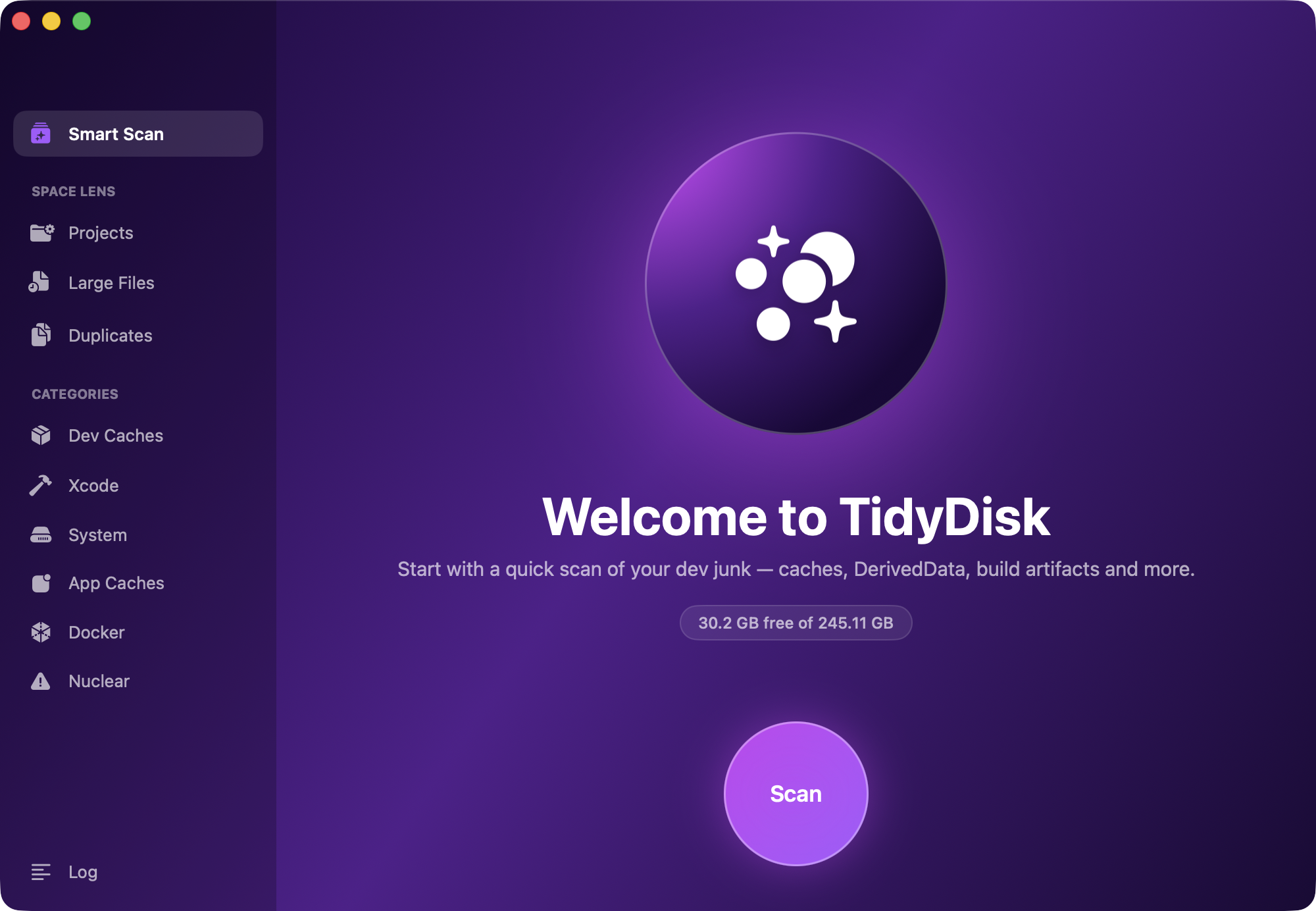
TidyDisk is our free, open-source Mac cleaner for developers (MIT licence, macOS 14 or later, Apple Silicon and Intel). Its scan lists Xcode Derived Data with its size next to npm, Gradle, CocoaPods, Homebrew and Docker leftovers, so you see where the gigabytes are before deleting anything.
- Derived Data and Xcode caches sit in the Safe tier: TidyDisk empties the folder’s contents and Xcode rebuilds them.
- iOS DeviceSupport, Archives and unused simulators sit in the Aggressive tier, with a warning, because you may want some of them. For simulators it runs
xcrun simctl delete unavailableand removes runtimes not used for 60 days. - Space Lens shows which projects hold the most build output, and large files and duplicates go to the Trash, not straight to deletion.
Install with brew install --cask prateekcode/tap/tidydisk or download it from the TidyDisk page.
Common questions
Where is the Derived Data folder?
By default at ~/Library/Developer/Xcode/DerivedData in your home folder. Library is hidden in Finder: press ⇧⌘G and paste the path, or open it from Xcode → Settings → Locations with the arrow next to the path.
Is it safe to delete Xcode Derived Data?
Yes. It contains only build output, indexes and caches that Xcode regenerates. Your next build takes longer and Xcode re-indexes, but no code or settings are lost. Quit Xcode before deleting it.
How do I clear Derived Data for one project only?
Open the DerivedData folder and delete only the subfolder that starts with your project’s name, or run rm -rf ~/Library/Developer/Xcode/DerivedData/YourProject-* in Terminal.
Does Clean Build Folder delete Derived Data?
Only part of it. Clean Build Folder (⇧⌘K) removes the current project’s build products, but leaves the index, module cache and package checkouts. Clearing Derived Data removes all of them.
Why does Derived Data keep coming back?
Xcode recreates it on every build, and it never deletes folders of projects you stopped opening. Clearing it every month or two, or after big Xcode updates, keeps it in check.
What is a good app to clear Derived Data on a Mac?
TidyDisk is free and open source: it finds Derived Data, Xcode caches, simulators and package-manager caches in one scan and sorts them into safety tiers before you clean.