How to Clear System Data on Mac
What macOS hides under System Data and how to shrink it safely: caches, Time Machine snapshots, old iPhone backups, logs and developer files.
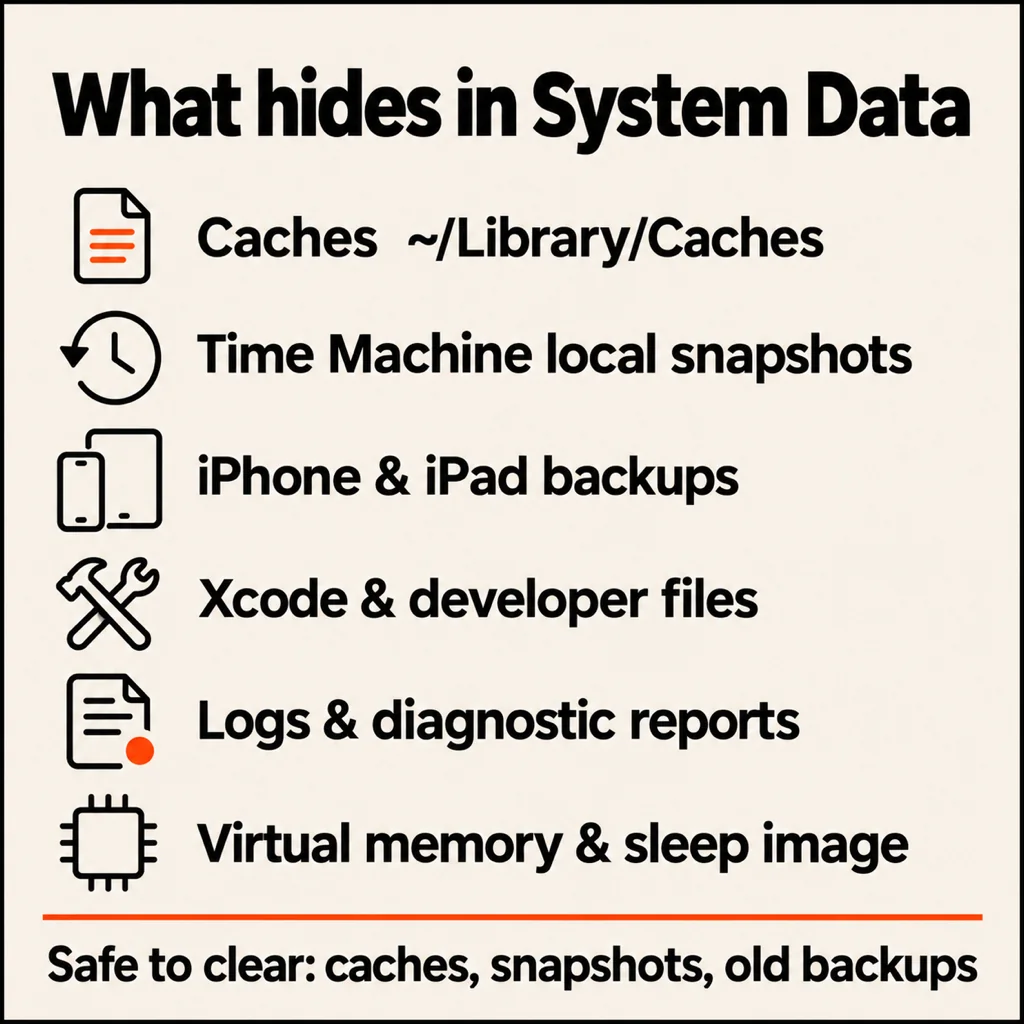
There is no single "clear System Data" button on a Mac. System Data is a catch-all label for files macOS can't put in another category: caches, logs, Time Machine local snapshots, old iPhone and iPad backups, virtual memory files and developer leftovers. To clear it, you shrink each of those piles one by one. A restart, deleting local snapshots, removing old device backups and emptying ~/Library/Caches usually win back the most space, often tens of gigabytes.
What is System Data on a Mac?
Open System Settings → General → Storage and hover over the bar. Apps, Documents, Photos and macOS each get a coloured segment you can click. System Data is the grey one with no info button, so you can't browse it from there. It holds:
- Caches that apps and macOS write to speed things up (
~/Library/Caches, browser caches, updater downloads). - Time Machine local snapshots, kept on your internal disk when the backup drive isn't plugged in.
- iPhone and iPad backups made through Finder, each one can be 10–100 GB.
- Logs and diagnostic reports, crash and spin reports piling up for years.
- Virtual memory: swap files and the sleep image in
/private/var/vm. - Developer files: Xcode DerivedData, simulators, iOS DeviceSupport, Docker images, package caches.
A normal Mac carries 10–30 GB of System Data. If yours shows 60, 100 or 200 GB, one of these piles has grown out of control.
Step 1: Restart your Mac
It sounds too simple, but a restart deletes swap files and temporary files and lets macOS purge caches it no longer needs. Check the storage bar before and after. If System Data drops by several gigabytes, most of it was temporary. Give Storage a minute to recalculate; the number is often stale right after boot.
Step 2: Delete Time Machine local snapshots
If you use Time Machine with an external drive, macOS keeps hourly snapshots on your internal disk while the drive is away. They are supposed to shrink when space runs low, but they often show up as System Data first. Open Terminal and list them:
tmutil listlocalsnapshots /Each line ends with a date like 2026-10-18-093012. Delete one with:
sudo tmutil deletelocalsnapshots 2026-10-18-093012Your real backups on the external drive are untouched. Plugging the backup drive in and letting a backup finish also clears them.
Step 3: Remove old iPhone and iPad backups
Device backups made on the Mac live in ~/Library/Application Support/MobileSync/Backup and are counted as System Data. To remove them safely, connect any device, select it in the Finder sidebar, click Manage Backups, choose the old ones and click Delete Backup. Keep the newest backup of any phone you still use, unless it also backs up to iCloud.
Step 4: Clear caches in ~/Library/Caches
In Finder, choose Go → Go to Folder, type ~/Library/Caches and press Return. Sort by size (View → Show View Options → Calculate all sizes). Folders named after apps you deleted are safe to remove. For apps you still use, deleting their cache folder is also safe: they rebuild it, just a little slower on first launch. Quit the app first, then empty the Trash, or the space doesn't come back.
Leave /System and /Library (without the tilde) alone. Those folders hold files macOS needs, and System Integrity Protection blocks most of them anyway.
Step 5: Delete old logs and diagnostic reports
Crash reports collect in ~/Library/Logs/DiagnosticReports and /Library/Logs/DiagnosticReports. They are only useful when you're debugging a crash. Old ones can go. Logs rarely add up to more than a gigabyte or two, so this step matters most on Macs that have been crashing.
Step 6: Clean developer files (the biggest pile for many people)
If you have ever installed Xcode, Android Studio, Docker or Node, this is probably where your System Data went. The usual suspects:
- Xcode DerivedData (
~/Library/Developer/Xcode/DerivedData): build intermediates, rebuilt on the next build. - iOS DeviceSupport: debug symbols for every iOS version you ever plugged in, often 10 GB or more.
- Simulators: run
xcrun simctl delete unavailableto drop devices for runtimes you no longer have. - Docker:
docker system pruneremoves stopped containers and dangling images. - Package caches: Gradle, npm, Homebrew (
brew cleanup), CocoaPods and SwiftPM.
Our longer guide, how to free up disk space on a Mac, goes through each of these with the commands.
How to clear System Data on Mac without CleanMyMac
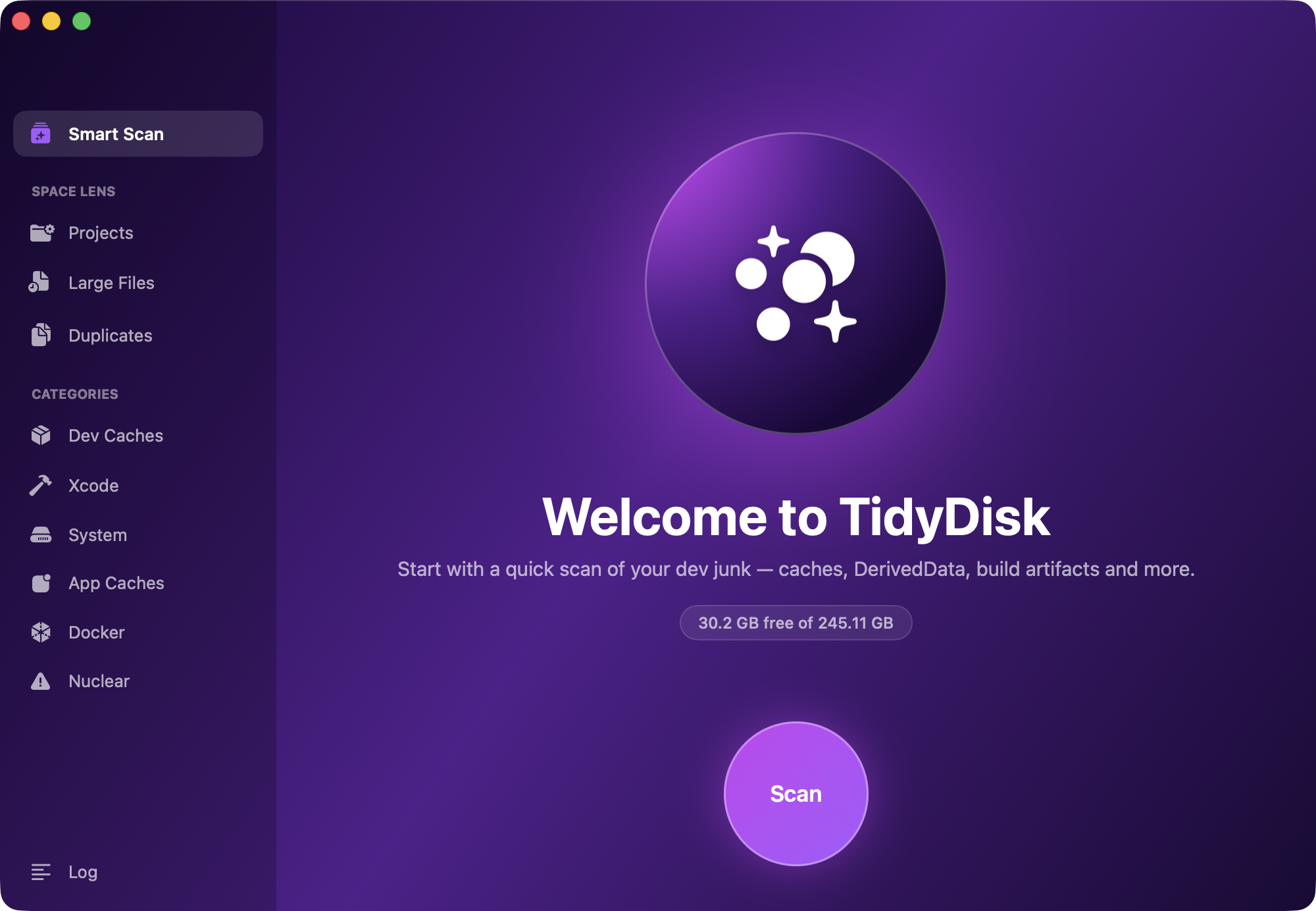
You don't need a paid cleaner. Everything above works by hand. If you'd rather not dig through Library folders, we built TidyDisk, a free and open-source Mac app (MIT licence, macOS 14 or later). It scans your Mac, shows what each item costs in gigabytes and cleans it in one pass, all on your Mac with nothing uploaded. It handles:
- Safe tier (pre-selected): Trash, old diagnostic reports, app updater leftovers, Xcode DerivedData and caches, Gradle, npm/pnpm/yarn, Homebrew, CocoaPods and SwiftPM caches, project build folders.
- Aggressive tier: Chrome, Slack, VS Code, JetBrains and Electron app caches, iOS DeviceSupport, old Xcode archives, unused simulators, Docker, old Android NDKs.
- Nuclear tier:
node_modulesin every project, only when you tick it.
It only lists what your Mac actually has, so a non-developer sees a short list. It doesn't touch Time Machine snapshots or device backups: do steps 2 and 3 yourself. Install it from the TidyDisk page or with Homebrew: brew install --cask prateekcode/tap/tidydisk.
Why does System Data keep growing back?
Caches, snapshots and build files are a flow, not a one-off. Every app update, every Xcode build and every hour without your backup drive adds more. A short monthly routine keeps it under control: restart, plug in the Time Machine drive, empty the Trash and run a cleaner (or the commands above). TidyDisk can also run a weekly scan from the menu bar and send a notification when there's a lot to clear.
Common questions
Is it safe to delete System Data on Mac?
Parts of it are. Caches, local snapshots, old device backups, logs and developer build files are safe to remove. Files in /System and /Library are not; leave those to macOS.
Why is my System Data so large?
Usually one pile: Time Machine local snapshots, an old iPhone backup, or developer files such as Xcode DerivedData, simulators and Docker images. Check those three first.
How do I clear System Data on a MacBook Air?
The steps are the same on every Mac, Intel or Apple silicon: restart, delete local snapshots with tmutil, remove old device backups in Finder, and clear ~/Library/Caches. Small 256 GB Airs feel it first, so the routine matters more there.
Can I clear System Data with Terminal?
Yes, for some piles: tmutil deletelocalsnapshots for snapshots, xcrun simctl delete unavailable for simulators, brew cleanup and docker system prune for package and container caches. Avoid sudo rm -rf on anything you can't name.
Does reinstalling macOS clear System Data?
It can, but it's the slowest fix and rarely needed. Try the six steps above first; they cover almost every case.