How to Add Location to Photos (iPhone, Android, Samsung and Google Photos)
How to add location to photos on iPhone, Android and Samsung, automatically or after taking them, plus how to show the address on the photo itself.
To add location to photos automatically, give your camera location access once: on iPhone, Settings → Privacy & Security → Location Services → Camera → While Using the App; on Android, switch on Location tags or Save location in the camera settings. To add a location to a photo after taking it, open it in Apple Photos (ⓘ → Add Location) or Google Photos (⋯ → Add a location) and search for the place. Both put the location in the photo’s details, where nobody sees it unless they look. If you want the address visible on the picture, you need a stamp, which is covered at the end.
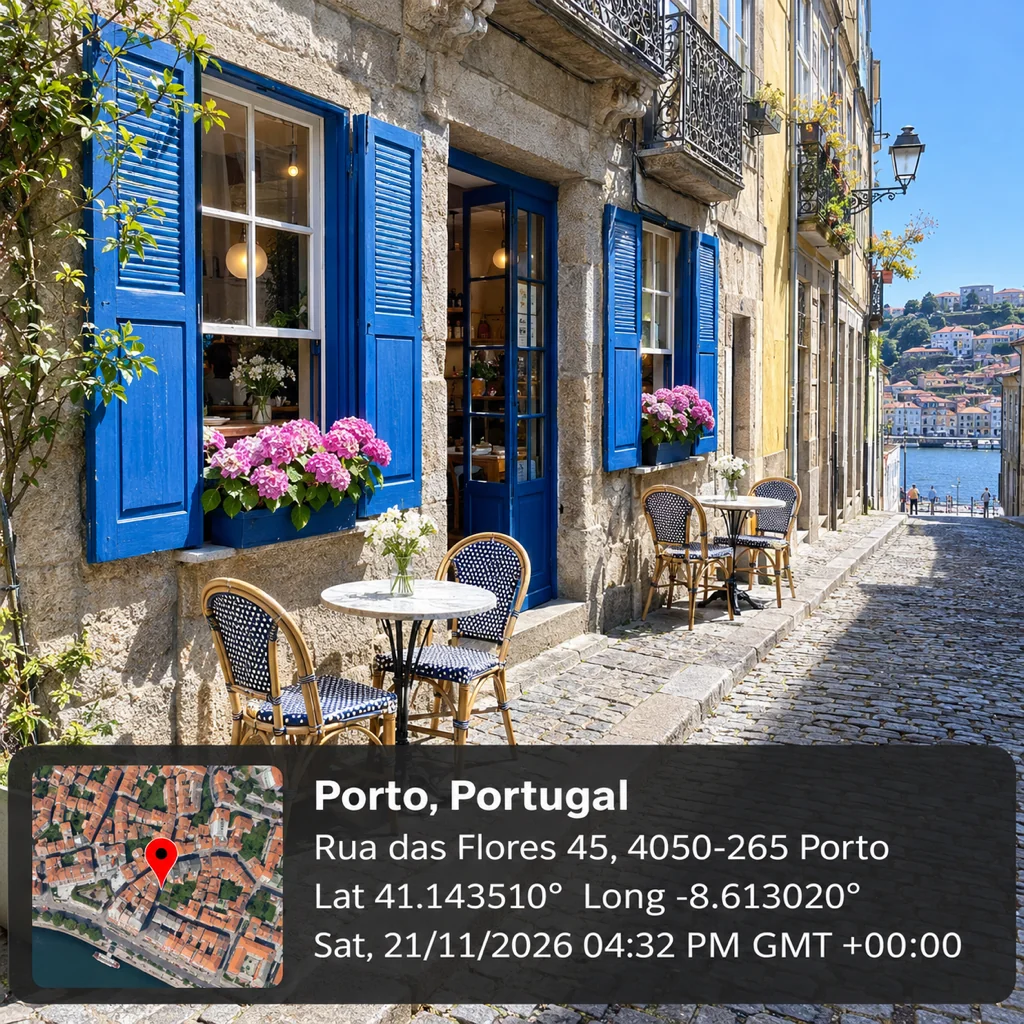
Two kinds of “location on a photo”
- Location in the details (the geotag): GPS coordinates saved in the file. Your gallery uses it for the map view and place search. It’s invisible on the picture, and most chat and social apps remove it when you send the photo.
- Location on the photo (a stamp or caption): the place name, address or coordinates drawn onto the image. Anyone can see it, and it survives screenshots, WhatsApp and printing.
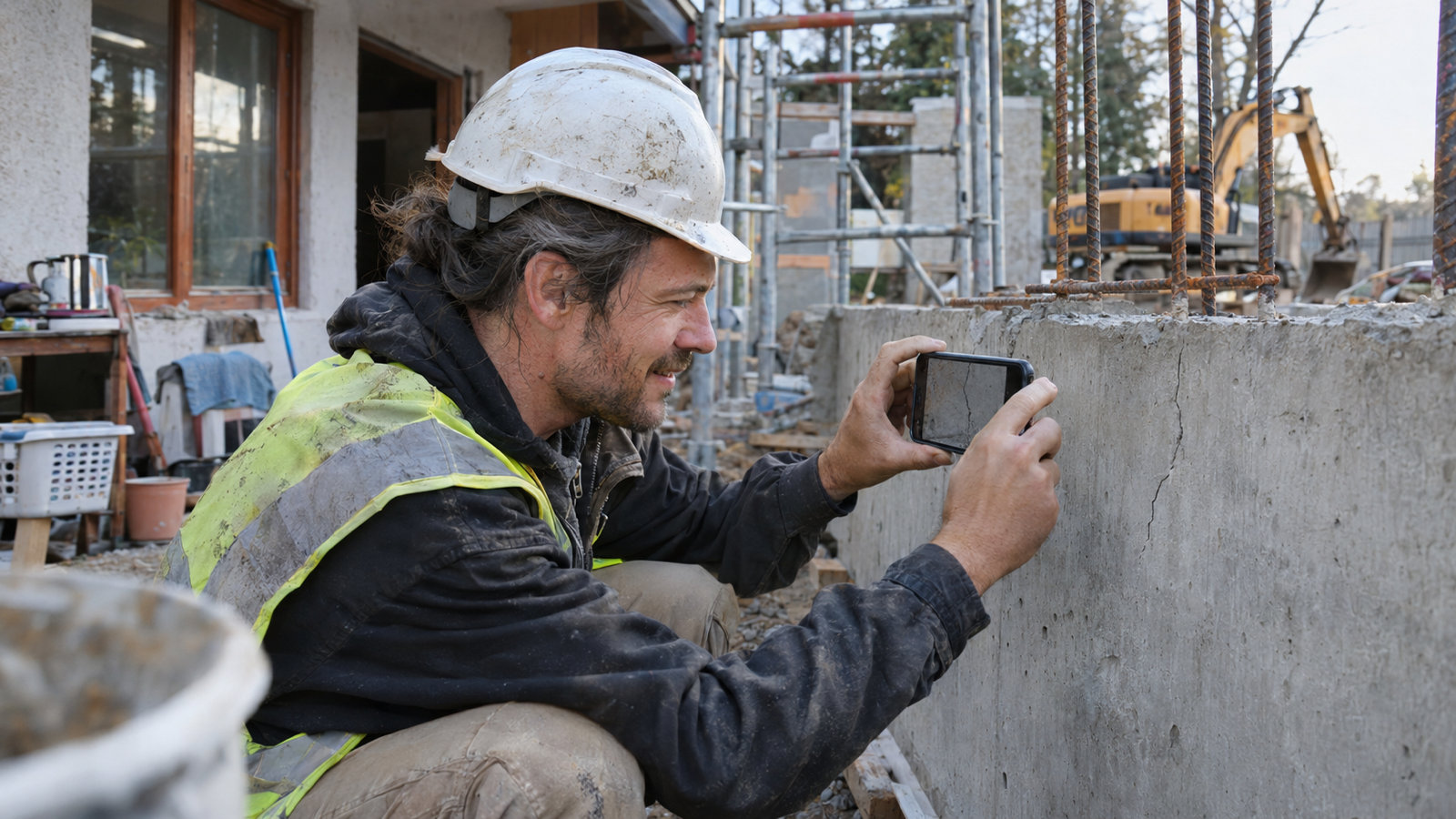
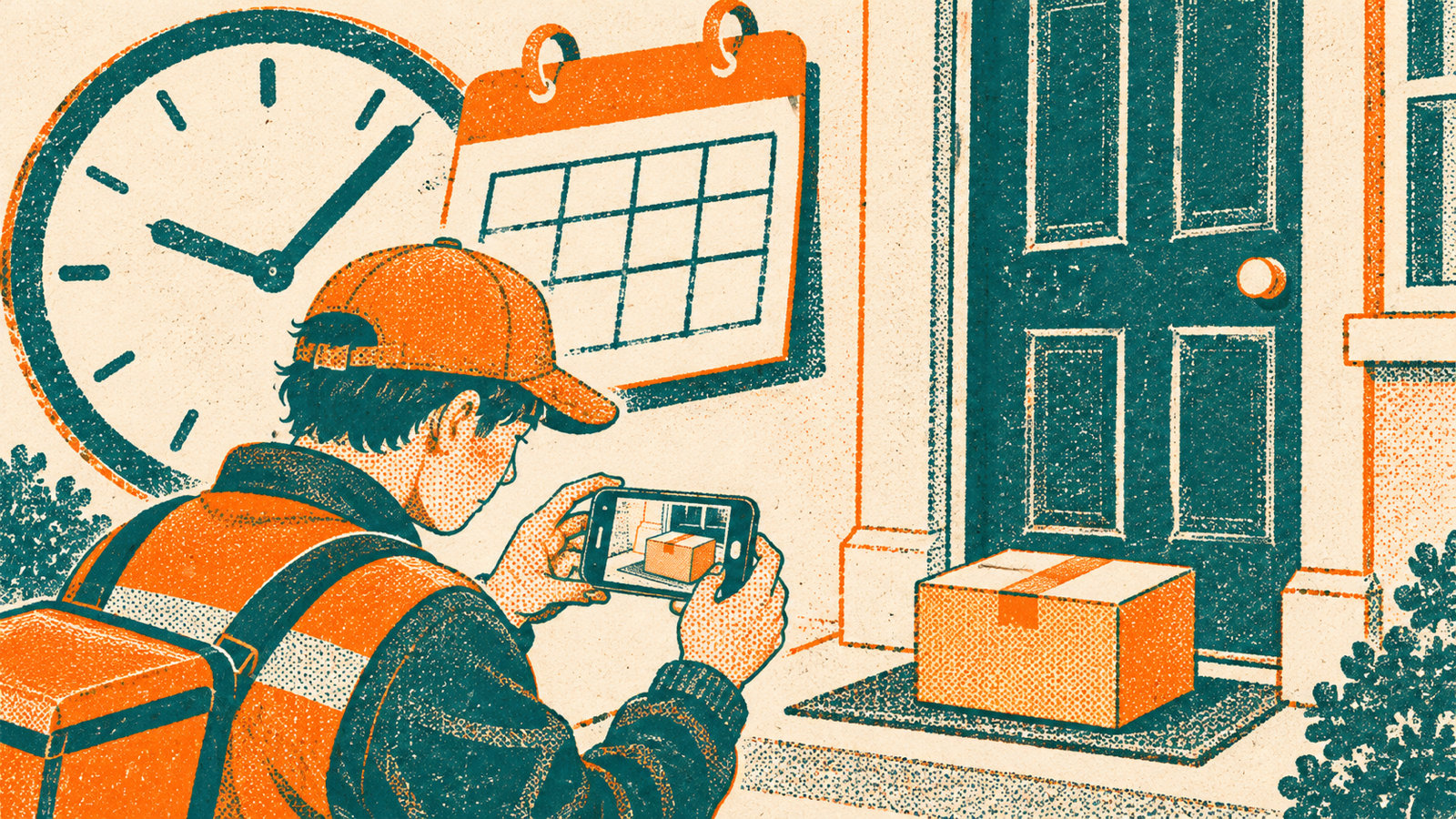
Holiday albums only need the first. Site visits, deliveries, inspections and claims usually need the second.
How to add location to photos on iPhone automatically
- Open Settings → Privacy & Security → Location Services and turn it on.
- Tap Camera, pick While Using the App and turn on Precise Location.
From then on every photo carries its location. Open one in Photos and swipe up to see the map. Photos taken while the setting was off stay without a location, so add those by hand as below.
How to add location to photos on iPhone after taking them
- Open the photo in Photos and tap ⓘ (or swipe up).
- Tap Add Location (or Adjust if it already has a wrong one).
- Search for the place, tap the result, and the map updates.
For a whole trip at once, tap Select, choose the photos, tap ⋯ and choose Adjust Location. The same steps work on iPad, and on a Mac in Photos via Window → Info.
How to add location to photos on Android
Automatically: open your Camera app’s settings and switch on Location tags (Samsung), Save location (Pixel) or the “Location” / “GPS tag” option on other brands. Android’s own Settings → Location must be on, and the camera needs location permission (“Allow only while using the app”).
After taking them, in Google Photos:
- Open the photo and swipe up, or tap ⋯.
- Under the details, tap Add a location, or the pencil next to an estimated one.
- Search for the place and tap it.
On Android this works for photos backed up to Google Photos. On photos.google.com you can select many photos and use Edit location for all of them in one go.
How to add location to photos on a Samsung phone
For new photos, open Camera → ⚙ Settings and switch on Location tags. For older photos, open the picture in Gallery, swipe up to the details and tap Edit; on recent One UI versions you can set the date, time and location there. If your Gallery doesn’t offer it, use Google Photos as above.
How to add a location on Instagram and in captions
Instagram removes the location saved in the photo file, so it never reads it. Add the place yourself: when posting, tap Add location on the caption screen; in a story, add the Location sticker. You can add or change a post’s location later with ⋯ → Edit.
How to show the location on the photo itself
Typing the address onto a picture with a text tool works once, but it’s slow and anyone can type anything. A GPS map camera reads the location the moment you press the shutter and prints it for you, which makes it believable as proof.
GPS Map Camera & Coordinates, our Android app, opens straight on the camera, with no ad before the shot. The live stamp on the viewfinder is what gets saved. The Classic stamp shows a satellite map, the place name, the full address, latitude and longitude, the date, the time and the GMT offset. The Minimal stamp puts the coordinates and time on one line. If the detected address is wrong, you can type over it and the app keeps your version for later photos taken at the same spot, or fix one photo after the shot, because it is redrawn from the original. Each photo also keeps its GPS position in the file, lands in a “GPS Map Camera” album in your gallery, and can be shared with its coordinates and a Google Maps link.
The Classic and Minimal stamps are free; free photos carry a small app tag. GPS Pro is a one-time purchase. It adds the Survey stamp (altitude, accuracy, compass direction, a note and your logo), removes the tag and ads, and unlocks location history and export. It stamps photos taken in the app, not ones already in your gallery.
Common questions
How do I add location to photos already taken?
On iPhone, open the photo, tap ⓘ and choose Add Location or Adjust. On Android, open it in Google Photos, tap ⋯ and choose Add a location. You pick the place yourself; nothing can detect where an untagged photo was taken.
Why doesn’t my iPhone add location to photos?
The Camera has no location access. Go to Settings → Privacy & Security → Location Services → Camera and choose While Using the App. Also check that Location Services is on and that you have a GPS fix (step outside if you’re deep indoors).
How do I add location to photos automatically on Android?
Turn on Location tags (Samsung) or Save location (Pixel) in the camera settings, keep Android’s Location on, and allow the camera to use location while it’s open.
Can I show the address on the photo?
Yes, with a GPS map camera app that stamps the place, address, coordinates, date and time onto the image when you take it. Unlike the hidden location, a stamp stays visible after WhatsApp, screenshots and printing.
What is a good app to add location to photos?
For hidden location, your phone’s own camera plus Google Photos or Apple Photos is enough. For a visible stamp on Android, GPS Map Camera & Coordinates prints the address, coordinates and a map on each photo and saves the GPS position in the file; its Classic and Minimal stamps are free.
The short version
Allow location for the camera once, add a place by hand to older photos, and stamp the address on the picture when someone else needs to see it. For the technical side, read how to geotag photos; to send a place as numbers, see how to share location coordinates.
From the studio
Previous Article
How to Geotag Photos (iPhone, Android, Already Taken and on a Computer)
Next Article
How to Add Timestamp to Photos (Android, iPhone, Samsung and Already Taken)